

Details
The brand new 2D Bead tool available on In-Sight Vision Suite provides the same functionality as the Bead Inspect from In-Sight Explorer with a minor difference with editing inspection areas that is highlighted below.
Open Vision Tools and look for Bead tool listed on top
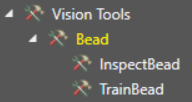
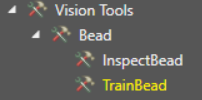
Select TrainBead tool and double-click on it
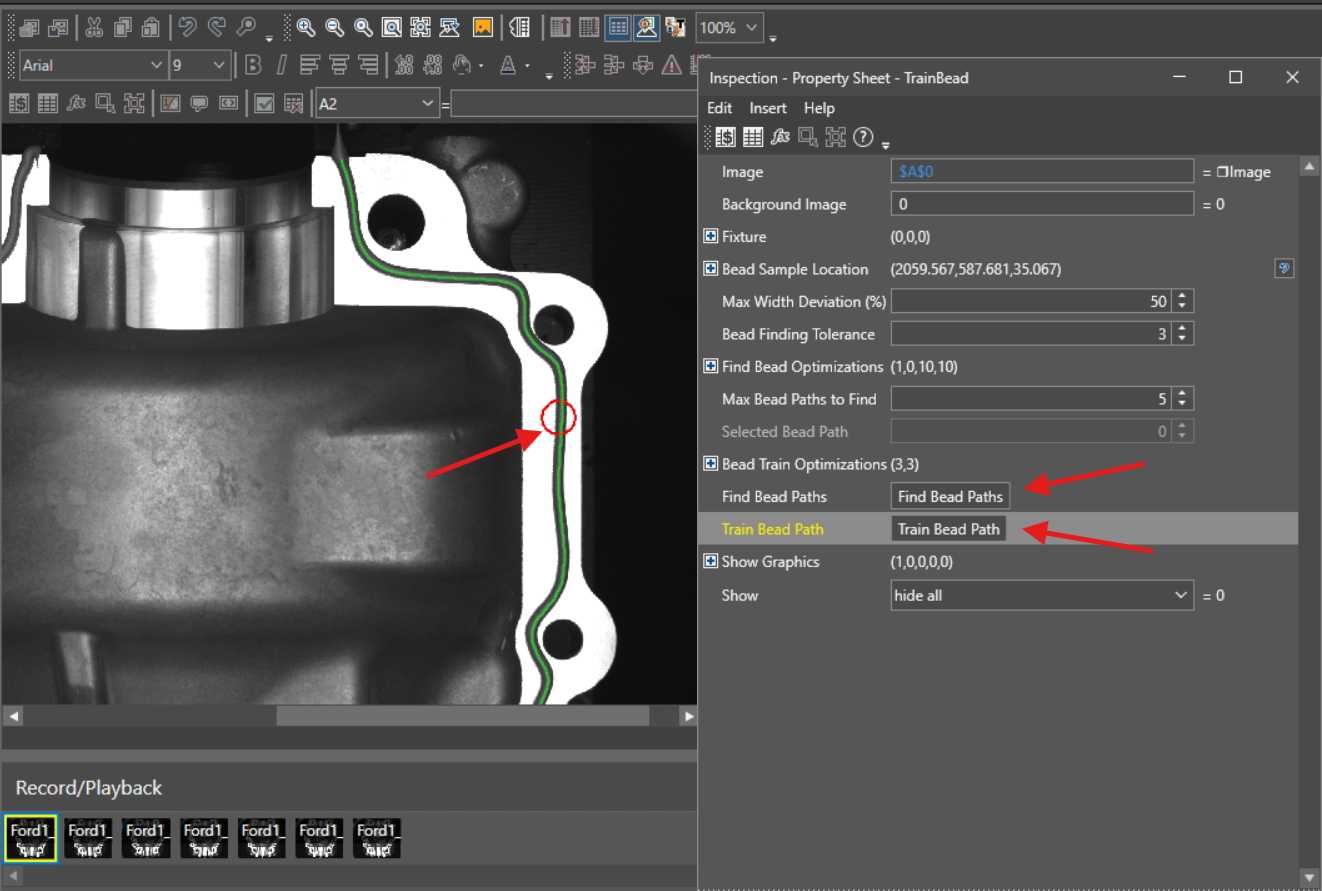
In the new window double-click on Bead Sample Location and move the red circle on the bead
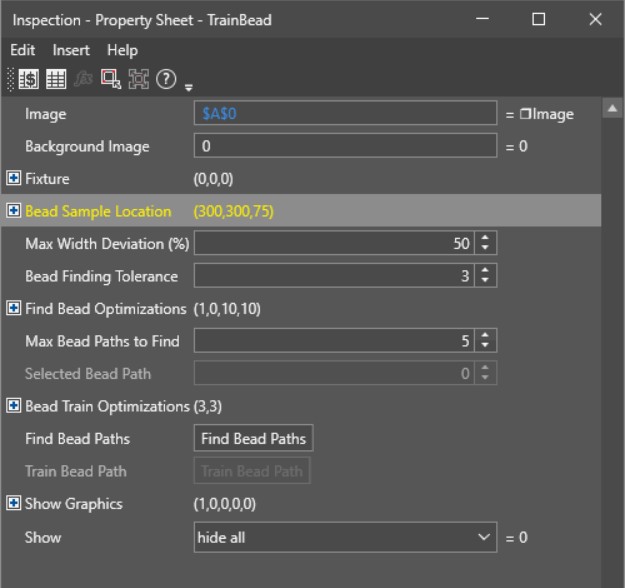
- Make sure that it covers the area of bead but don't touch edges. Once it's done hit Enter key.
- Click on Find Bead Path
Edit Bead Path is now located at the bottom of the window in case you want to make a final adjustment before training (ISE has a different location for it)
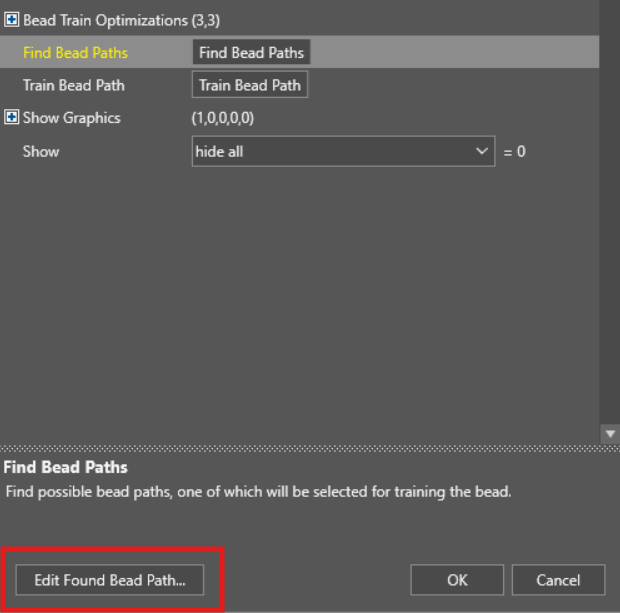
Click on Train Bead Path and check the final result
- Click OK
- Select InspectBead tool from the list and double-click on it
- Connect it with the TrainBead cell number as shown below
- Select what the tool will show
Finally Edit Fill and Mask Areas that are now located at the bottom of the window (In-Sight Explorer has a different location for it)
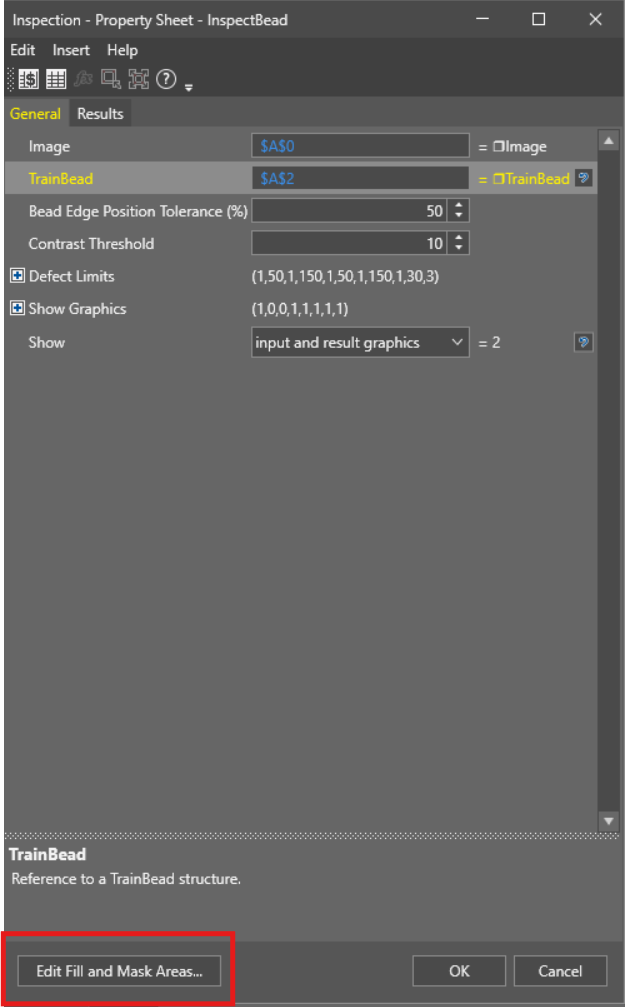
- Once it's done hit OK button
After testing the image set you can fix false defects by opening the Results tab of the InspectBead tool and clicking the Fix button
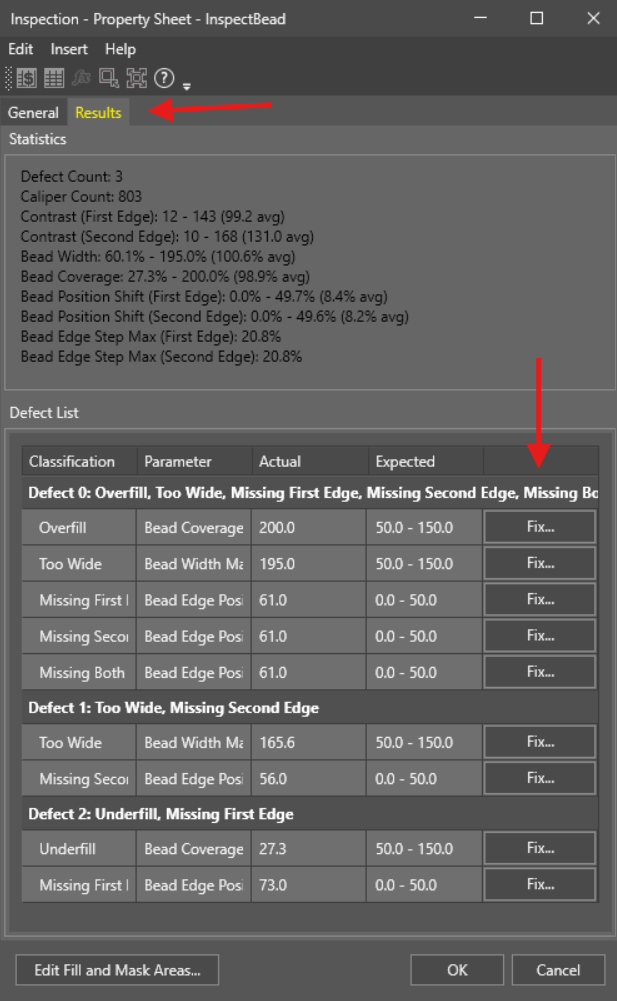
- Click OK and you are done
