Cognex 支持中心


How to Configure a Handheld Scanner to be Used as a Keyboard Wedge
Instructions for how to configure older models of the DataMan handheld readers to output keyboard strokes when decoding a code
2024/09/15
Instructions for how to configure older models of the DataMan handheld readers to output keyboard strokes when decoding a code
PART ONE - Configuring a USB Scanner to be used as a keyboard wedge.
NOTE: Either the scanner’s base or the scanner itself will need to be connected by USB for the scanner to be used as a keyboard wedge. Cognex devices connected by Ethernet cannot be used as a keyboard wedge.
For a handheld or fixed mount camera connected by a USB cable, open the DataMan Setup Tool (DMST) application and connect to the scanner.
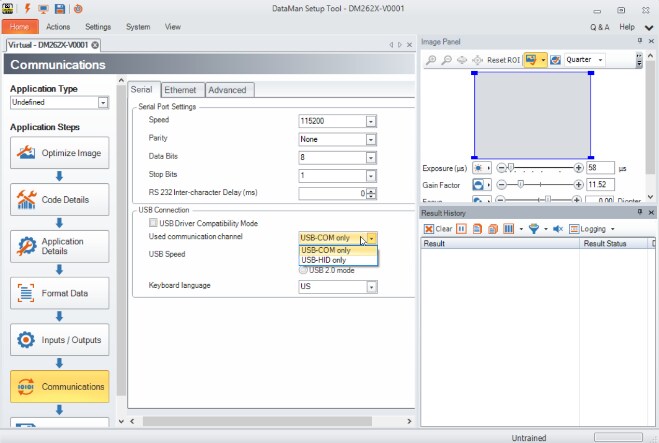
A notice will display that the scanner will need to power-cycled for changes to take place. Click on the triangular notice to reboot the scanner.

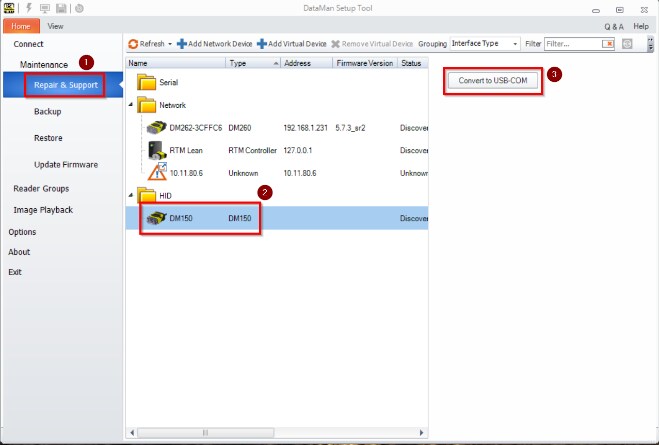
To change the device back to USB-COM mode open the DataMan Setup Tool application and go to the Repair & Support section on the left-hand side. Highlight the device in HID mode and click the Convert to USB-COM button.
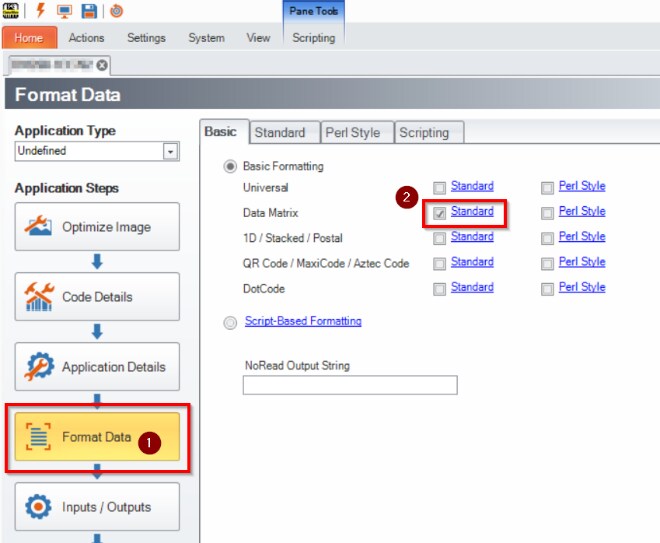
PART TWO - Settings to format the output data to applications such as Excel.
NOTE: If you just completed the instructions above you may need to take the scanner out of HID mode in order to apply these settings (previous page).
Then click the blue Standard link to enter that section.
NOTE: If you place a check next to Universal this will apply the settings to all symbologies.
Next, highlight the <Full string> in the Data section and click the Add button. Doing so should add the <Full string> in the text box below the Add button.
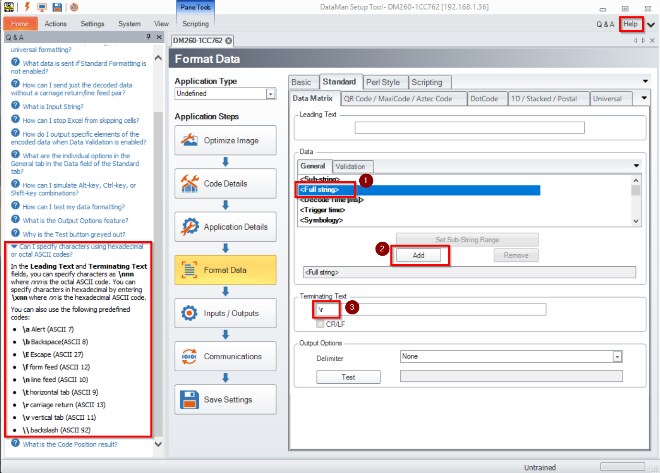
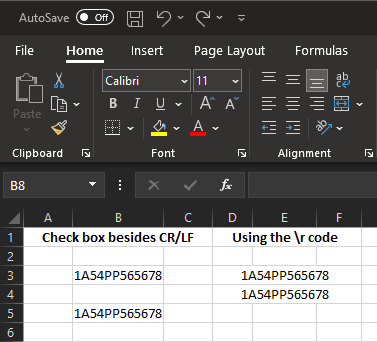
The overall intention of this section was to answer the question, “How do I configure my scanner to be used as a keyboard wedge so I can output data to Excel with a single carriage return.” These are very basic instructions. From the format data section access the Help section for additional formatting options.