Cognex 支持中心


GPU Memory Allocation, Optimized Memory: Failed to Allocate Memory, Failed to Allocate CUDA Device Memory Triggered by the Deep Learning Software
Errors related to the (GPU) memory allocation in the Deep Learning software
2025/01/31
Errors related to the (GPU) memory allocation in the Deep Learning software
when working with Deep Learning software like ViDi or the VisionPro Deep Learning Studio, you might run into a GPU allocation error;
for example:
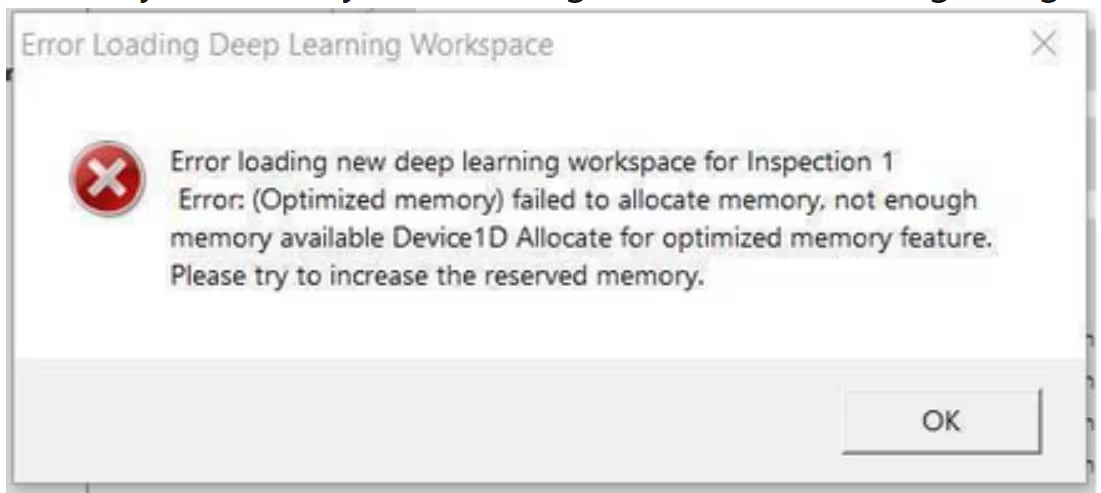
By default, the software allocate some GPU memory on the PC, the so-called Reserved or "Optimized-GPU-Memory".
The default value is set to 2048 Mb and it has to be intended as an amount of memory that will be reserved for the application. It doesn't have to be used as a limitation: if needed, the application might use more memory but that's an amount reserved since the software execution.
It often happens, especially for complex workspaces with a lot of tools or lot of images or complex inspections requiring more resources, that the amount requested is higher than the default value.
You can get an idea about the PC requirements - especially for the Training Machine - from the documentation of each released software version, for example, for the latest today VPDL 3.3.2:
Cognex Deep Learning Help - PC Requirements - Documentation | Cognex
It is possible to increase the value of the optimized-GPU-Memory to allow the Deep Learning software to allocate more GPU resources; it can be done:
from the software GUI, Options button from the Splashscreen:
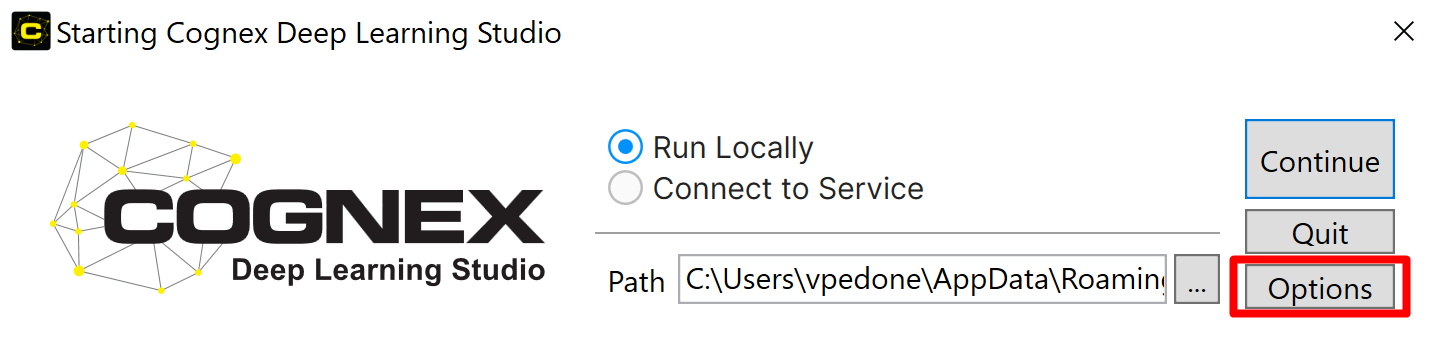
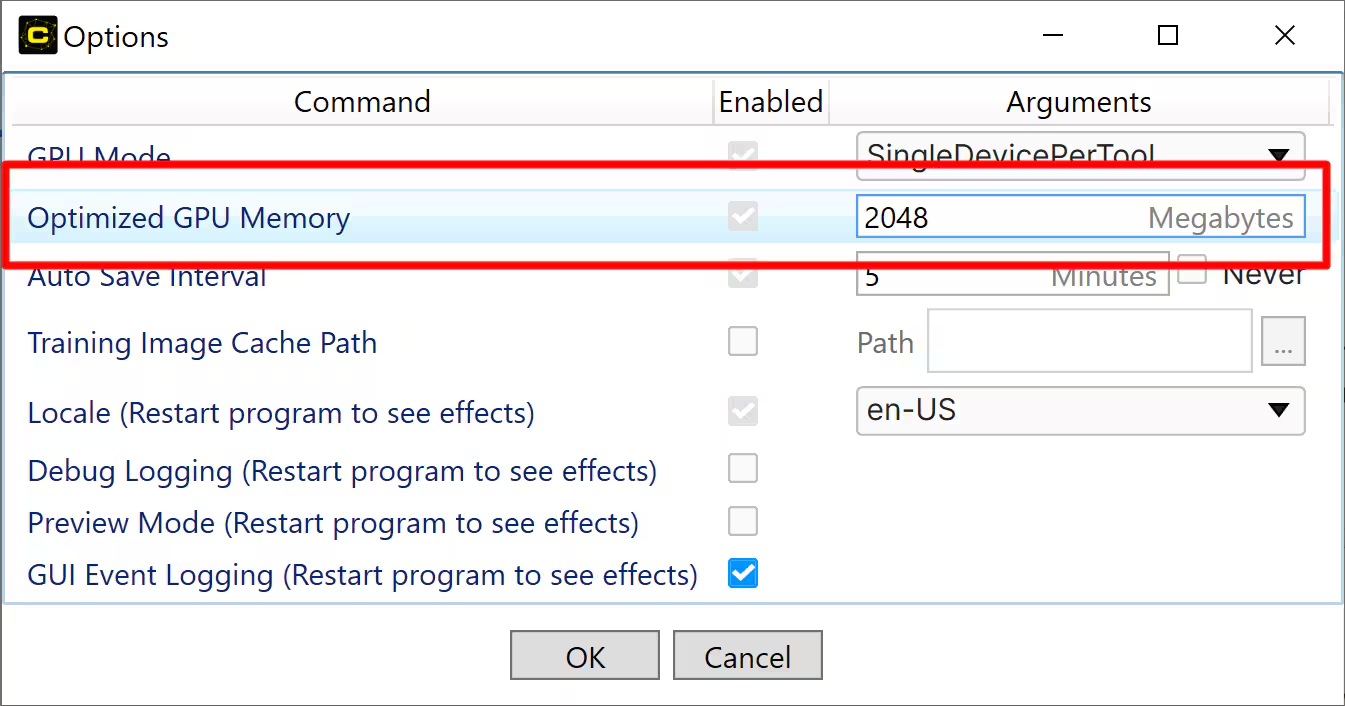
from the command prompt, using the GPU command line initialization
--optimized-gpu-memory=memory size, in MB
--optimized-gpu-memory-override=[0 or 1]
Example:

.NET
| control.OptimizedGPUMemory(2.5*1024*1024*1024ul); |
C
| vidi_optimized_gpu_memory(2.5*1024*1024*1024); |
Please Note!!!
Specific Cases like the usage of High Detail Mode Tools require the Optimized-GPU-Memory to be disabled!
To do that, the value should be just set to 0.
Workspace where both Focus Mode and High Detail Mode Tools are used require the Optimized-GPU-Memory to be disabled as well; more details at: Cognex Deep Learning Help - Configure GPU - Documentation | Cognex
When using the command line options, use the override = 1 once you found an amount of value so that the application doesn't run into memory issue as it will override the value for the future usage of the software.
If you don't override, you should launch each time the software using the optimized-gpu-memory command as once the software will be closed the value will be reset to the latest saved (the default if you never overwrite).