Cognex 支持中心


Script - Application with NTP for Adding Timestamps to Saved Images over FTP
Sample script with description how to set up FTP, NTP, and the name of saved images with the current date
2025/04/15
Sample script with description how to set up FTP, NTP, and the name of saved images with the current date
Purpose
This script is intended for use in applications where it is necessary to add a timestamp to scanned results or images saved via FTP.
Hardware
This script is designed to work with fixed-mount readers and has been tested on the DataMan 470 series.
Hardware List:
The system requires access to the NTP server to synchronize the internal clock. If access is not provided, the system will operate on the default date and time.
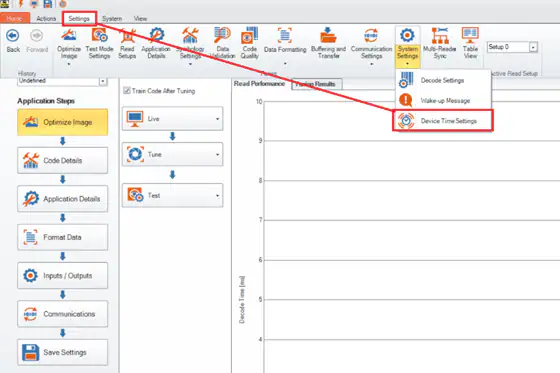
To set up the NTP server on the reader, navigate to the Settings tab.
You will need to fill in the required fields, including the time zone. Optionally, you can enter the NTP server address for date/time synchronization.
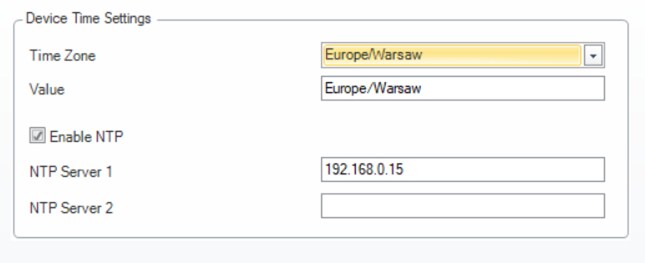
Once the data is entered, save all settings and reboot the device.
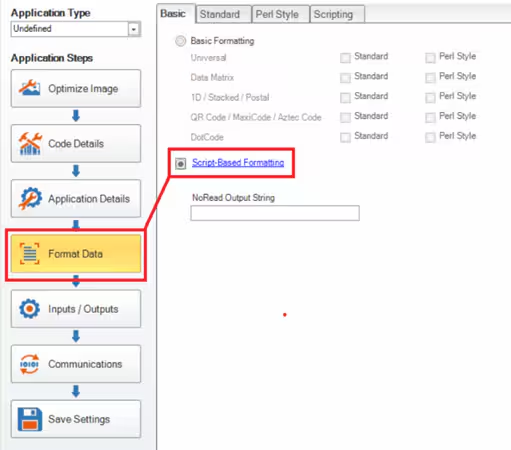
Scripting should be enabled under the Format Data tab.
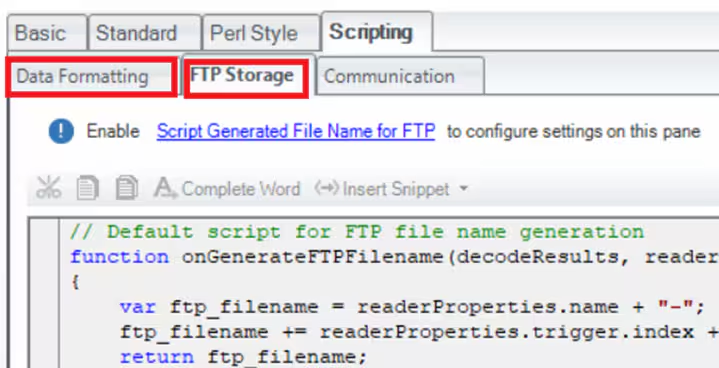
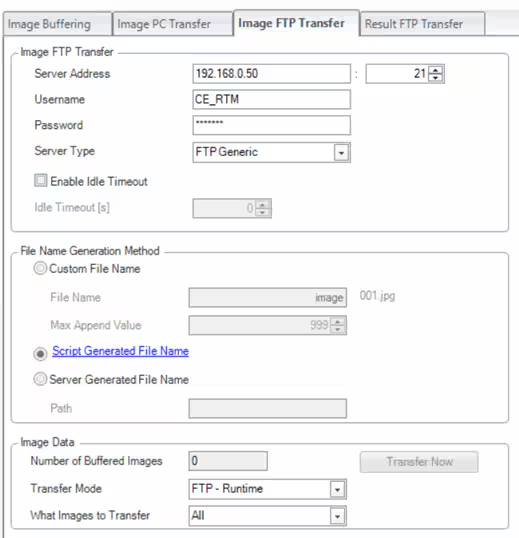
Both scripts should be uploaded to their respective tabs (Data Formatting and FTP Storage).
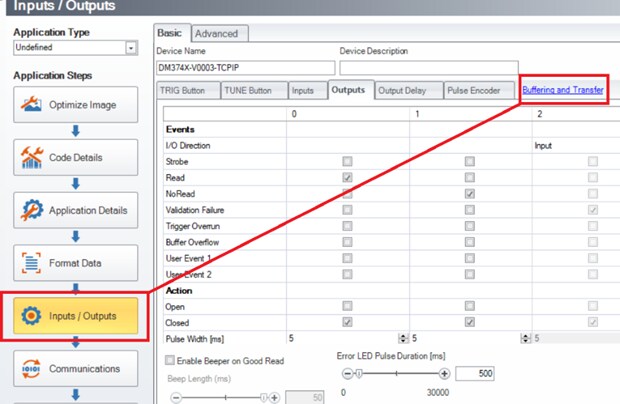
To set up FTP storage for images, go to the Buffering and Transfer settings.
javascriptKopiuj'use strict';
/***********************************************
* Script type: Data Formatting Script
* Reader type: DM475
* Firmware: 6.1.16
* Customer name: Test
* End User name: Test
* Script ID: Test
* Author:
* Created on:
* Purpose: Adding timestamp to output result and saved image via FTP
* Requires DF Script: This
* Requires FTP Script: This
* Requires Comm Script: No
* Current version 1.0
* History:
************************************************/
// Declaration of constants
const ENTER = '\x0D\x0A'; // Enter sign in Windows
const NOREAD = 'No Read'; // No read string
// Declaration of variables
let outPut = ''; // Output String
let imageName = ''; // Name of image to be saved via FTP
// Function to get current date (format YYYY-MM-DD)
function getDateString(date) {
let dateBuilder = date.toString().split('/');
let dateString = "20" + dateBuilder[0].slice(2, 4) + "-" + dateBuilder[1] + "-" + dateBuilder[2];
return dateString;
}
// Function to get current time (hours, minutes, seconds, milliseconds)
function getTimeString(time) {
let timeBuilder =
("0" + time.getHours()).substr(-2) +
("0" + time.getMinutes()).substr(-2) +
("0" + time.getSeconds()).substr(-2) +
("00" + Math.floor(time.getMilliseconds() / 10)).substr(-2);
return timeBuilder;
}
// Main function that runs after each trigger
function onResult(decodeResults, readerProperties, output) {
outPut = NOREAD; // Default output string
let date = new Date(); // Retrieving whole time/date string
let dateString = getDateString(date.toJSON().slice(0, 10).replace(/-/g, '/'));
let timeString = getTimeString(date); // Extracting current time string
if (decodeResults[0].decoded) {
outPut = decodeResults[0].content;
}
imageName = outPut + '_' + dateString + '_' + timeString;
// Outputting data
output.content = outPut + '_' + dateString + '_' + timeString + ENTER;
}
javascriptKopiuj// Script for FTP file name generation
function onGenerateFTPFilename(decodeResults, readerProperties, output) {
var ftp_filename = '';
ftp_filename = imageName;
return ftp_filename;
}