

Details
Set Network Adapter IP Addresses
The Network Adapter IP settings can be configured either in Windows Network Connections or Cognex GigE Vision Configuration Tool. Each GigE Vision network adapter (or each port of a multi-port adapter) must have its own IP address on its own subnet.
If you are not familiar with TCP/IP networking, we recommend using the following values:
| Network Adapter | IP Address | Subnet Mask |
| Adapter port #1 | 192.168.21.203 | 255.255.255.0 |
| Adapter port #2 | 192.168.22.203 | 255.255.255.0 |
| Adapter port #3 | 192.168.23.203 | 255.255.255.0 |
| Adapter port #4 | 192.168.24.203 | 255.255.255.0 |
Set Camera IP Addresses
The camera IP settings can be configured in Cognex GigE Vision Configuration Tool. Each camera must have an IP address in the same subnet as its network adapter. For example, with a network adapter IP address of 192.168.21.203 and a subnet mask of 255.255.255.0, the camera connected to this network adapter can be numbered from 192.168.21.1 to 192.168.21.254, excluding 192.168.21.203 (the network adapter IP address).
Check Windows Firewall Status
The Cognex GigE Vision Configuration Tool indicates the Windows Firewall On/Off status for the selected adapter port. This must be set to Off to acquire images. Be aware that the utility only detects the local setting for Windows Firewall, and not any settings determined by a group policy that overrides the local setting on this PC.
Change System Properties
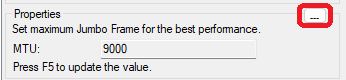
Click on the three dots next to Properties in Cognex GigE Vision Configuration Tool to open the Network Adapter Properties dialog.
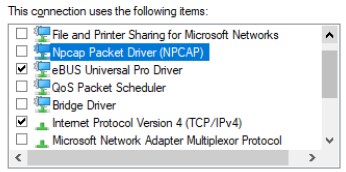
In the Networking tab, clear all the checkboxes listed under This connection uses the following items except for eBUS Universal Pro Driver and Internet Protocol Version 4 (TCP/IPv4).
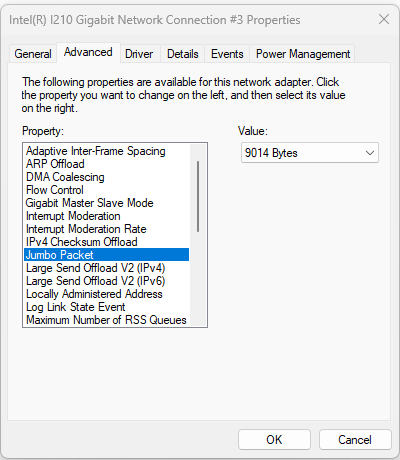
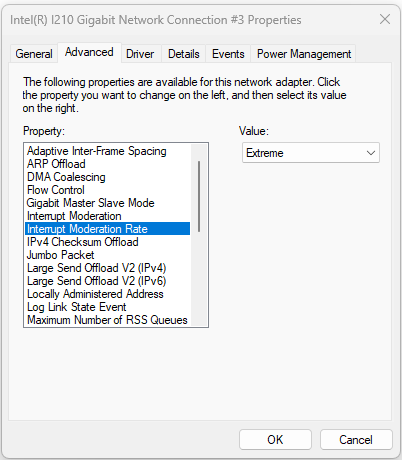
Click on the Configure... button in the Network Adapter Properties dialog and select the Advanced tab, then set the following properties:
Change the Jumbo Packet property to 9000 bytes or greater:
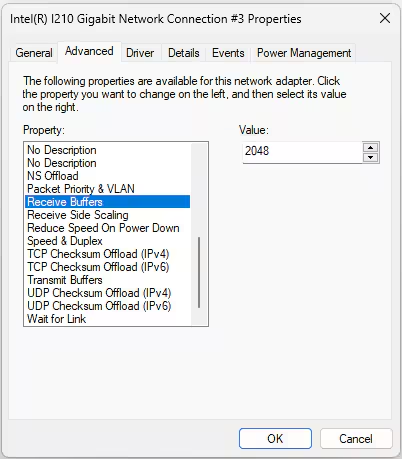
Change the Receive Buffers property to the highest possible value:
Change the Interrupt Moderation Rate property to Extreme:
You can check the GigE Vision Cameras User Guide for further details.
