Details
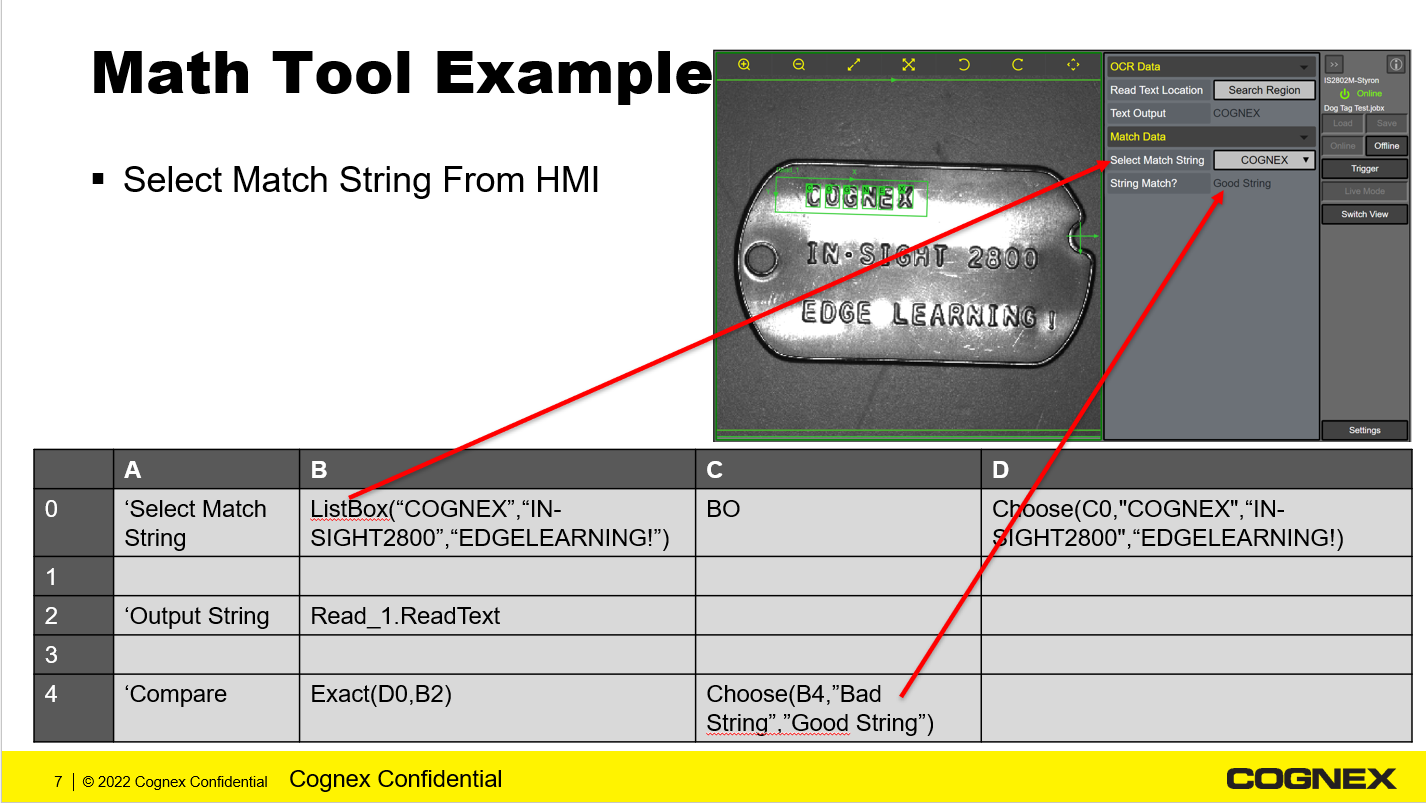
When using EasyBuilder, you can display the drop-down menu on the WebHMI using the Math Tool and the ListBox() and Choose() functions.
In this example:
- Create a List of Match String Choices:
- Use the function ListBox("COGNEX","IN-SIGHT2800","EDGELEARNING!")
- Read the List Box choice:
- Type B0 into Cell C0. This will give you the Index Number of the ListBox() function
- Use the List Box Index to and the Choose() function to Output the Chosen String:
- Choose(C0,"COGNEX","IN-SIGHT2800","EDGELEARNING!")
- Read_1.ReadText:
- Bring the text string from ViDi EL Read into the Math Tool
- Compare the ViDi Read EL String with the Customer Selected Match String
- Use the function Exact(D0,B2)
- Output whether the Match String and the Read String Match
- Use the function Choose(B4,"Bad String","Good String")
Here is a graphical representation of this example.