

Question
How do I save images on the PC using the WriteImageFTP Spreadsheet Function and the FileZilla Server?
Answer
FileZilla Server
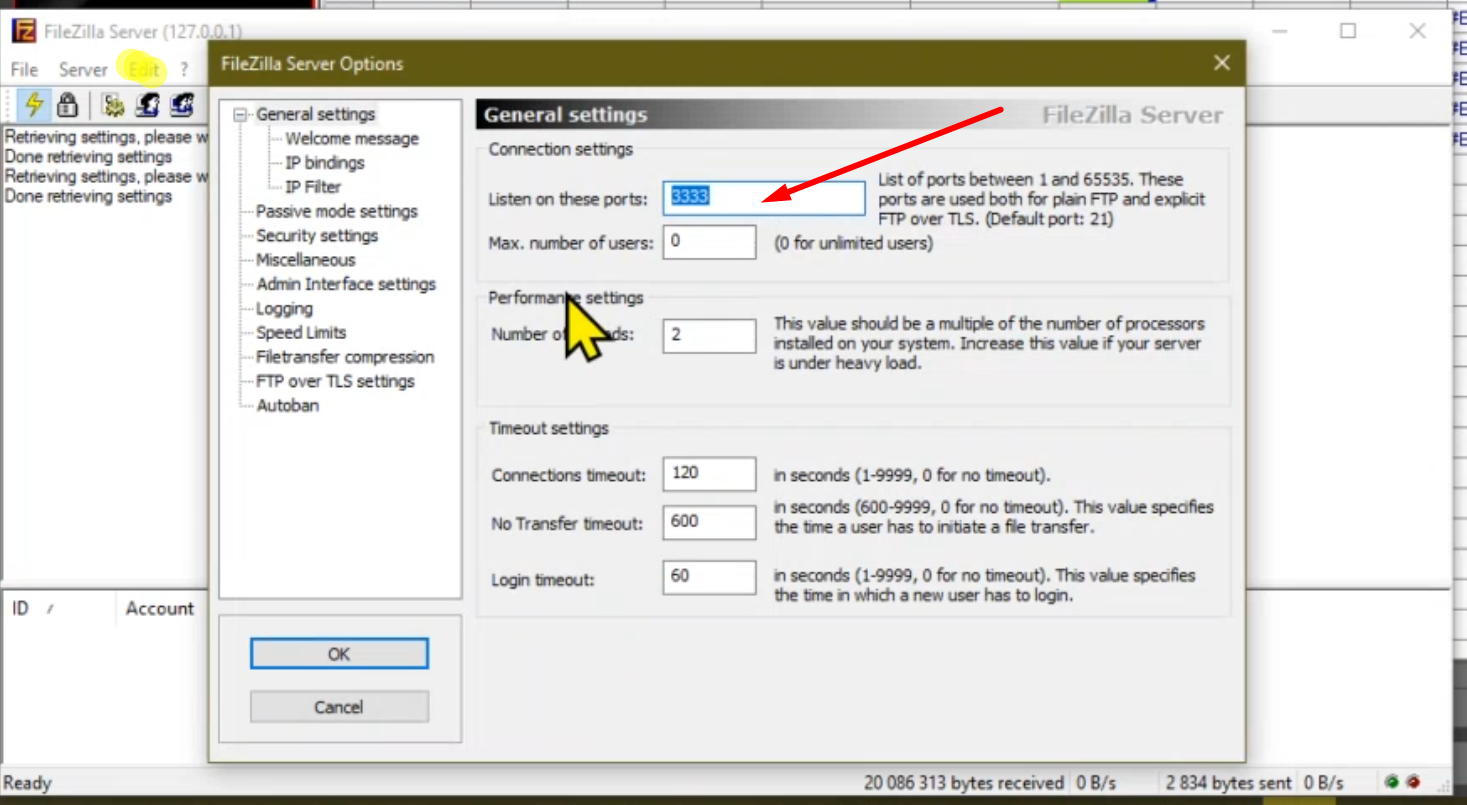
- Run the FileZilla server and Set the Listening Port
- (Edit>Settings)
- Don’t use Port 21 as it is already used by the camera
- Create a User (Edit>User)
- And add a shared folder (i.e. C:\FTP), check all the actions both for Files and Directories and click on “set as home dir”
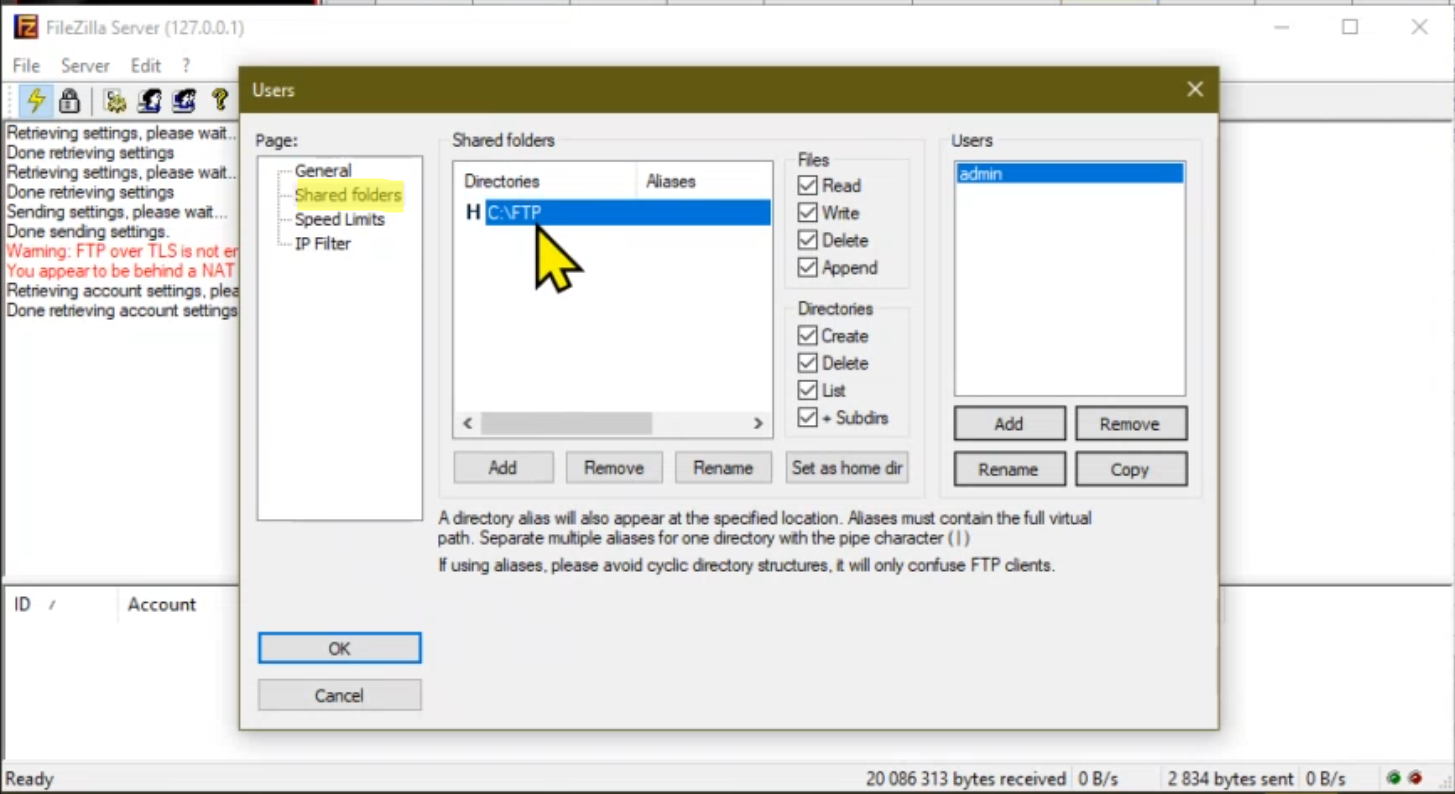
Note: The FileZilla Server is running on local host (i.e. IP 127.0.0.1): this is NOT the IP address you’ll have to add in the WriteImage function
In-Sight D900 camera
- Enter to the Server field the IP address of your PC followed by :listening port
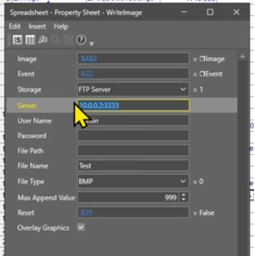
- The event can be the acquisition (A0) or the result of a tool/other
- User name and password are the ones the user created in FileZilla
- File Path: leave it empty if you want the images to be saved in the home dir (the shared folder set in FileZilla) or add \foldername if you need to create a subfolder
- The filename (not the path followed by the filename nor .bmp after the filename, just the name of the image)
