Question
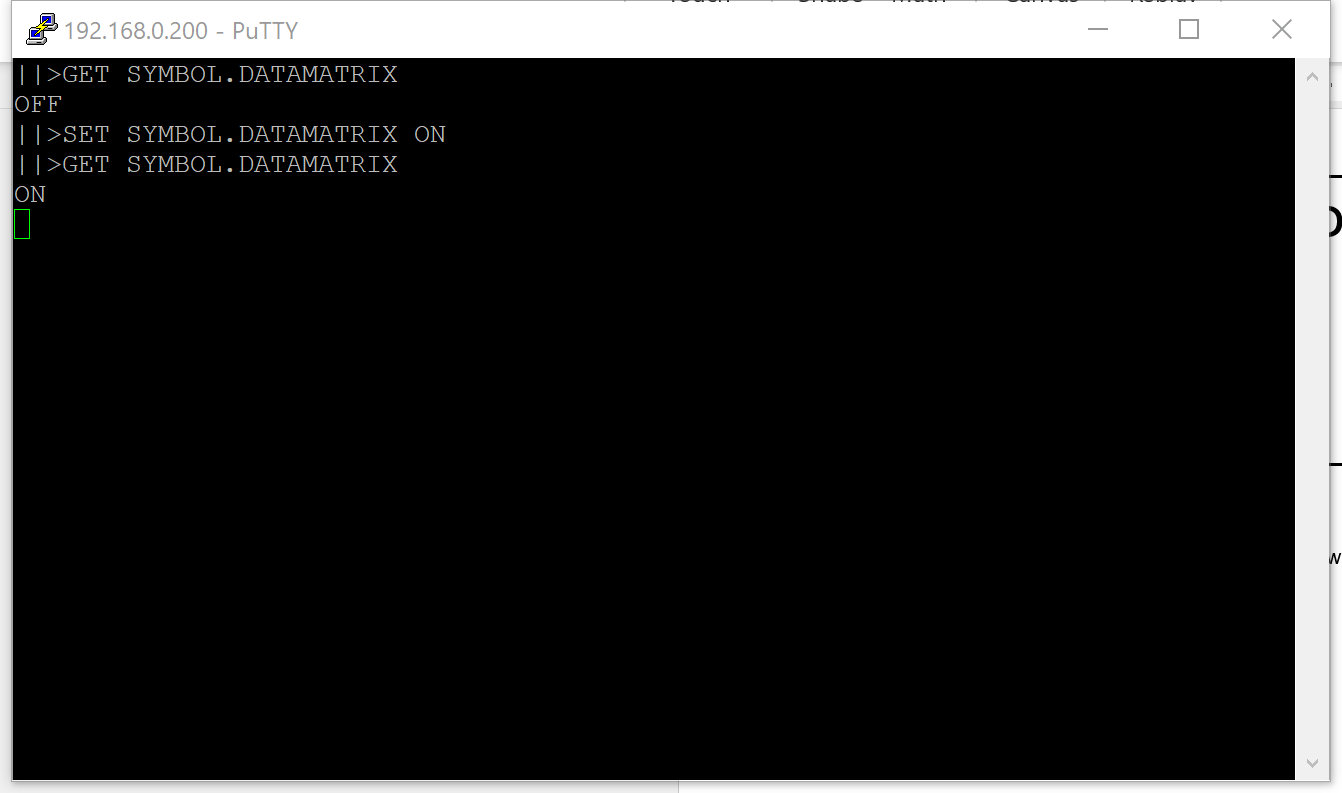
When troubleshooting or testing sometimes there is the need to send DataMan Control Command to reader, for this we can use PuTTY to send the DataMan Control Command code.
Answer
- Download PuTTY from Download PuTTY: latest release (0.78) (greenend.org.uk)
- Install PuTTY
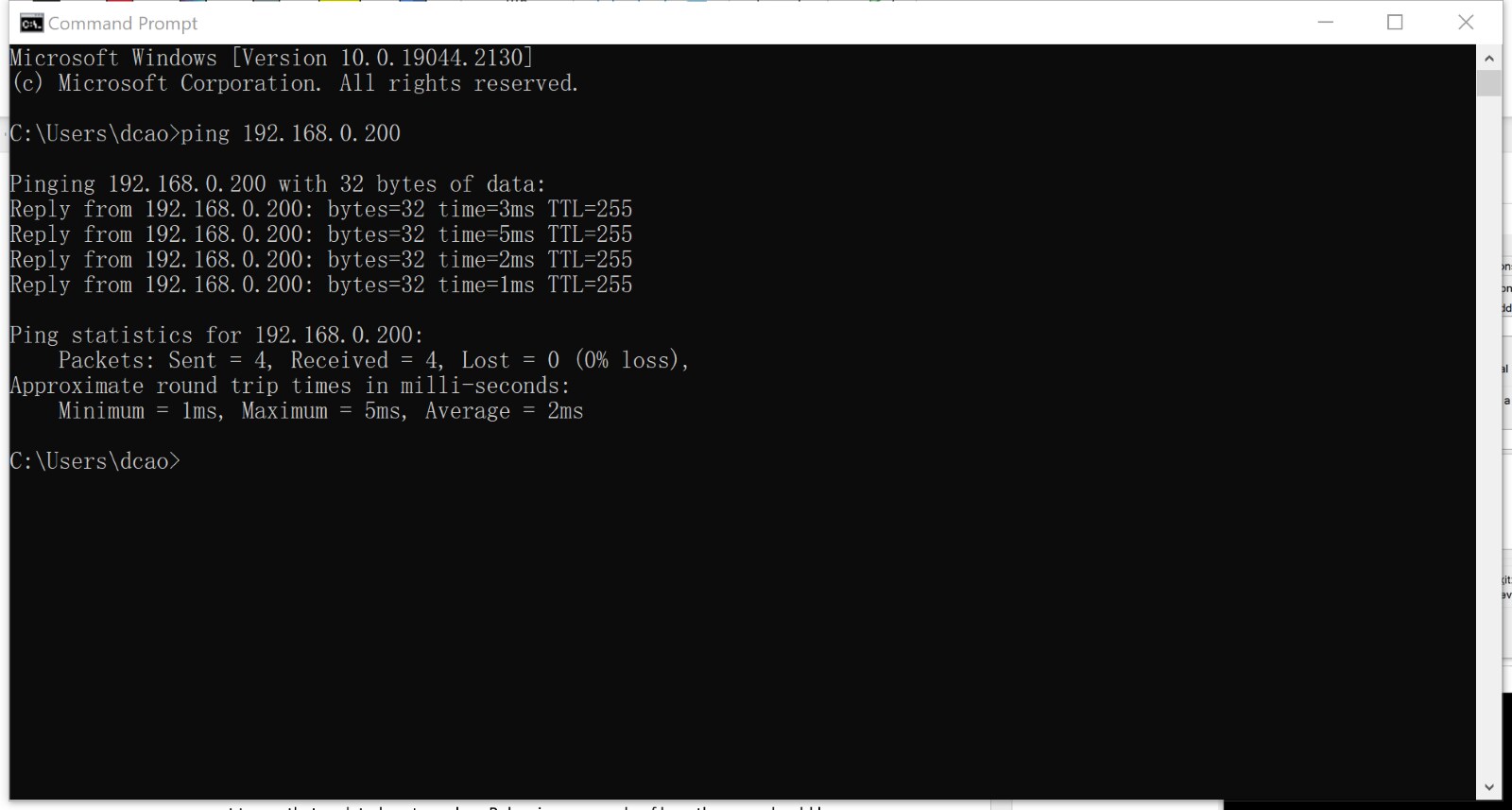
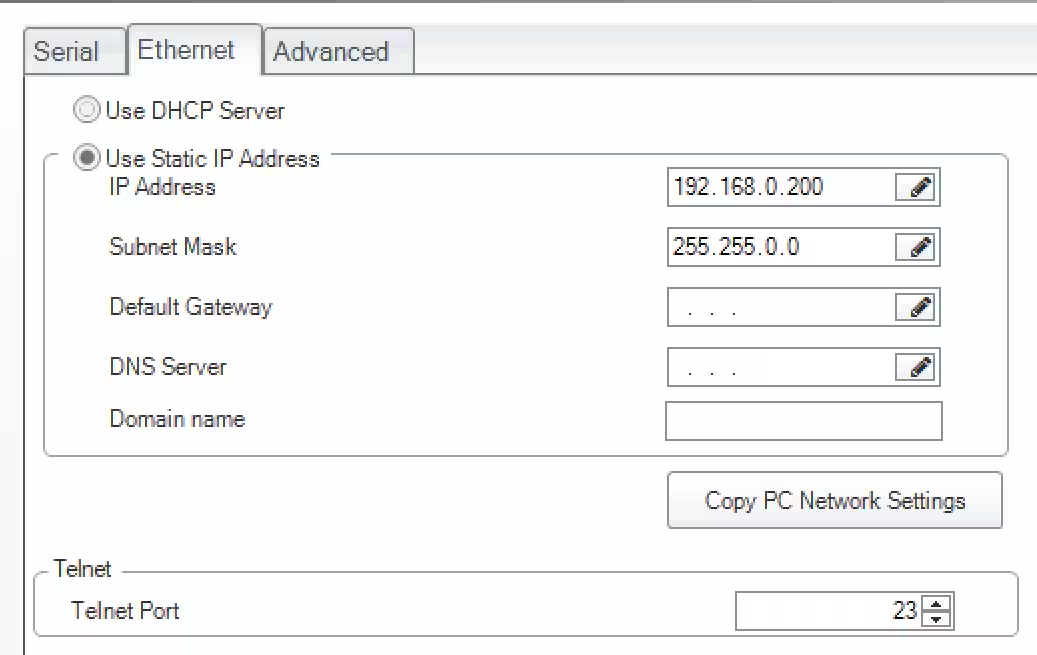
Make sure we can ping the Reader’s IP, and confirm the Telnet port on DataMan Setup Tool (default 23)
- Open PuTTY and select "Raw" or “Telnet” for the Connection type. Enter IP Address of the reader in question and set the Port as 23. This is the default port, if this has been changed you will want to use that updated port number.
Below is an example of how the page should be formatted.
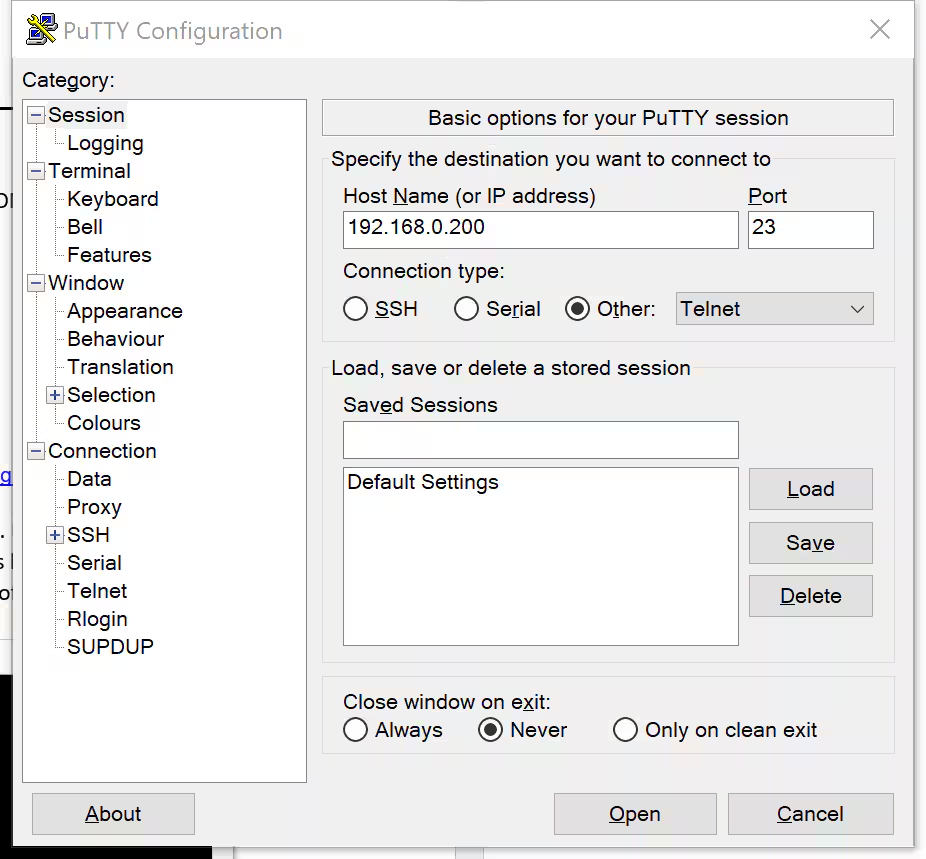
Select Open in the bottom right and a new window will open with a connection to your reader. You can input or paste (right click) the DataMan Control Commands then click Enter button to send the DataMan Control Command code.