

Question
How to target laser spot position for Webscan?
Answer
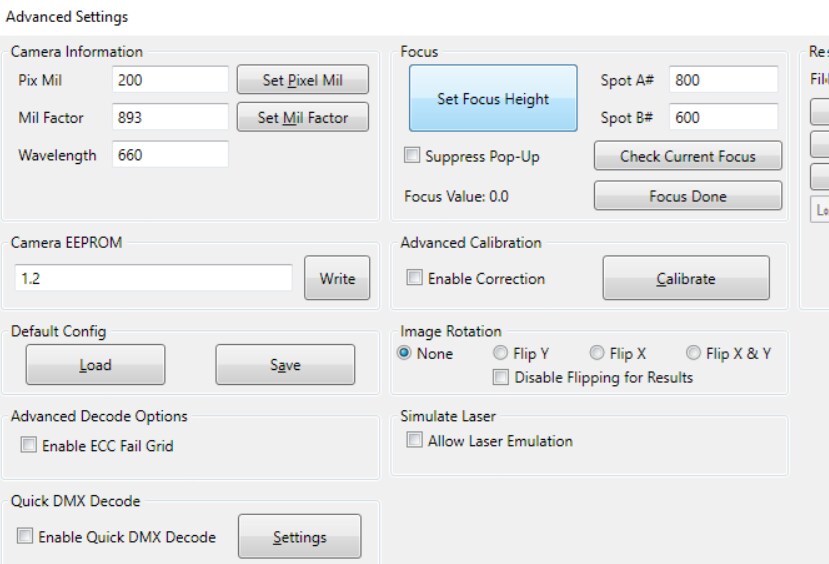
Go into Advanced menu, by selecting it in the Options menu and enter the password: 789 There is a button for “Set Focus Height” as you can see in the picture below.
The software always looks for the laser spot and knows where it is on the screen.
The “Spot A#” and “Spot B#” are the values that the red target circle will be placed.
By default, these values are wrong and place the circle at the bottom of the window.
When you have the laser at the correct spot (which means that the camera is at the correct height), you then press the “Set Focus Height” button and the Spot A and B will be filled in with the actual location of the laser spot. (You must actually press this button 2 times in a row for it to work).
When this is done correctly the values will be nearly half of the height (960/2 = 480) and width (1280/2 = 640) of the image, but not exactly because of physical positioning tolerances.
You must be careful to set it when the laser is at the correct spot because otherwise the target circle will set you at the wrong height every time.
How do you know where the correct spot (height) is? The best focus of the image.
You can see this most easily using the GS1 Data Matrix calibration card if you have one. If you have one, use Symbol 5 “Contrast Uniformity” with Aperture set to Auto 80%. The best focus is when you have the highest value for Contrast Uniformity that you can get. If you do not have this symbol, then using any symbol with small X dimension and Auto 80% aperture usually will give you the same thing – highest Contrast Uniformity – at the best focus. DO NOT use the “Check Current Focus” or “Focus Done” buttons.
Question
How to target laser spot position for Webscan?
Answer
Go into Advanced menu, by selecting it in the Options menu and enter the password: 789 There is a button for “Set Focus Height” as you can see in the picture below.
The software always looks for the laser spot and knows where it is on the screen.
The “Spot A#” and “Spot B#” are the values that the red target circle will be placed.
By default, these values are wrong and place the circle at the bottom of the window.
When you have the laser at the correct spot (which means that the camera is at the correct height), you then press the “Set Focus Height” button and the Spot A and B will be filled in with the actual location of the laser spot. (You must actually press this button 2 times in a row for it to work).
When this is done correctly the values will be nearly half of the height (960/2 = 480) and width (1280/2 = 640) of the image, but not exactly because of physical positioning tolerances.
You must be careful to set it when the laser is at the correct spot because otherwise the target circle will set you at the wrong height every time.
How do you know where the correct spot (height) is? The best focus of the image.
You can see this most easily using the GS1 Data Matrix calibration card if you have one. If you have one, use Symbol 5 “Contrast Uniformity” with Aperture set to Auto 80%. The best focus is when you have the highest value for Contrast Uniformity that you can get. If you do not have this symbol, then using any symbol with small X dimension and Auto 80% aperture usually will give you the same thing – highest Contrast Uniformity – at the best focus. DO NOT use the “Check Current Focus” or “Focus Done” buttons.
