Question
How do I configure PROFINET Communication with In-Sight Vision Suite EasyBuilder?
Answer
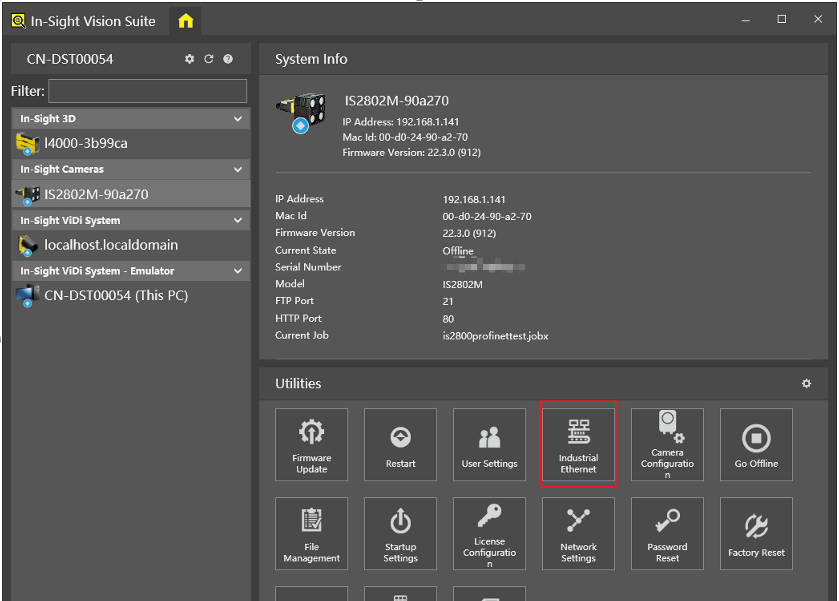
Click on Industrial Ethernet button in Utilities.
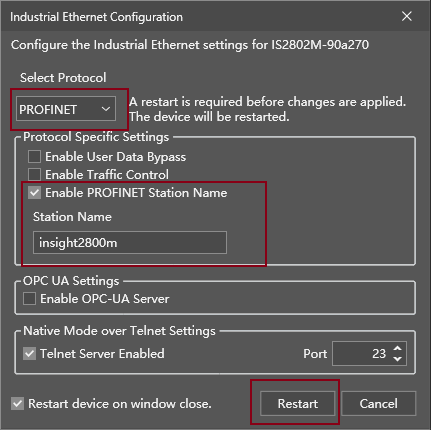
Choose PROFINET, set Station Name, and then click on Restart button.

Note: the "Enable Traffic Control" checkbox should only be used when have problems with the PROFINET connection stability, and all the other ways to getting rid of those (using Gigabit Ethernet, setting a higher update rate, reducing other network traffic to a minimum) have either failed or are not feasible.
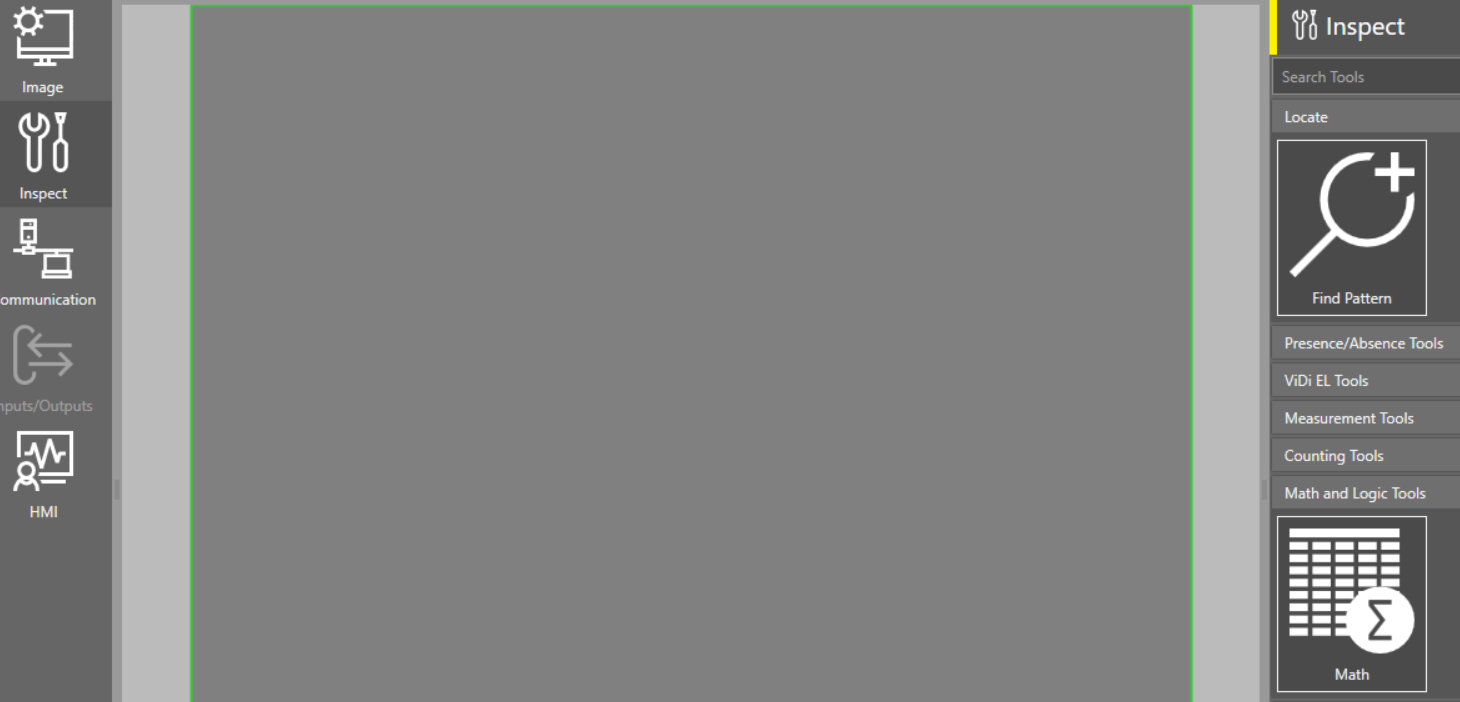
Inputs: Click “EasyBuilder Connection” and then go to Inspect->Math->Logic Tools to add a Math tool.
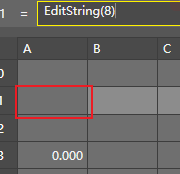
Add an EditString or EditInt function in the Math tool according to the data type needed. For example, add EditString(8) in A1 cell.
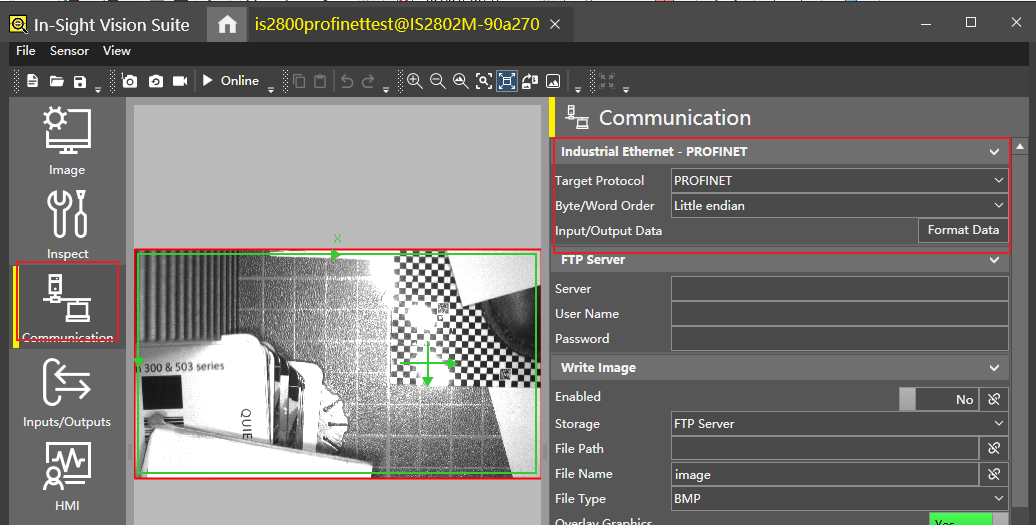
Go to Communication to set parameters as below.
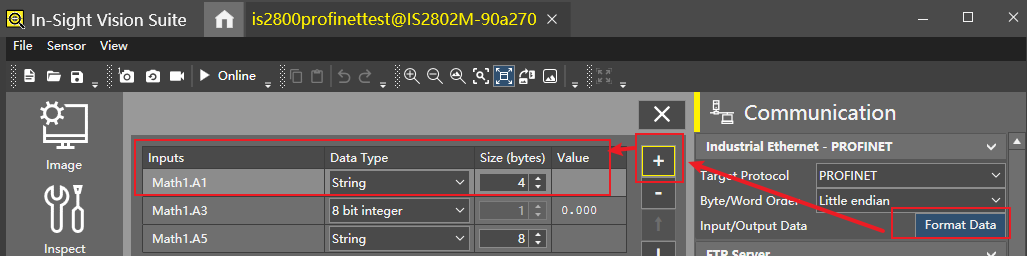
Click the “Format Data” button and then click the “+” button to add the data, like the A1 cell.
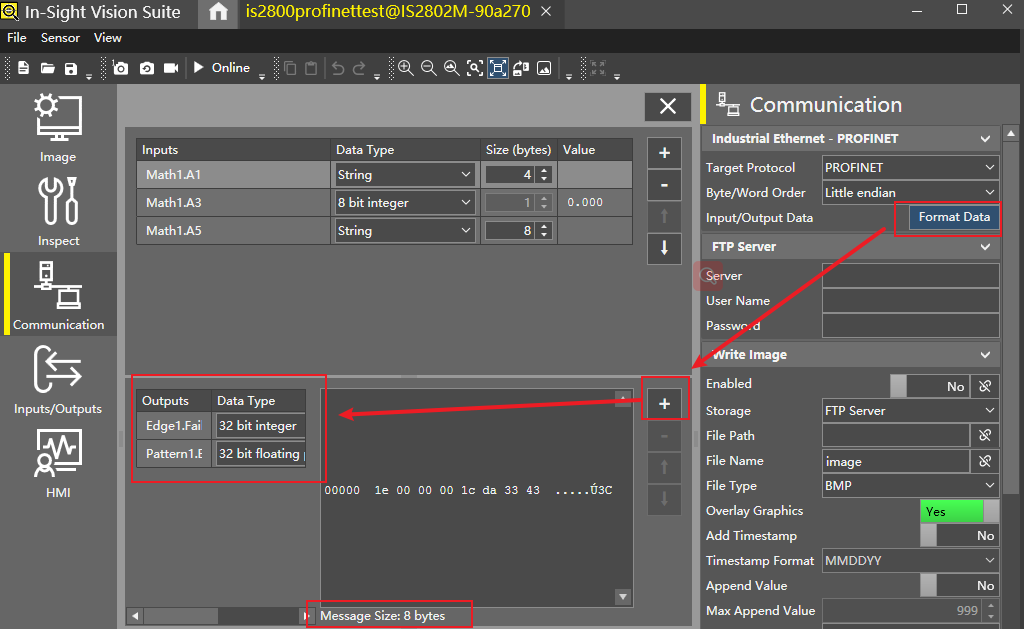
Outputs: Click the “Format Data” button and then click the “+” button to add the data.
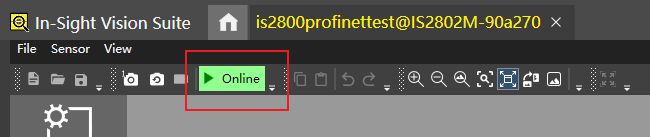
Save the job and set the camera to Online Mode
See Also:
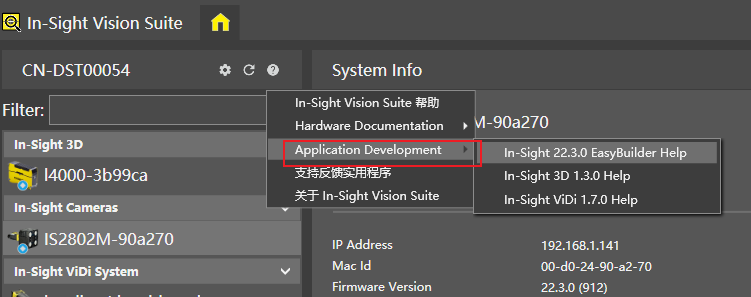
Help documentation that comes with the software: