

Question
How to install TruCheck Software on Windows 10?
Answer
Here are some notes that may be important, depending on your system setup, especially regarding security settings within Windows 10 for users.
We recommend that you use the latest released software which you can download here:
That said, Windows 10 has been supported in the TruCheck software for a long time.
If you experience any issue with the software on Windows 10, it is likely due to security settings in Windows. In particular, you should give full access privileges to the Webscan Inc\TruCheck data directory within c:\ProgramData.
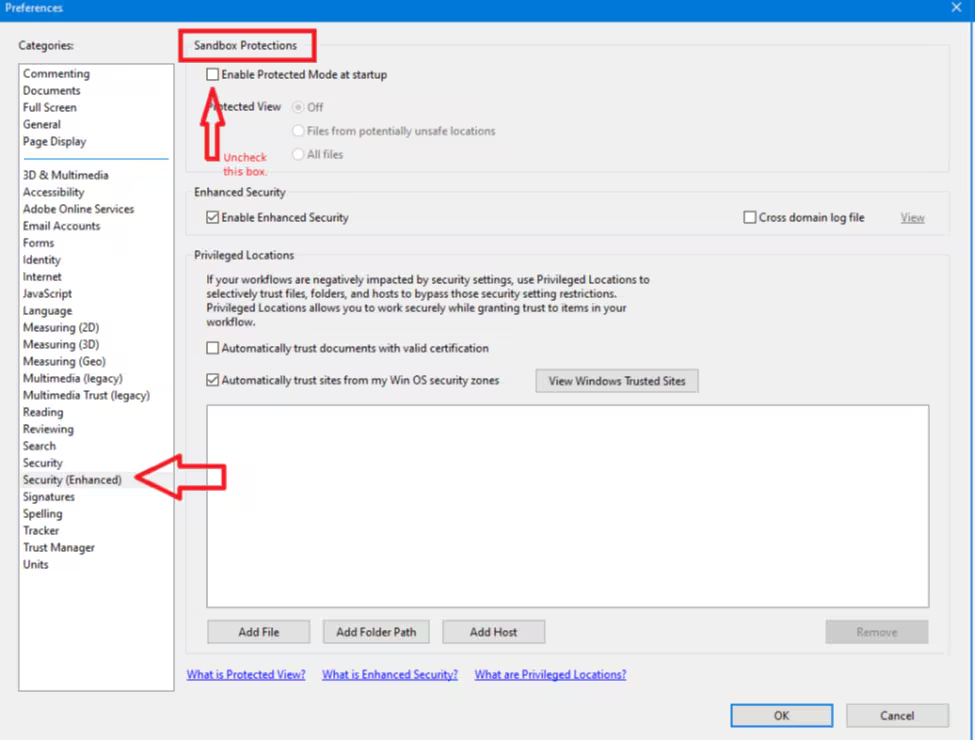
Also, a recent update to Windows 10 affected the report printing functionality which is done using the Adobe Reader DLL.
So, you need to go into Adobe Reader and go to Edit->Preferences, and then select the Security (Enhanced) tab and uncheck “Enable Protected Mode at Startup”. Then save and close Adobe reader. Also, it is critical that Adobe reader is not also open with any other documents because then the setting will not get saved. So, I recommend rebooting and then doing this in Adobe Reader. (You should re-open Adobe reader and make sure the setting is still unchecked).
Then restart TruCheck and it should get a fresh copy of the Adobe Reader DLL and then be able to print.
A shortcut is installed on the desktop when the TruCheck installer runs.
However, Domain Users will not be able to start the program from this shortcut.
Instead, a new shortcut must be created by right-clicking on the TruCheck.exe application within Program Files(x86)\Webscan IncTruCheck\ and selecting “Send To” → Desktop (Create Shortcut).
