Question
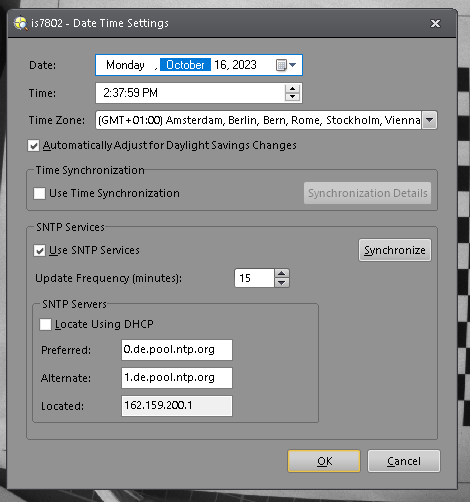
How do I get my In-Sight Camera to automatically set the correct Date and Time?
Answer
If an SNTP server is not located when the In-Sight system's power is cycled, then the initial date and time will be set to Thursday, January 01, 1970 and 12:00:00 AM respectively. Cameras do not have a built-in real-time clock.
To have the real date and time on the camera automatically set, an NTP service needs to be set up. Either the local PC or a global network of NTP servers can be used.
To configure your local PC as an NTP server:
Check the Prerequisites:
- You must have Administrator privileges to configure the Windows server.
Configure the Windows Time Service:
- Open File Explorer and navigate to Control Panel\System and Security\Administrative Tools.
- Double-click on Services or enter services.msc in the Windows Run dialog (Windows Key + R).
- In the Services list, right-click on Windows Time and click Stop (if it's already stopped, skip this step).
- Set the Startup type to Automatic and the Service Status to Start.
Update the Windows Registry to Create a Local NTP Service:
- Open the Windows Run dialog (Windows Key + R) and enter regedit, then click OK.
- Navigate to the registry key: HKEY_LOCAL_MACHINE\SYSTEM\CurrentControlSet\Services\W32Time\Parameters.
- In the right pane, right-click on Type and select Modify. Change the Value data to NTP and click OK.
- Locate the following registry subkey: HKEY_LOCAL_MACHINE\SYSTEM\CurrentControlSet\Services\W32Time\Config.
- In the right pane, right-click on AnnounceFlags and select Modify. Change the Value data to 5 and click OK.
- Locate the following registry subkey: HKEY_LOCAL_MACHINE\SYSTEM\CurrentControlSet\Services\W32Time\TimeProviders\NtpServer.
- In the right pane, right-click on Enabled and select Modify. Change the Value data to 1 and click OK.
Restart the Windows Time Service:
- Open a command prompt with administrative privileges.
- Run the following command to restart the Windows Time Service: net stop w32time && net start w32time.
- Allow NTP Port Through the Firewall (if applicable).
Check NTP Server is Working:
- Open Command Prompt as an administrator and enter the command w32tm /query /status. Check the output for the NTP status. If the output is synchronized, then the NTP server is working
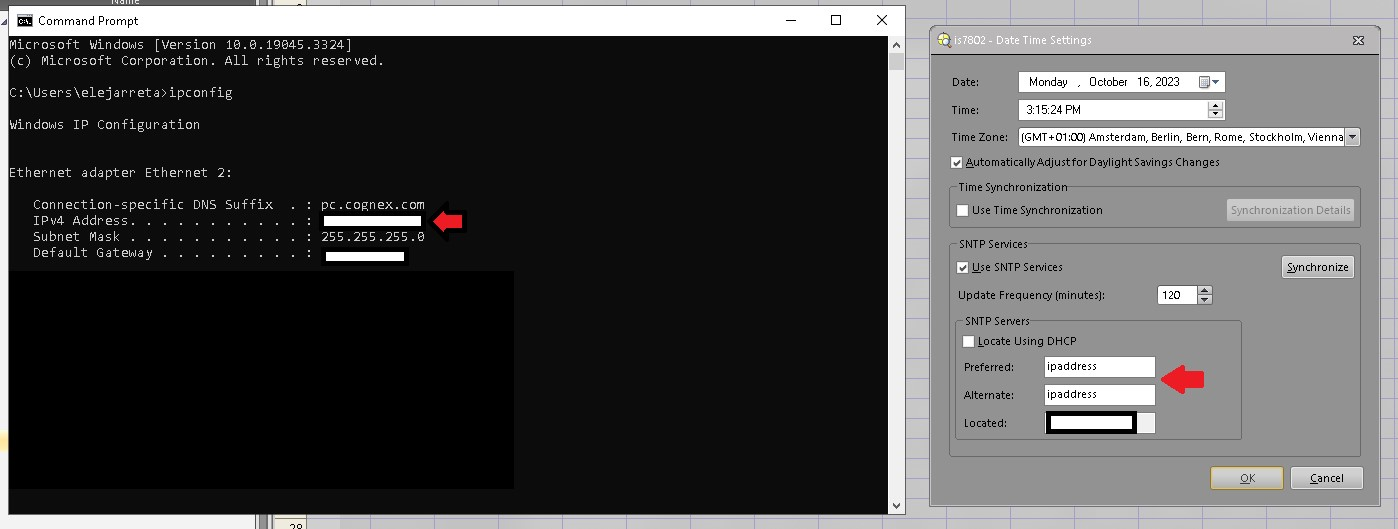
Once the NTP server has been configurated you can set the NTP server on In-Sight Explorer Camera:
- A computer screen shot of a black squareDescription automatically generated
- Go to Sensor Date/Time Settings.
- To configure In-Sight Explorer with a global network of NTP servers will require an internet connection.
Insert the NTP server of your choice's URL into the "Preferred" field. For example it can be used the NTP Pool Project. https://www.ntppool.org/en/zone/de