

Details
IN-SIGHT EXPLORER
Step 1: Start In-Sight Explorer.
Step 2: Under the System menu, select Options. The Options dialog box will appear with emulation selected by default.
NOTE: DO NOT CLOSE THE OPTIONS DIALOG BOX UNTIL INSTRUCTED. If you accidentally close it, you will need to start over from step 2.
Step 3: In the Registration Section of the dialog box, locate the 8-character Offline Programming Reference string.
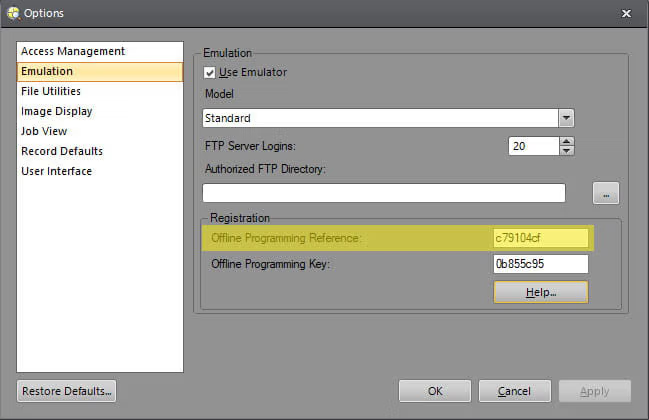
Step 4: On this page, copy the Offline Programming Reference string into the text box labeled "Offline Programming Reference." Then, press the "Generate Key" button to generate the unlocking Offline Programming Key.
Step 5: In the In-Sight Explorer dialog box, enter the generated Offline Programming Key in the box labeled "Offline Programming Key". Apply the change, then close the Options dialog box.
IN-SIGHT VISION SUITE
Step 1: Start In-Sight Vision Suite.
Step 2: From the Home Screen, click on the Settings Gear, and choose Emulator from the dropdown list.

Step 3: In the Emulator Configuration dialog box, select a model you want to emulate.
Step 4: The Registration section will appear if you choose a supported model (IS2800 or IS3800 models).

Step 5: On this page, copy the Offline Programming Reference string into the text box labeled "Offline Programming Reference." Then, press the "Generate Key" button to generate the unlocking Offline Programming Key.
Step 6: In the In-Sight Vision Suite dialog box, enter the generated Offline Programming Key in the box labeled "Offline Programming Key". Apply the change, then close the Options dialog box.
In-Sightキージェネレータ
コグネックスビジョンシステムの登録ユーザは、1つ以上のコンピュータにIn-Sight Explorerおよび/またはIn-Sight Vision Suiteソフトウェアをインストールして実行できます。期間に制限はありませんが、1つ以上のIn-Sightシステムがコンピュータと同じネットワーク内にある必要があります。
