

Details
This article will guide the users with the steps to upgrade the below In-Sight Vision Suite platform vision systems with the new features using FSU:
- In-Sight 3800,
- In-Sight 2800,
- In-Sight 8900,
- L38 etc.
Step 1: Once a user has booked the order of FSU, the user will receive below reference automated email (just for reference with some information removed) with order details and MyCognex link to upload the License request certificate file ".pem" format to up.
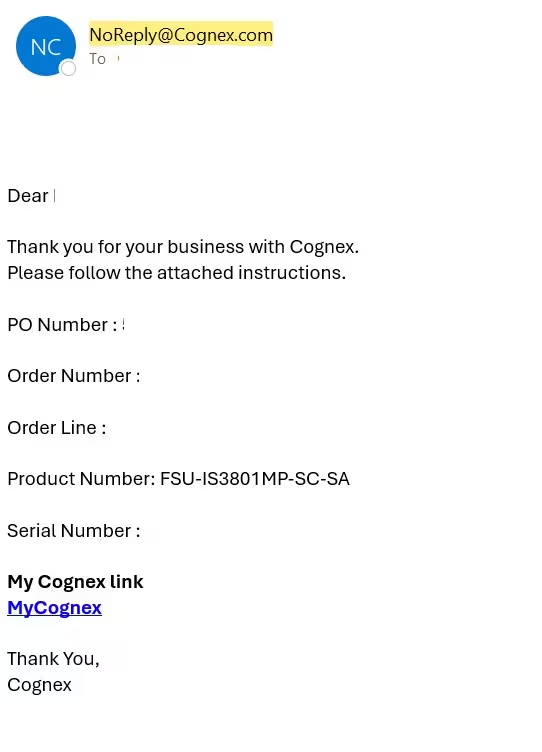
Step 2: On clicking MyCognex link, please perform the following steps:
- Log-in to MyCognex
- User may need to create a MyCognex account if don’t already have one.
- Click the upload button and upload License request certificate file - ".pem" format
- Within a few hours the user will receive your upgrade file, sent to the email address given when placing your order.
Step 3: Obtain the License request certificate file by performing the following steps:
- Start the In-Sight Vision Suite software
- Select the In-Sight device you would like to update
- Open the License Configuration under Utilities menu
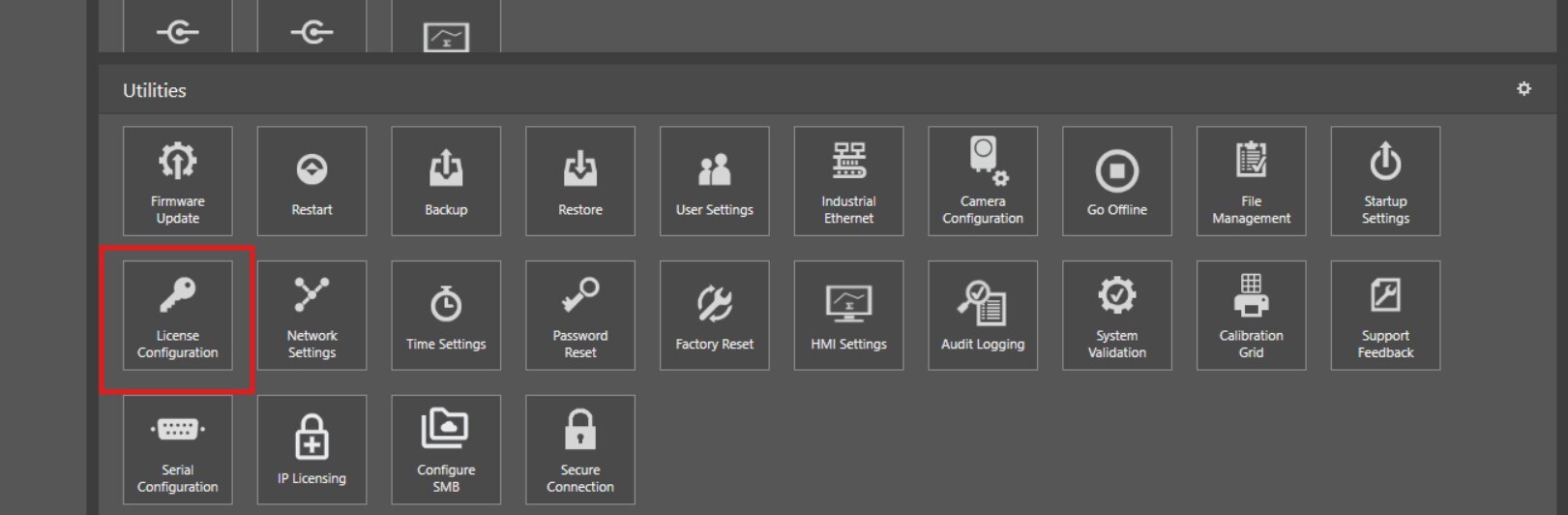
- Click onthe Create License Request button
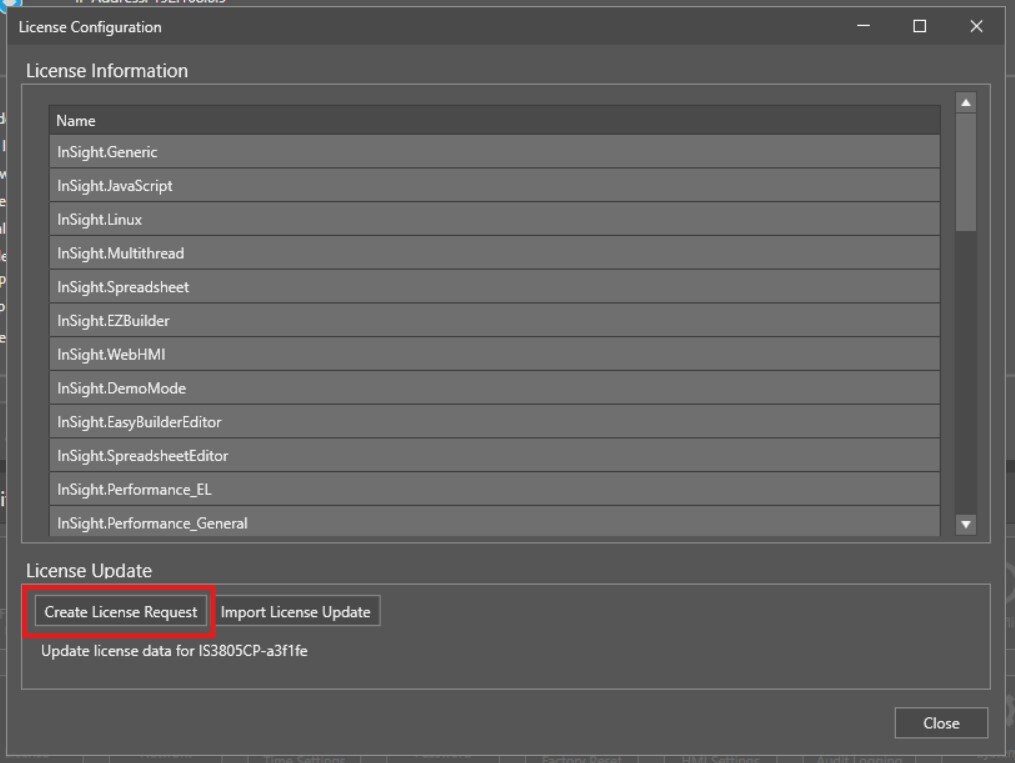
- Save the certificate file ".pem" format to a directory on your PC
- Upload this certificate to the MyCognex upload page link provided in email
Step 4: Upgrade the Vision System with received new features file ".json" by performing the following steps:
- Save the received feature key file to any preferred directory on your PC. (This will be the .json file)
Start the In-Sight Vision Suite and select the device you are upgrading. - Open the License Configuration under Utilities menu
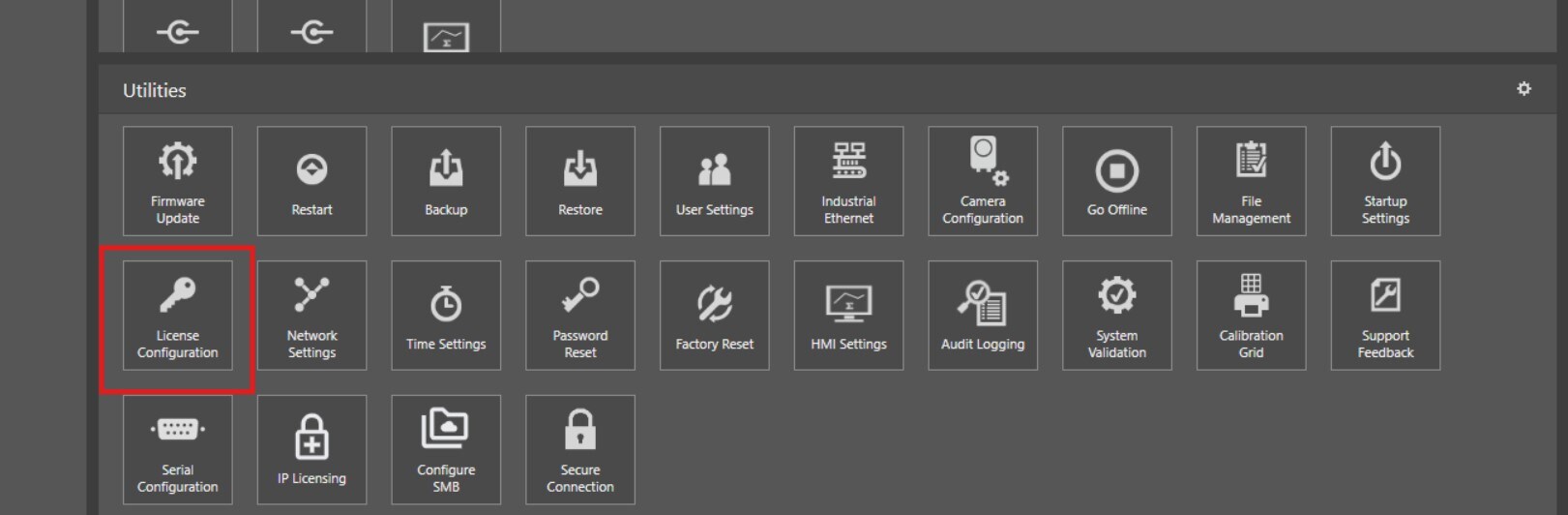
- Click on the Import License Update button
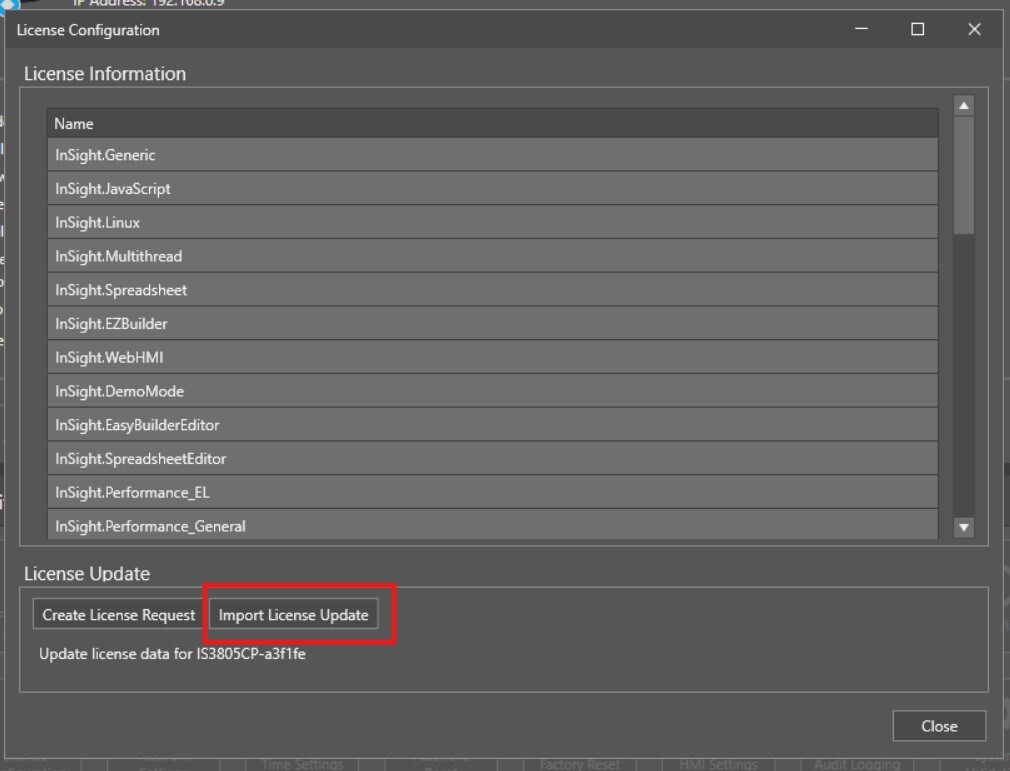
Step 5: Click the Restart button in the Utilities section to restart the Vision System when the update is completed.
