

Details
This article explains the process of setting up the Quality Metrics tool for 1D and 2D barcodes quality check.
Please be aware that it is not a certified verification.
It can be used when a certified verifier does not fit due to mechanical constraints.
- Try to mount the reader 90 degrees to the code surface to avoid misleading result due to axial non-uniformity.
- Live mode helps with the proper positioning.
- Hit Tune button and wait for the final result.
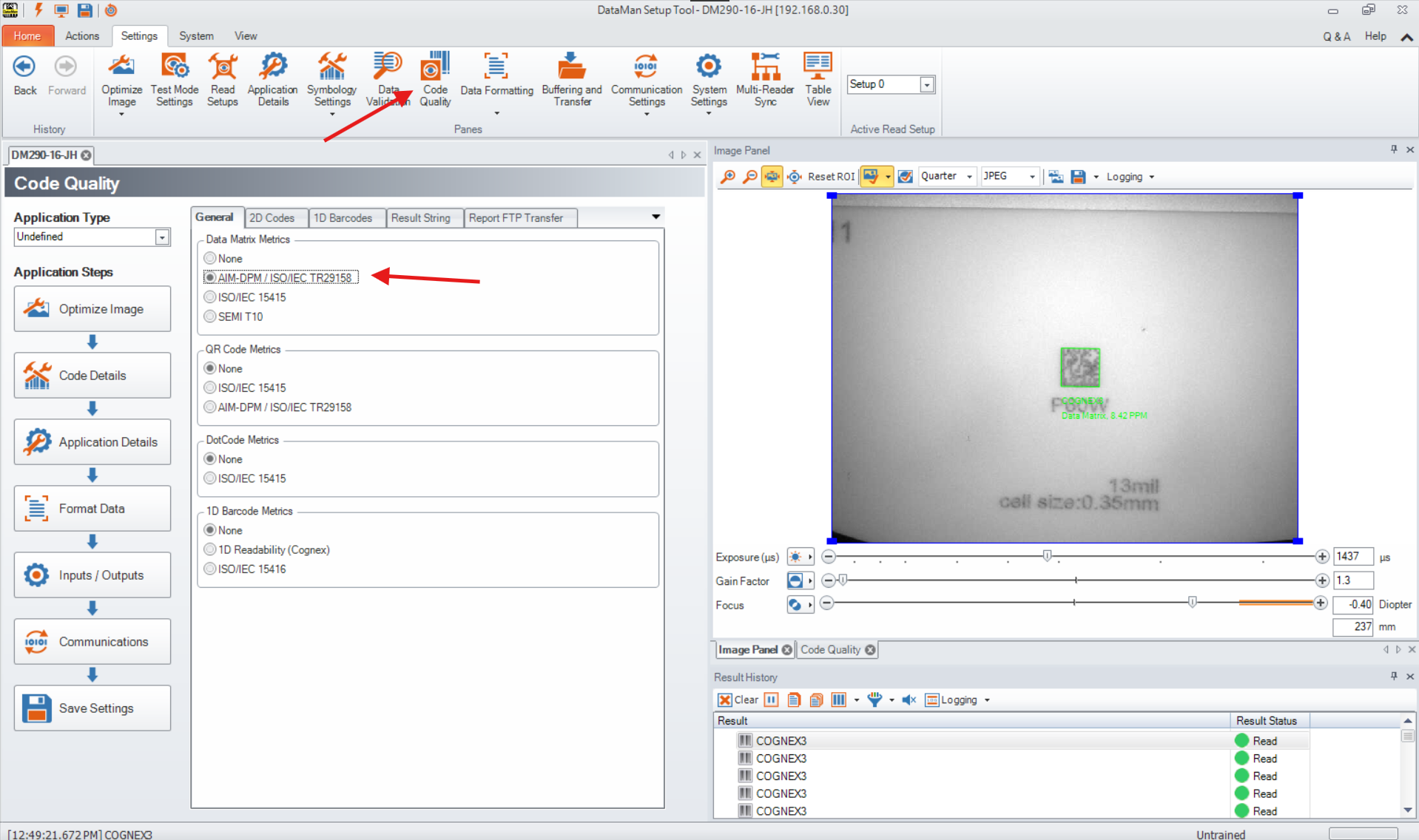
- Go to Settings tab and click on Code Quality.
Select the code symbology and norm (ISO for labels and AIM for DPM codes).
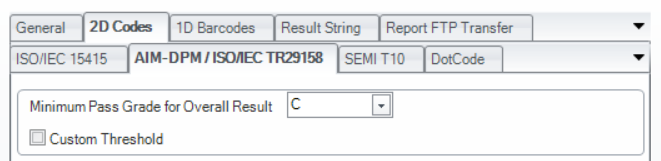
In the next tab you can select the Minimum Pass Grade for Overall Result.
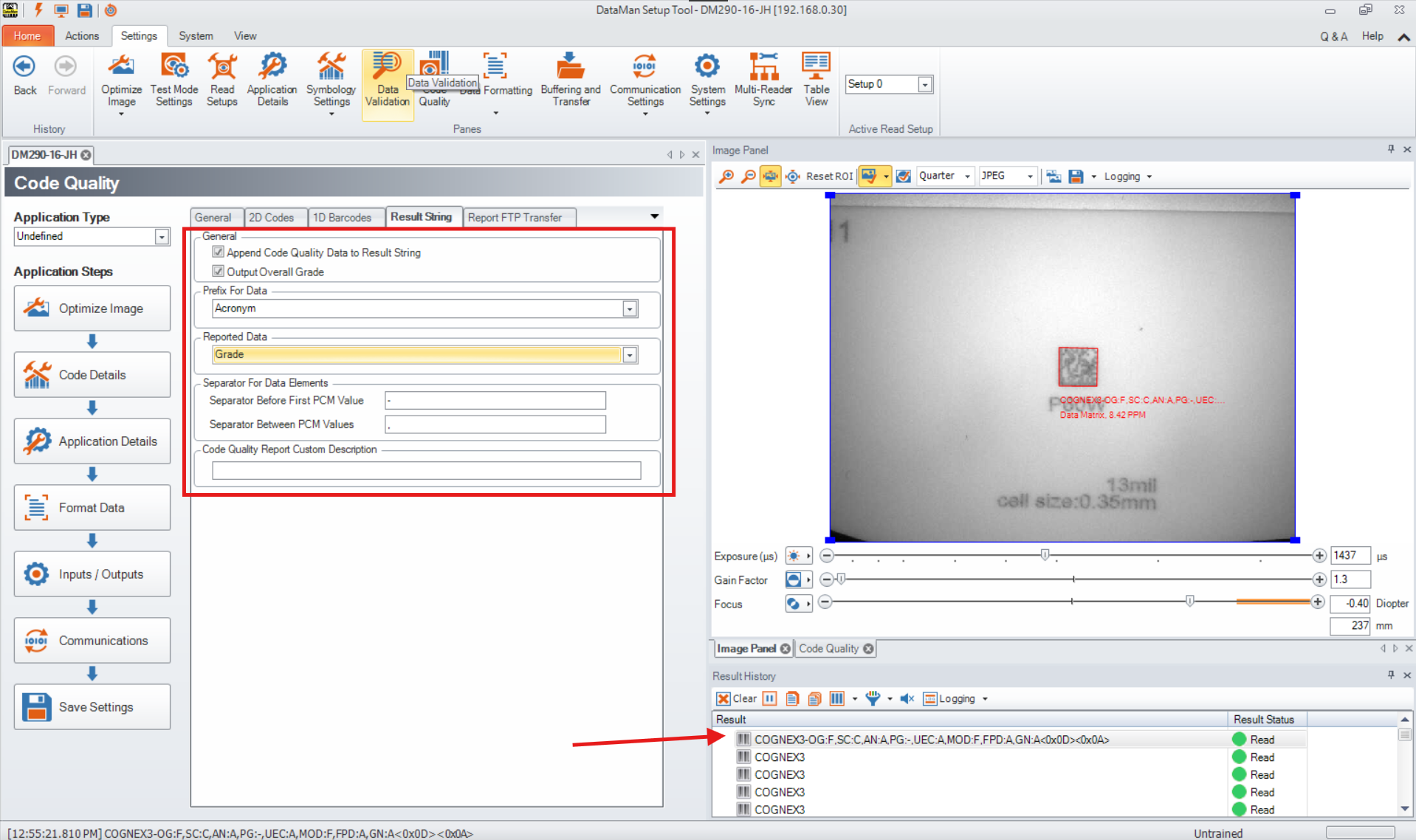
- Result String tab allows to enable adding the individual and overall grade into the string. You can also select Prefix for Data (Acronym or Name) and Reported Data (Grade, Value or both).
Individual Code Quality parameters can be found in the Code Quality tab next to Image Panel.
Report FTP allows to save all reports on your local server client.
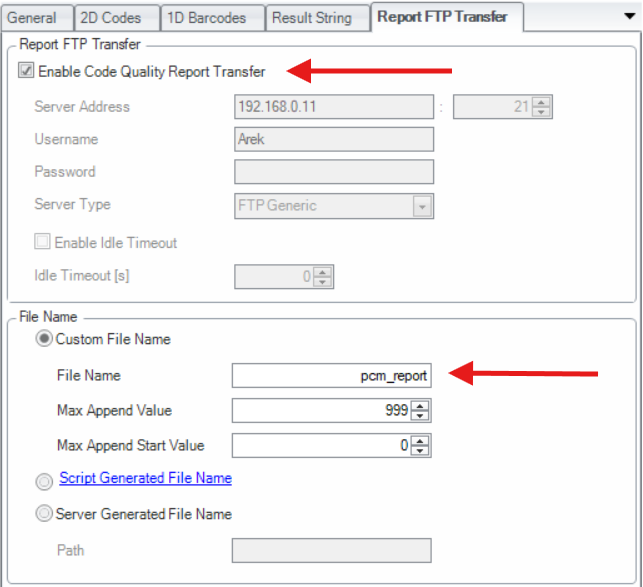
As a result, an html file will be saved on your server.

Below you can find an example of the Code Quality report.
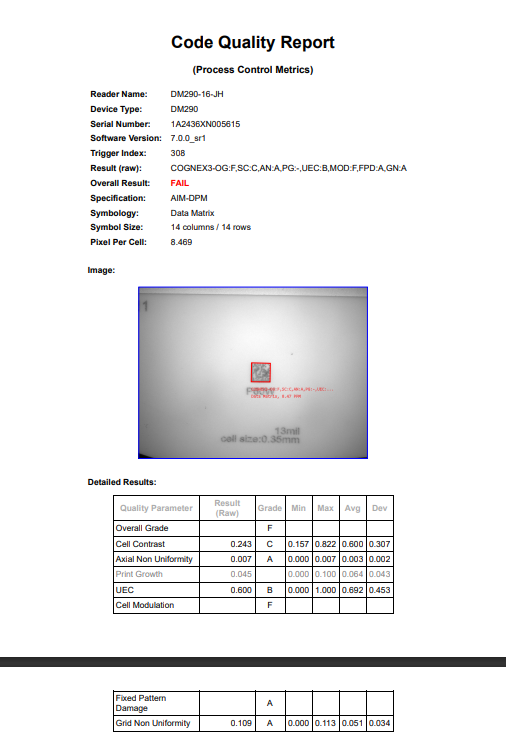
- You are done.
