Details
Access the Support Feedback Utility
You can access the Support Feedback Utility in two ways:
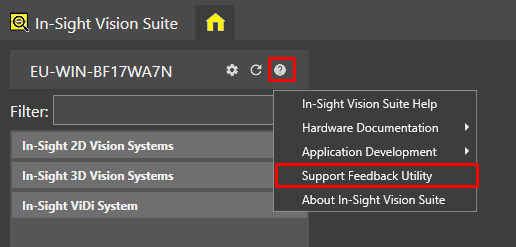
Via the Menu Bar: Click the Help button on the menu bar, then select Support Feedback Utility.
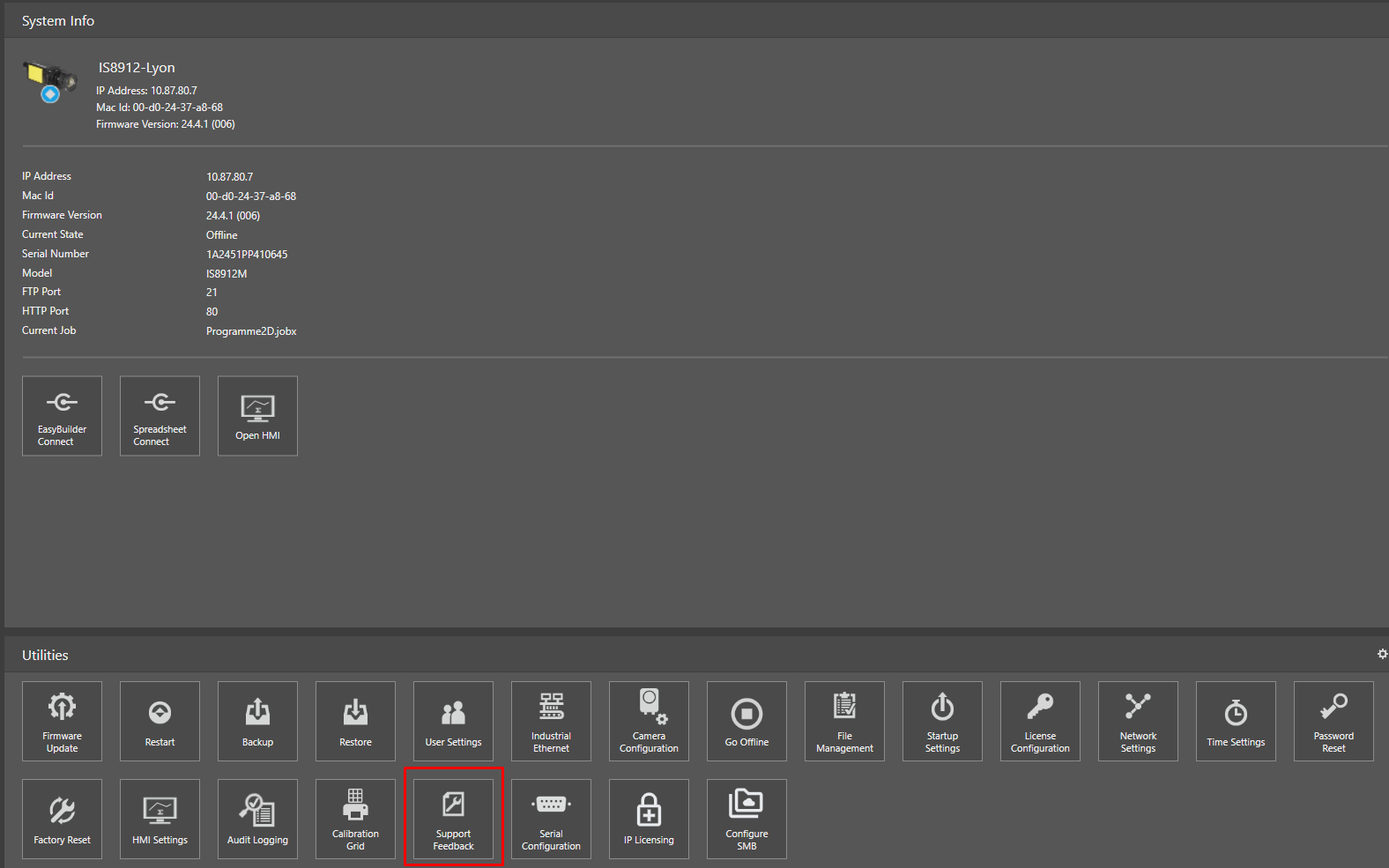
Via the Device Pane: Left-click the device you want to configure in the In-Sight Device Pane on the left. The list of utilities applicable to the selected vision system will appear at the bottom of the window. Click the Support Feedback button to open the dialog.
Specify the Device
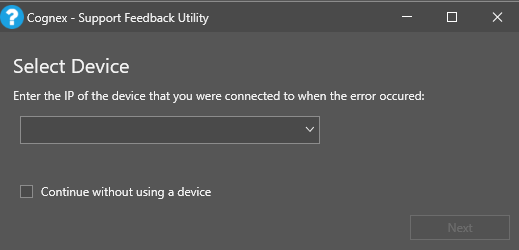
In the Support Feedback dialog, specify the device you were using when the error occurred. You can either:
- Use the drop-down list to select the device
- Manually type the device's IP address in the textbox
Check the option "Continue without using a device": The utility will not collect Cognex device logs but will still gather logs from In-Sight Vision Suite.
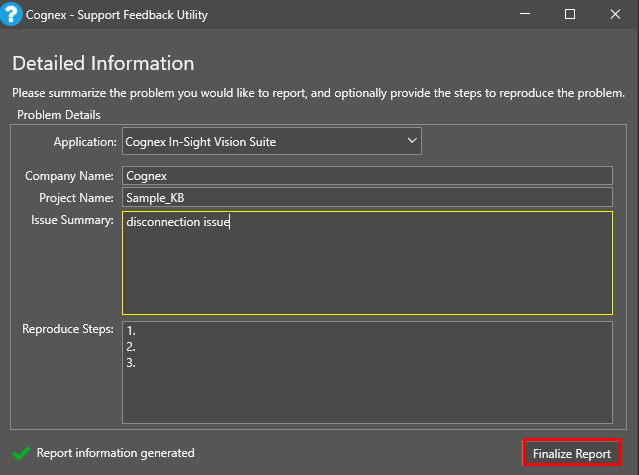
Generate the report
Fill in the various fields, ensuring you are as precise as possible, then click "Finalize Report'
Send the report
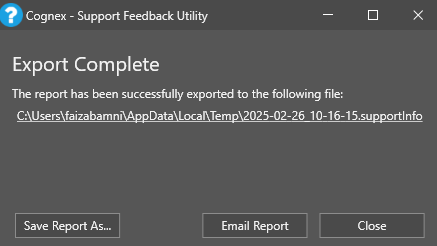
After generating the report, you can send it to Cognex Support for further assistance