

Question
How do I use the Web HMI Filmstrip?
Answer
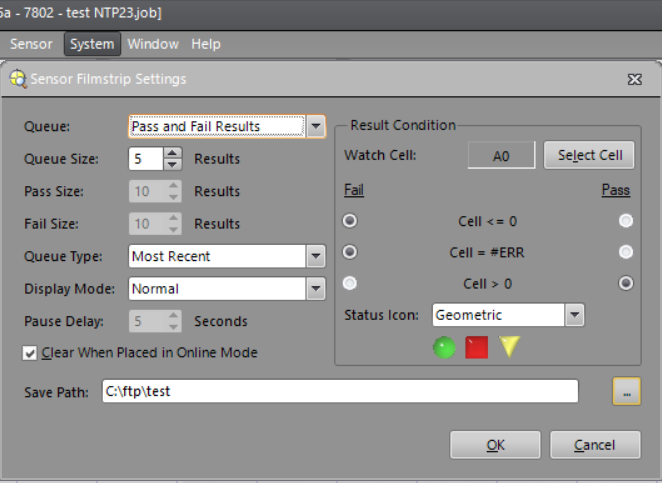
Enable and set In-Sight Filmstrip parameters in “Sensor Filmstrip Settings” page.
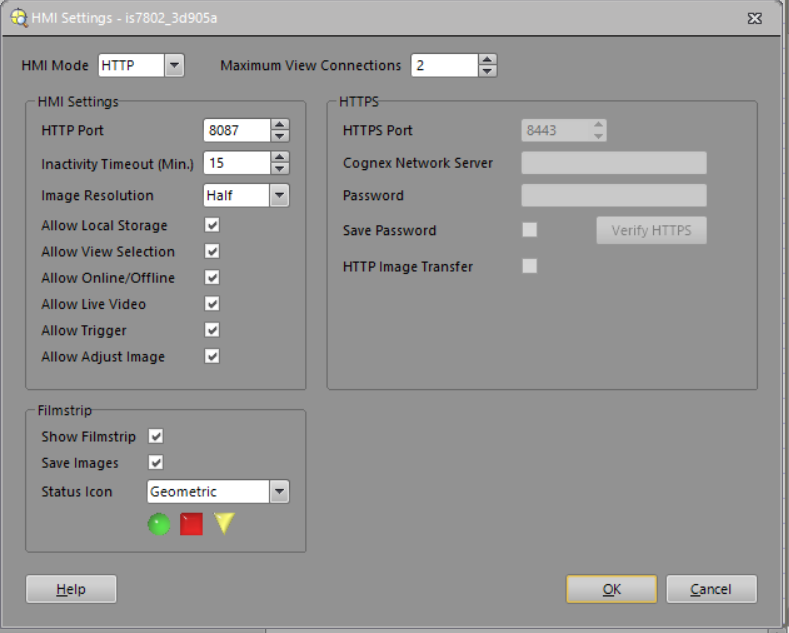
Check “Show FilmStrip” to enable Filmstrip in “HMI Settings” page.
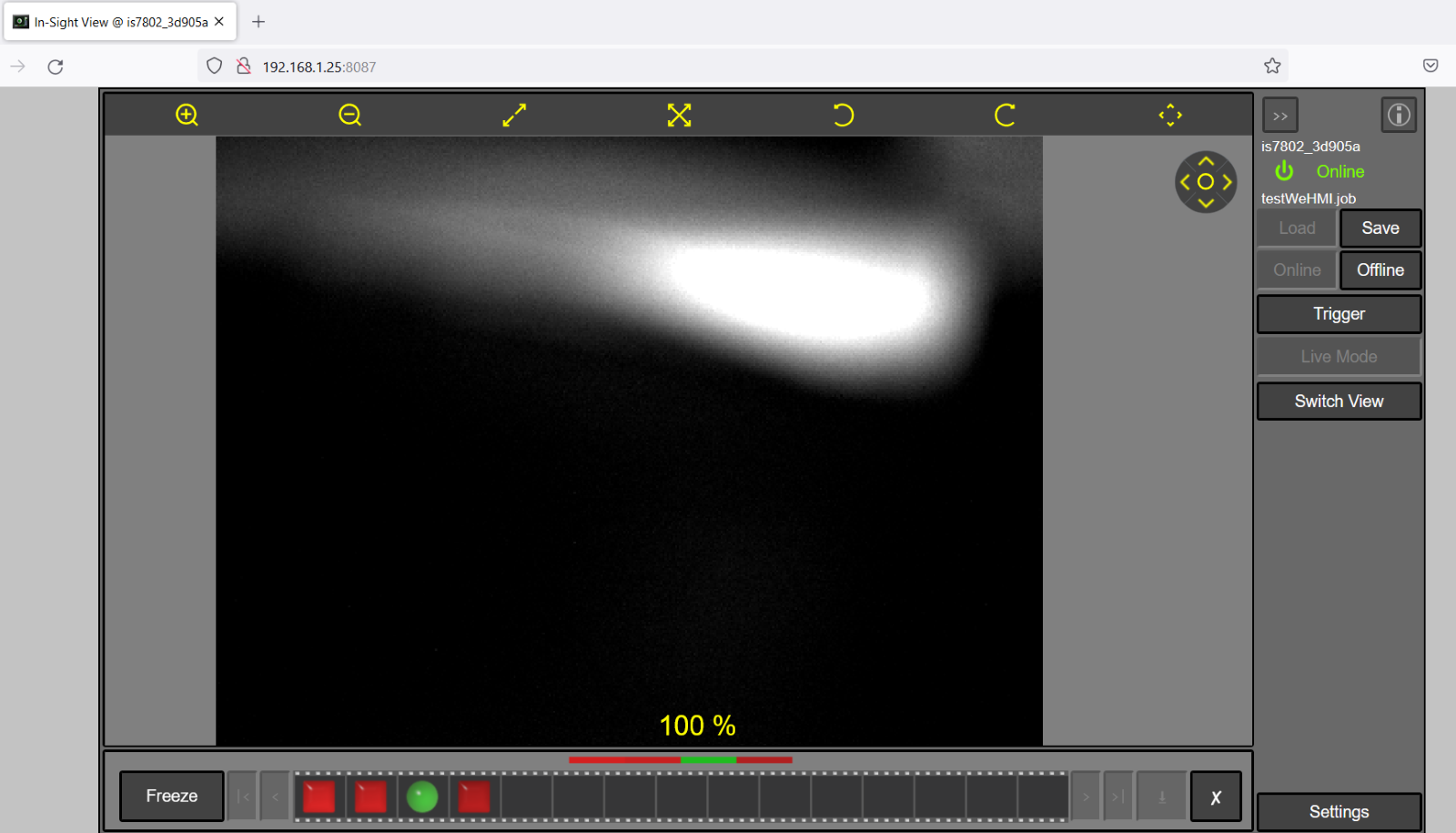
Filmstrip in Web HMI application.
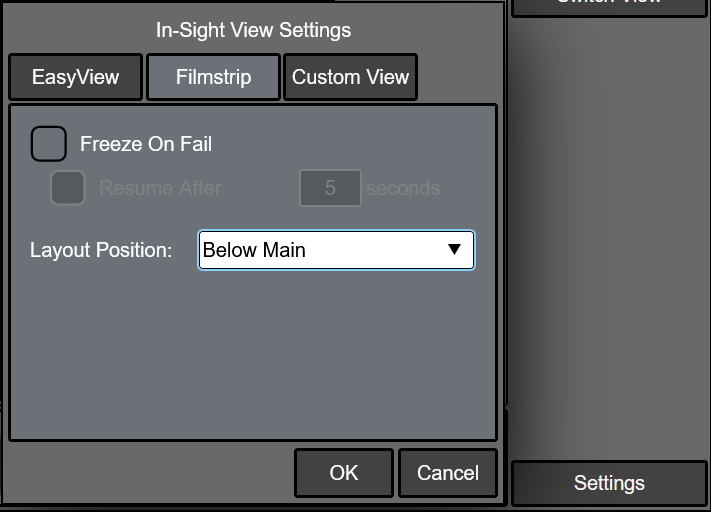
Filmstrip settings in “In-Sight View Settings” in the Web HMI application.
Click “Freeze” or any Status Icon in Filmstrip queue can freeze the Filmstrip.

When Filmstrip is “Frozen”, you can navigate through the results in the filmstrip or save images from the vision system to the PC by clicking the save image button shown below.
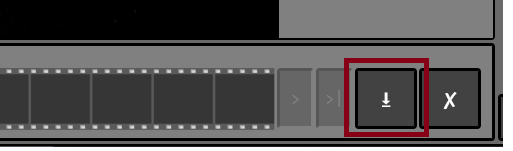
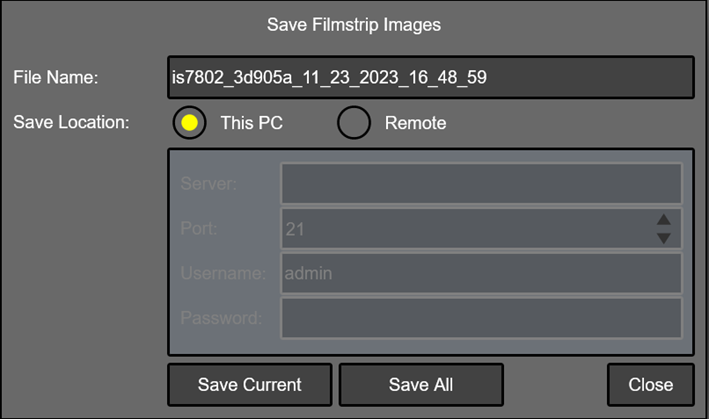
- Filmstrip Images can be saved to PC or a remote FTP server using the Web HMI application.
This PC: Saves filmstrip images to the PC. This option uses the web browser's Downloads settings to save images.
Remote: Saves filmstrip images to a remote FTP server.
Click the clear button to clear the Filmstrip queue.

See Also
Firmware Requirements.

When In-Sight is connected to In-Sight Explorer, the Filmstrip will not be displayed in the Web HMI application.
