

Details
Issue:
Getting error when opening the Rockwell FactoryTalk Activation Manager after installing In-Sight Vision Suite or VisionPro software:
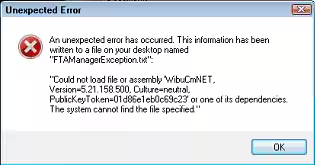
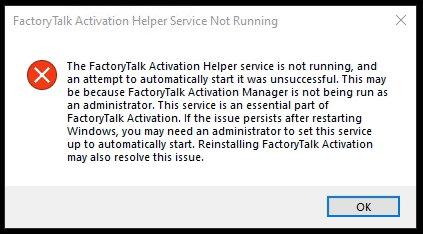
Causes:
- CodeMeter Runtime Kit installed with the Cognex software is incompatible with the existing FactoryTalk Activation Manager installation.
Resolution:
- Uninstall CodeMeter Runtime Kit and FactoryTalk Activation Manager via the Control Panel.
- Restart the computer.
- Delete all CodeMeter folders, if they exist, from the following directories:
C:\Users\username\AppData\Local\Temp\
C:\Program Files (x86)\
C:\Program Files\
C:\ProgramData\
- Download and install the newest version of CodeMeter Runtime Kit from Wibu-Systems download page
- Download and install a compatible version of FactoryTalk Activation Manager. Check the related Rockwell article for further details (it might need registration).
- If CodeMeter Control Center gives a message that "CodeMeter is started" and the Status is "License activated", but FactoryTalk Activation Manager is still opening with an error, go to
C:\Program Files (x86)\Rockwell Software\FactoryTalk Activation\Tools
and double-click on UpdateProtectionOnlyLicense.WibuCmRaU to update the license.
Note: If you have trouble installing a higher version of CodeMeter, you need to manually end the CodeMeter processes, CodeMeter Runtime.exe and CodeMeterCC.exe, to proceed.
Source and further information can be found in this Rockwell article (it might require registration).
