Cognex Support Hub


How to Start and Configure Windows 11 FTP Server
Steps to start and configure the FTP Server service built into Windows 11.
05/16/2025
Steps to start and configure the FTP Server service built into Windows 11.
Although Windows 11 includes support to set up an FTP server, you need to add the required components manually.
To install the FTP server components, do the following:
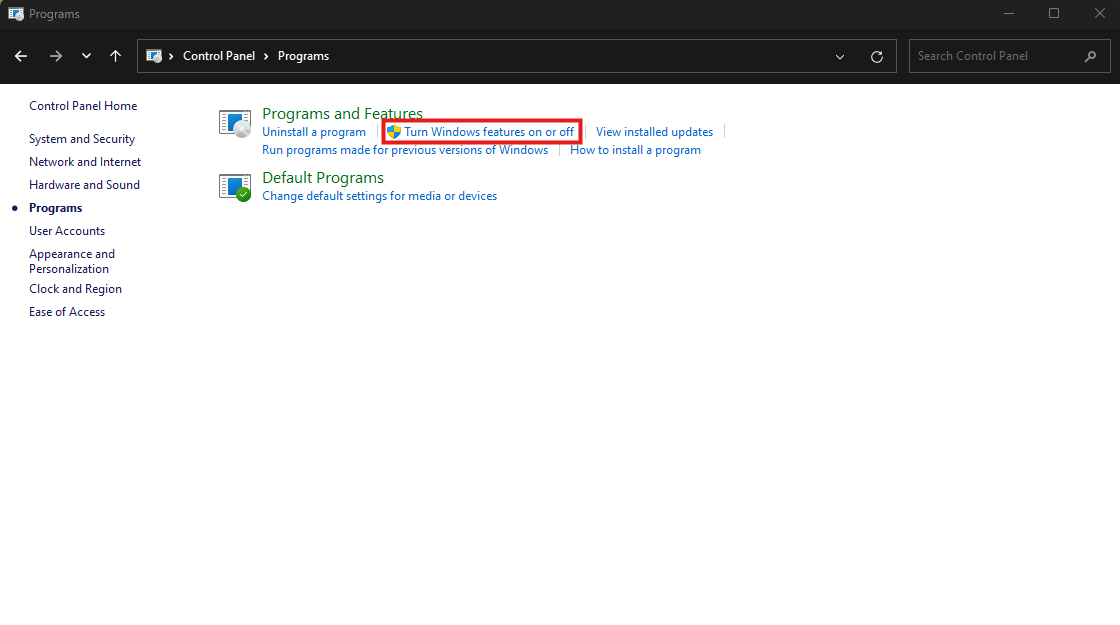
Under "Programs and Features," click the Turn Windows features on or off link.
Check the Web Management Tools option with the default selections, but making sure that the IIS Management Console option is checked.
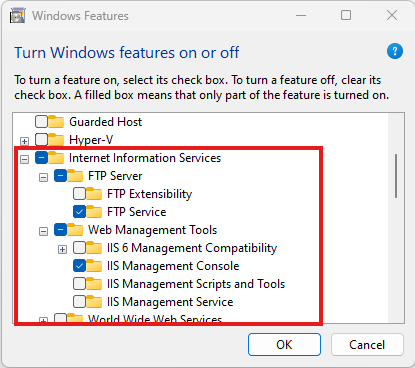
Once you've completed the steps, the components to set up an FTP server will be installed on your device.
To configure the FTP server components, do the following:
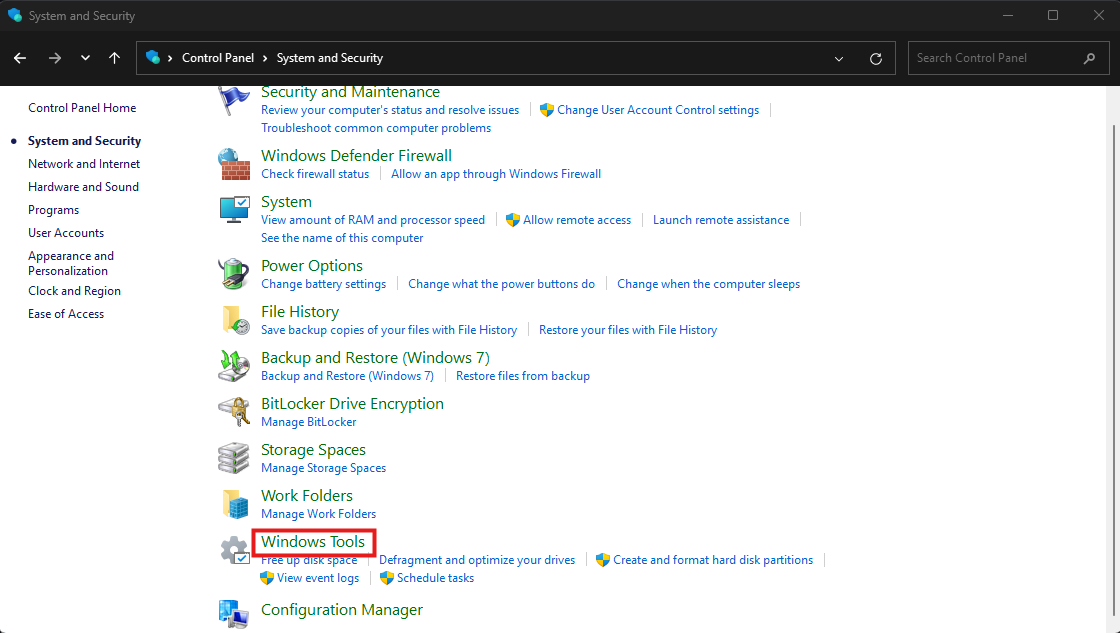
Click on Windows Tools.
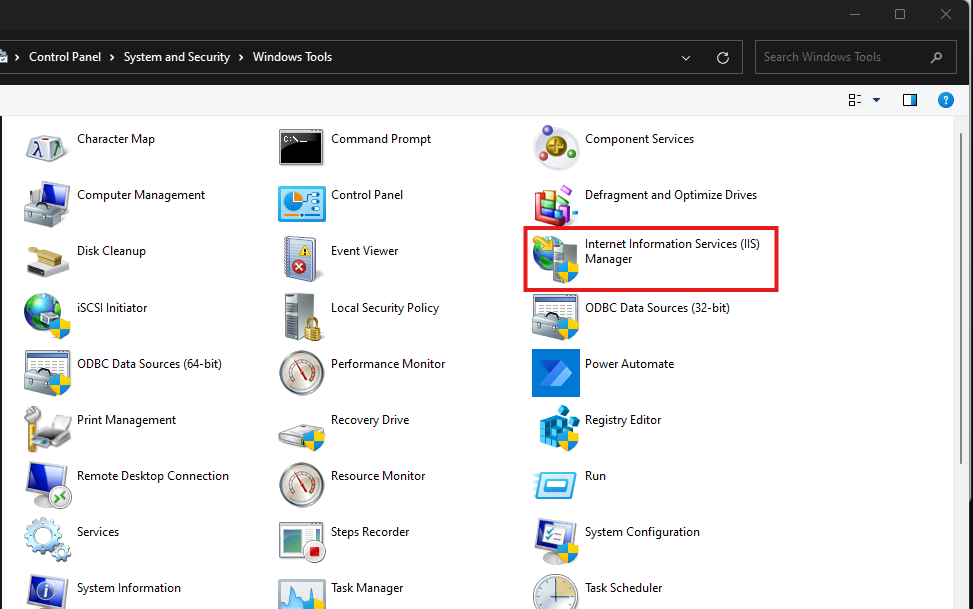
Open Internet Information Services (IIS) Manager.
Select the FTP Authentication.
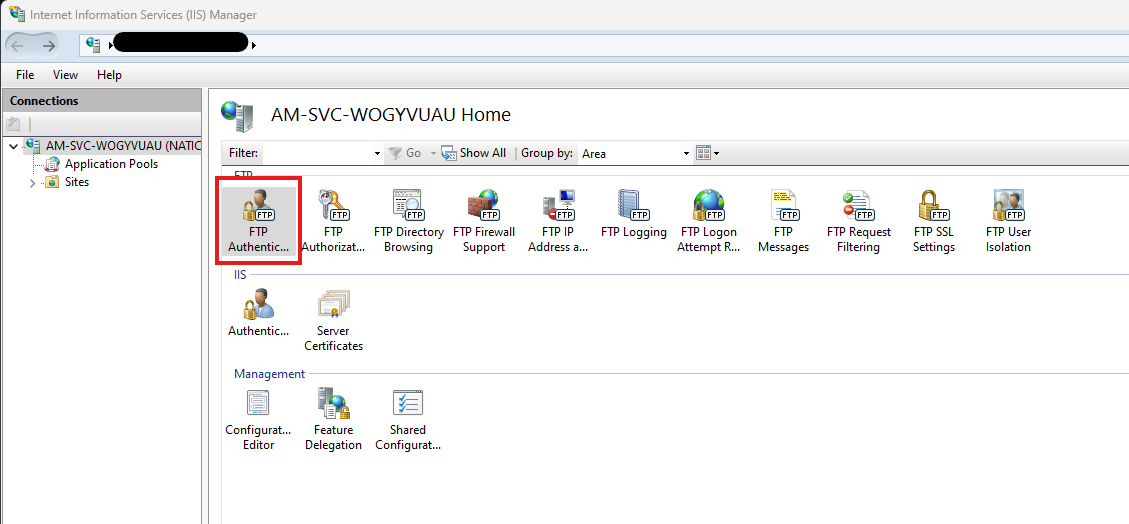
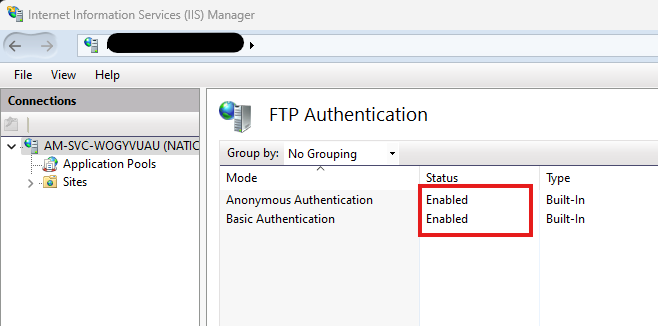
Enable the Anonymous and Basic Authentication.
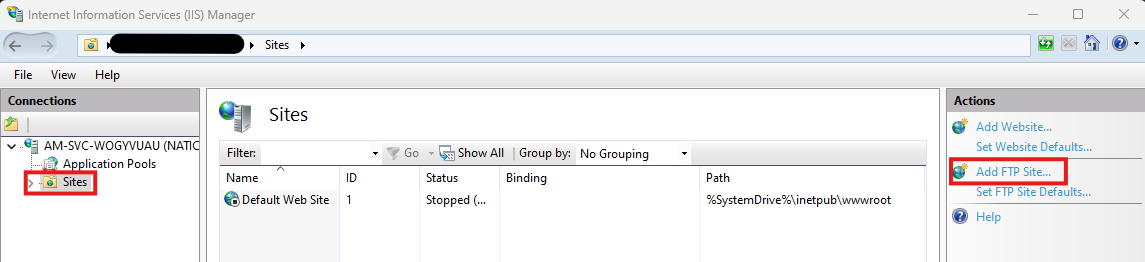
Then select Add FTP Site from the options on the right.
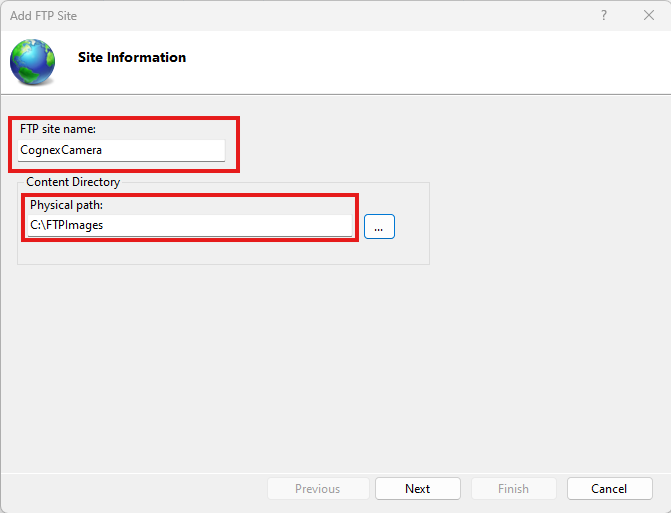
In the Add FTP Site window add a site name and the directory you want to be the home directory of the server C:\FTPImages in this case. Click Next.
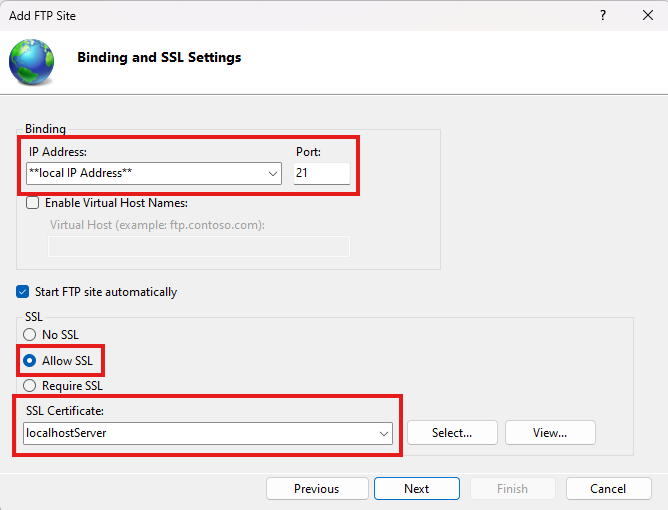
Add the local PC IP address for the network the Cognex camera is on. Select Allow SSL and set the local PC Certificate. Then click Next.
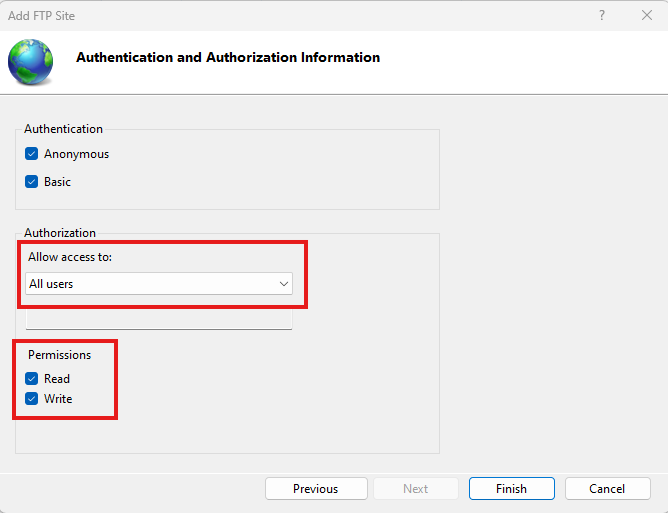
Set the Authorization to All users and select the Read Write options. Then click Finish.
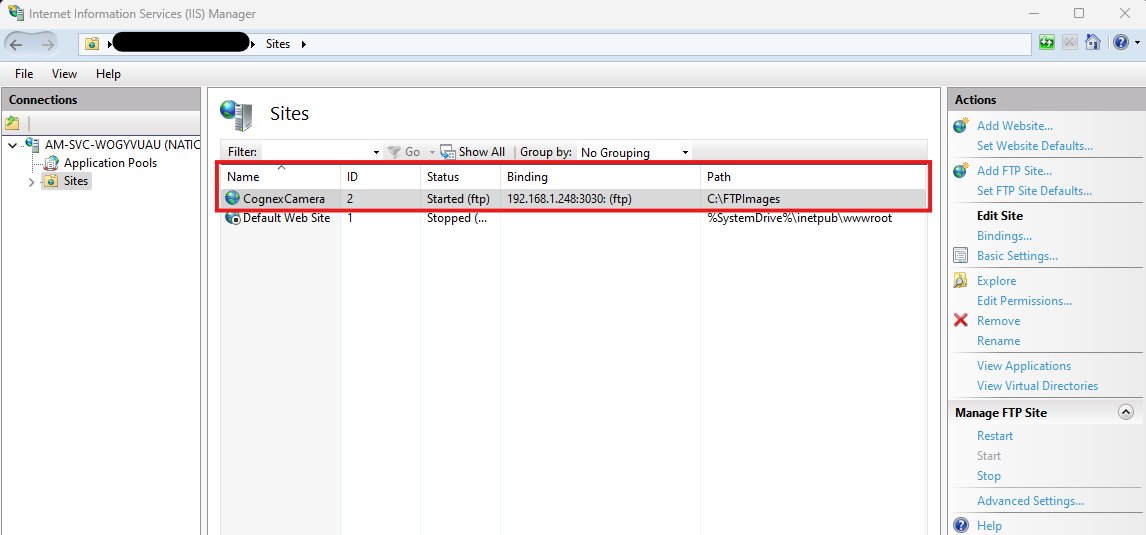
The FTP site has now been created.
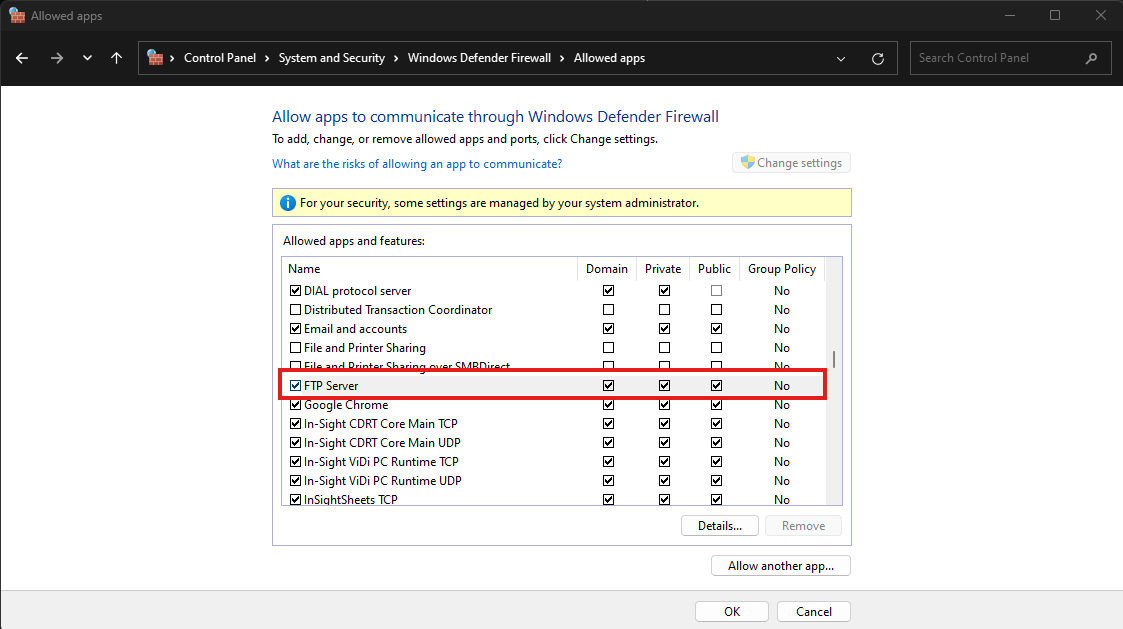
Ensure all Firewalls are turned off. Go to Control Panel > Windows Defender Firewall > Allow an app or feature through Windows Defender Firewall > FTP Server. Enable Domain, Private and Public.
*To Connect to the FTP server Anonymously, the user name would be “anonymous”.