

Question
How can I set up Filezilla to act as an FTP Server so I can save images and other files from my Cognex devices?
Answer
Use the link below to be careful to download FileZilla Server and not FileZilla Client:
https://filezilla-project.org/
NOTE: The following instructions are based on FileZilla Server version 1.5.1. Instructions may very as newer versions are released.
Basic instructions for setting up a FTP file server for Cognex devices using FileZilla:
Run the installer, making no changes to all default settings.
When you complete the installation the Administration Interface should open. Click the button to Connect to the FileZilla FTP Server.
On the Connection window put a check box besides, Automatically connect to this server at startup, then OK.
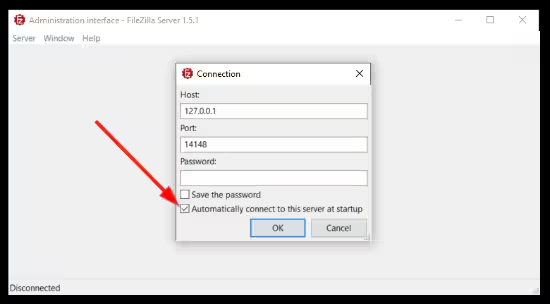
Press CTRL-F to enter the configuration settings.
In the Server listeners section of the settings, change the IP address of the Listener to the IP address of your system. If you do not know your IP address open a command prompt by running CMD and type ipconfig. Your IP address will be listed besides IPv4 Address.
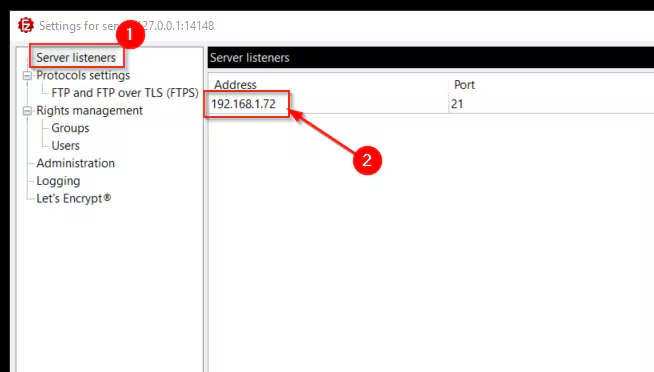
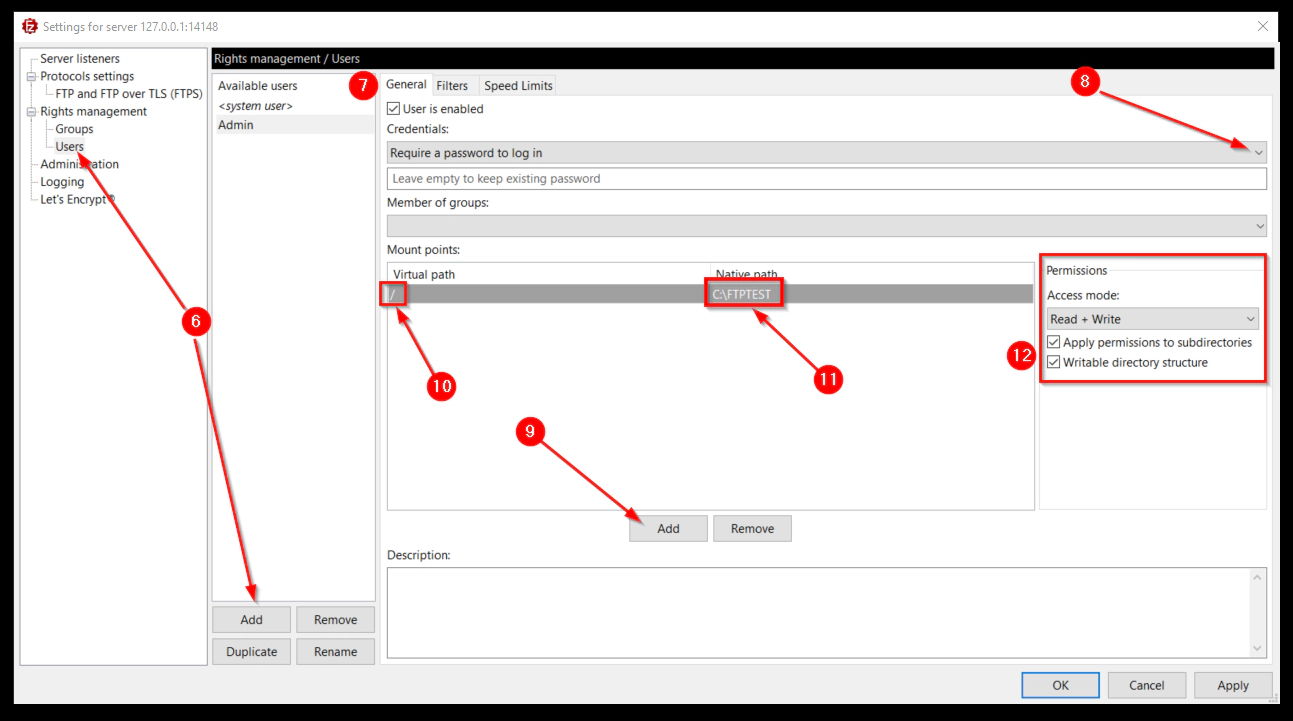
Now go to the Users section and click the Add button to add a user. Give the user a name.
Make sure there is a check in the box for User is enabled.
Select your intended Credentials. Most will select Require a password to log in.
In the Mount Point section click the Add button.
Click the … under Virtual path and add a single forward slash "/"
Click the … under Native path and add the full path to where you want to the data to go – for example - C:\FTPTEST
Make sure that Read + Write is selected and both boxes are checked. Click OK to finish.
The FTP server should now be setup to accept results and images from Cognex devices. This assumes that port 21 is open and available and that the firewall is not blocking communications over that port.
