

Details
To configure the DataMan 8700 scanner to send results to the application do the following:
- Connect to the Scanner using the DataMan Setup Tool application.
- Go to the Format Data section on the left-hand side.
- Place a check for the Universal / Standard option.
Click the blue Standard link to enter that section.
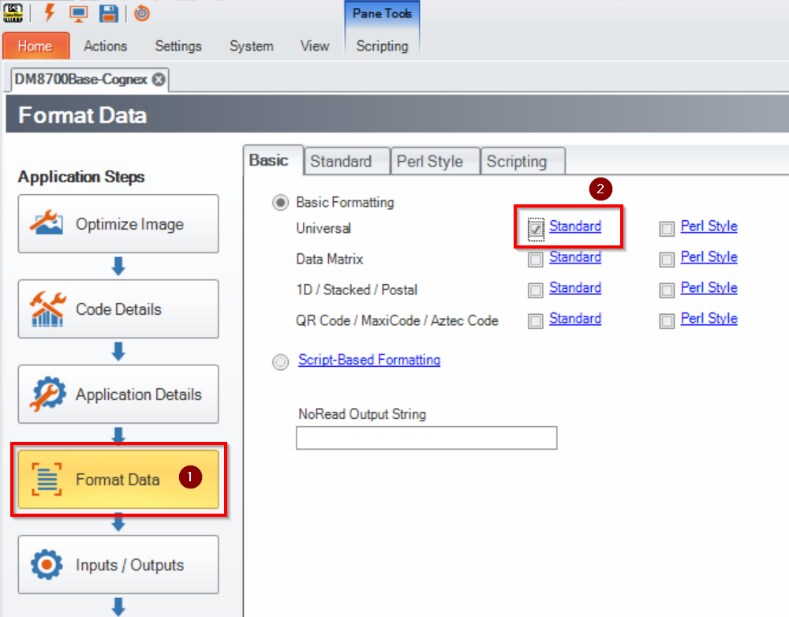
- Highlight <Full String> and click the Add button. You should see the <Full String> added to the text box below.
- In the text box below Terminating Text add “\r” (without quotation marks). This will include a single carriage return after outputting the results. Without this, two carriage returns will occur.
- Click the Save Settings button on the left side and exit the connection to the scanner.
Now connect to the Scanner’s BASE using the DataMan Setup Tool application.
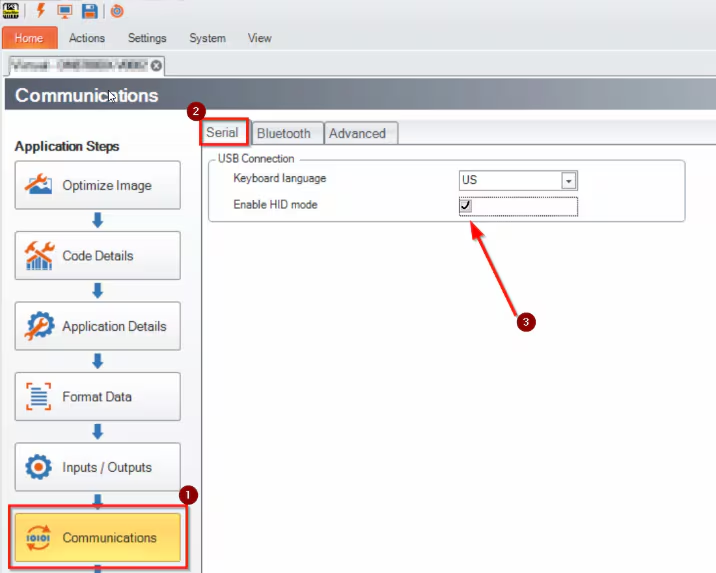
- Go to the Communications section.
- Make sure the Serial tab is selected. Check the box for Enable HID mode.
- Click the Save Settings button on the left side and exit the connection to the BASE.
The Scanner and Base are now configured to be used as a keyboard wedge. Results scanned will go directly to an application and terminate with a carriage return.
