Question
Some troubleshooting and programming in EtherInspect (EI) require administrative access to the C2D2. How do I get this access?
Answer
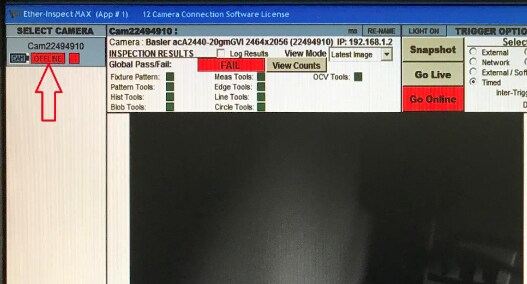
The Ether Inspect application needs to be open with at least 1 camera connection. The Template selection must be ‘EtherInspect’. Change to this template temporarily if necessary.
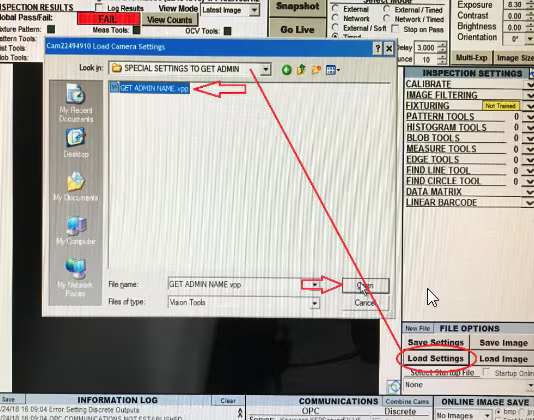
Click on Load Settings and open the settings file provided with these Instructions ‘GET ADMIN NAME’.
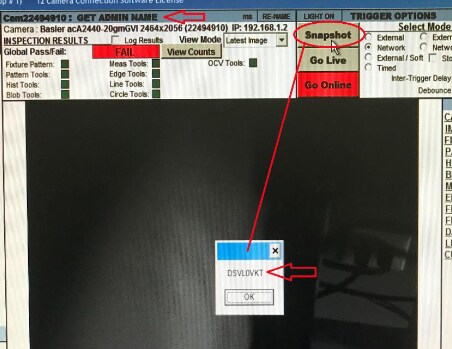
With the special settings file loaded click Snapshot to take an image. A pop up message box will appear with the name of a User account with Administrator level access. Record this value.
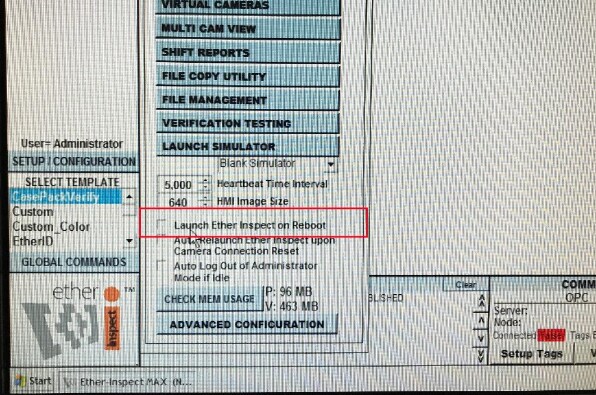
Uncheck the ‘Launch Ether Inspect on Reboot’ checkbox in the Setup/Configuration menu. Then Close the application. We do not want the Ether Inspect application to open while in Administrator mode.
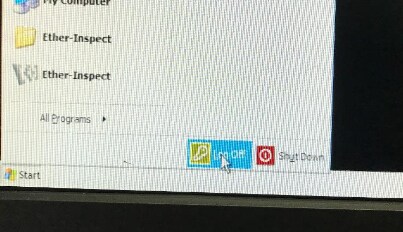
From the Windows Start Menu select ‘Log Off’.
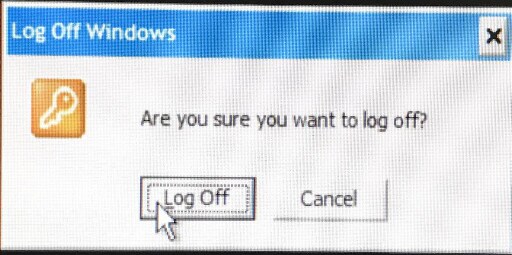
A Prompt will ask to confirm this action click on ‘Log Off’.
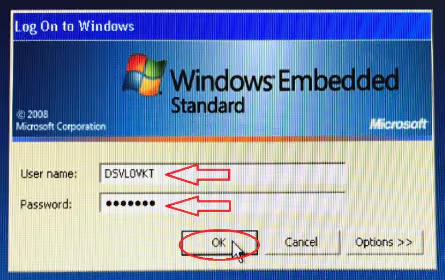
In the Log On screen, enter the User name that was obtained in step #4. The Password for all systems is: /89*OCT Click OK to Log on in the Administrator account.
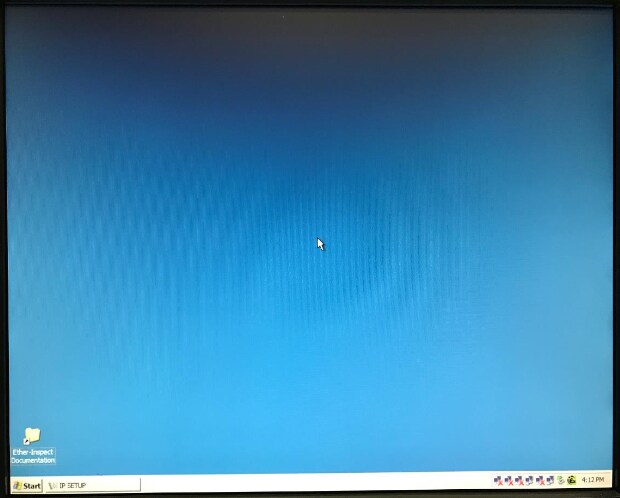
The Desktop background color will be Blue when logged in as Administrator. (Black for normal access).
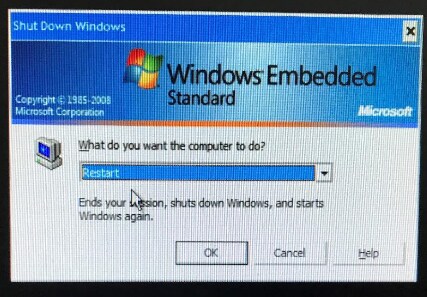
After completing any changes. Restart the system from the Windows Start menu shutdown options. The system will reboot and start in the Production account.