Details
To ensure DataMan Readers are able to send and receive UDP packets for automatic detection in DataMan Setup Tool, the software must be allowed to communicate through the Windows Firewall. Typically new installations of the software will come with this enabled, preventing DataMan cameras from showing up in the Setup Tool device list, so to allow UDP Cognamer packets used to announce camera presence to the Setup Tool software on the network are not blocked by firewall perform the following steps:
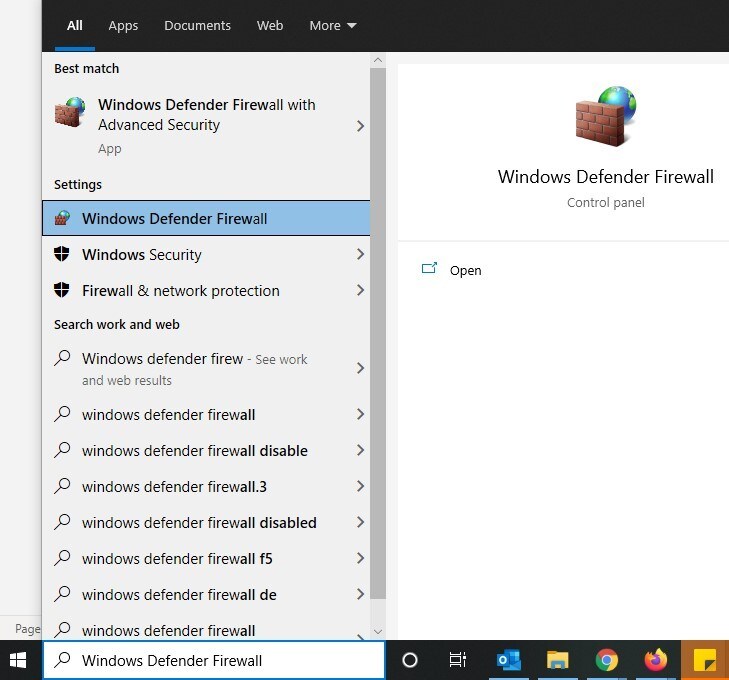
Use the Windows search bar to look for "Windows Defender Firewall".
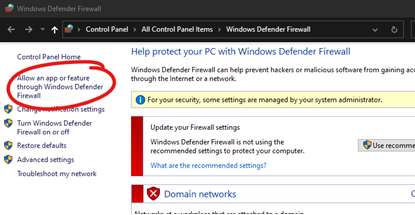
Once opened, click on “Allow an app or feature through Windows Defender Firewall”.
In this list look for “DataMan Setup Tool” or equivalent (e.g. “Setup Tool”, “Cognex DataMan Setup Tool” etc...)
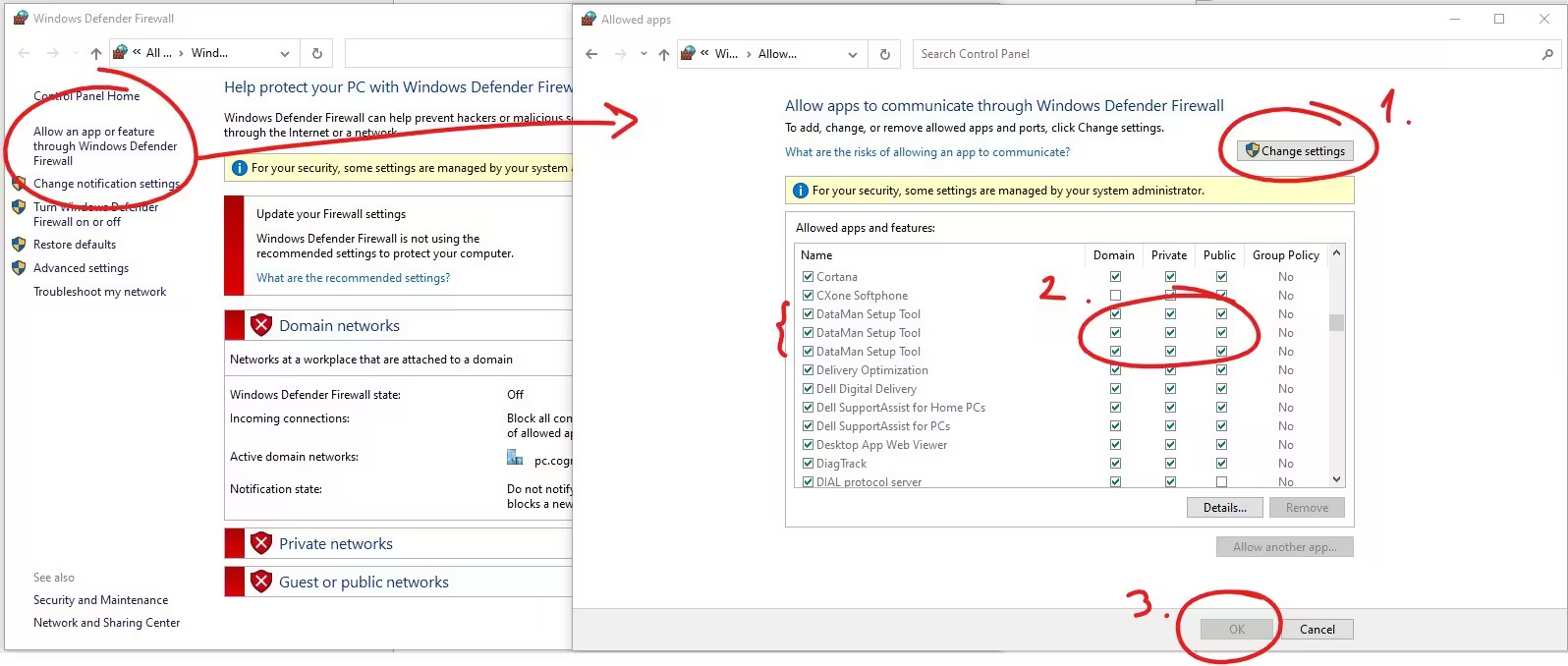
- If you are able to find an app matching with Setup Tool, please click on “Change Settings” and make sure that the software is allowed through the firewall. Click OK & ignore the following step.
If you are not able to find the Setup Tool app in this list then click on “Change Settings” and “Allow another app”.
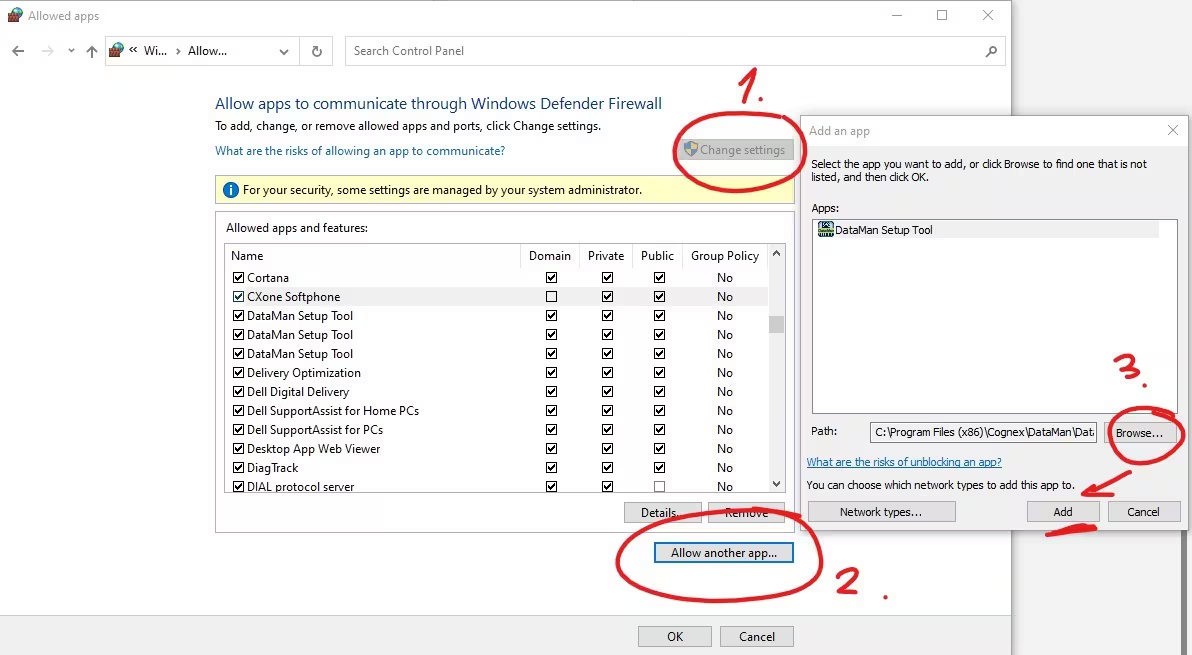
- Here you must navigate to the installation path of the DataMan Setup Tool Software and select the DataMan application (.exe file). Once the application has been added to the list, go back to the previous step and allow it through the firewall.
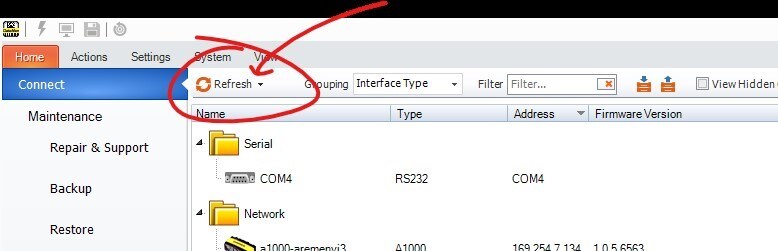
Finally, go back into the DataMan Setup Tool application and refresh the reader list in theHome > Connect page. You may need to restart the Setup Tool software to complete the procedure.