

Details
Troubleshooting guide to crash, freeze and other issues when using Cognex Deep Learning Studio.
- Check PC Operating System
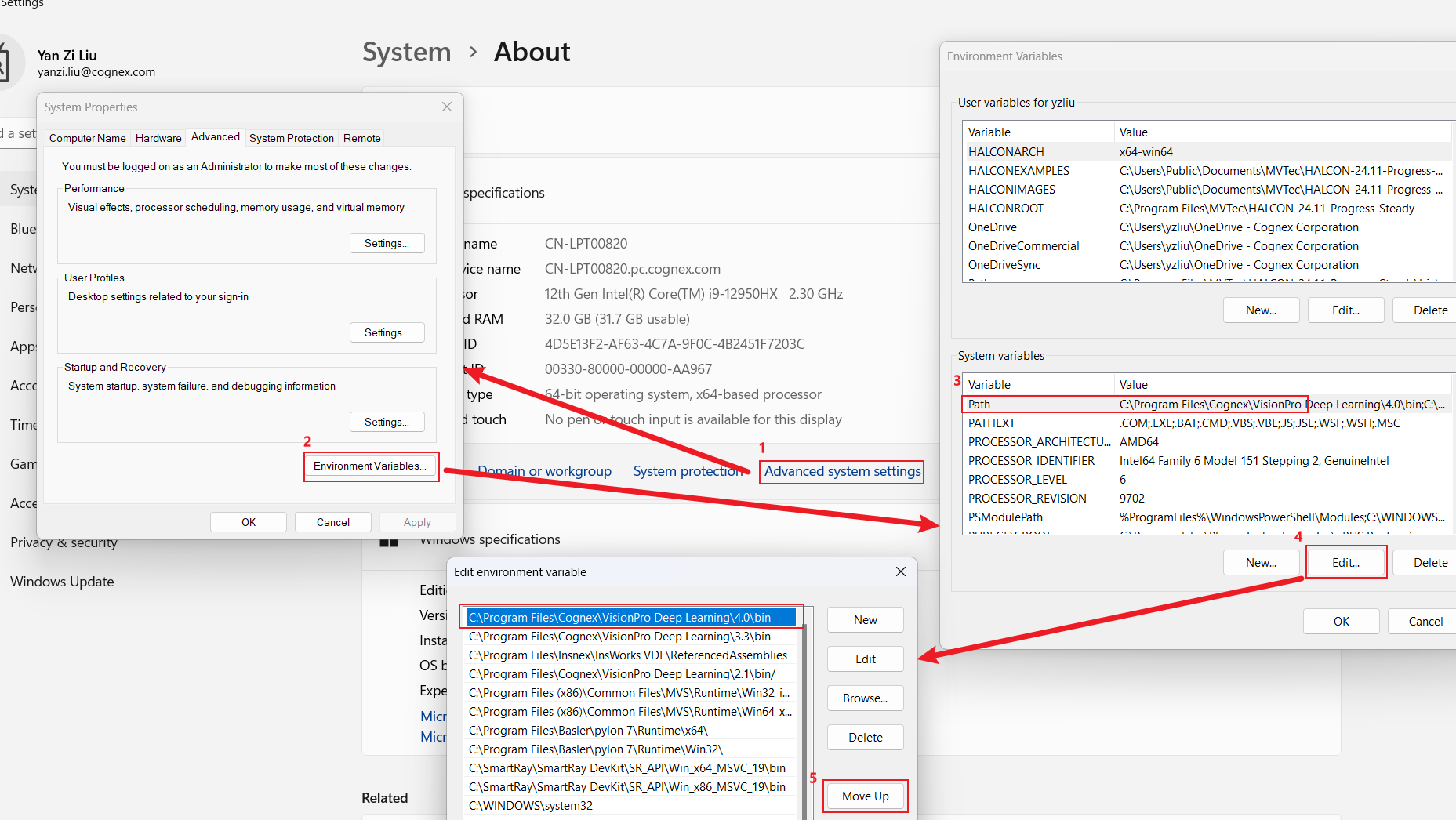
Refer to the help documentation to confirm whether the current operating system version is supported. Windows 10 version 1809 may cause software issue; if you are using this version, it is recommended to update to version 22H2 or later. - Check PC Environment Variables
Ensure that the bin directory of the software version you are using is at the top of the Path variable.
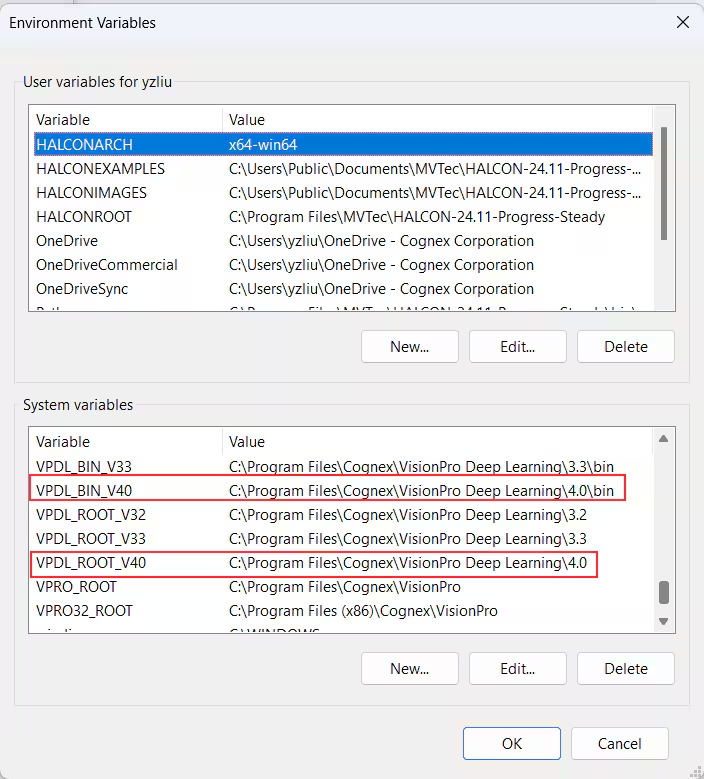
Ensure that the environment variables include the corresponding version's VPDL_BIN and VPDL_ROOT variables
Check GPU driver and Settings
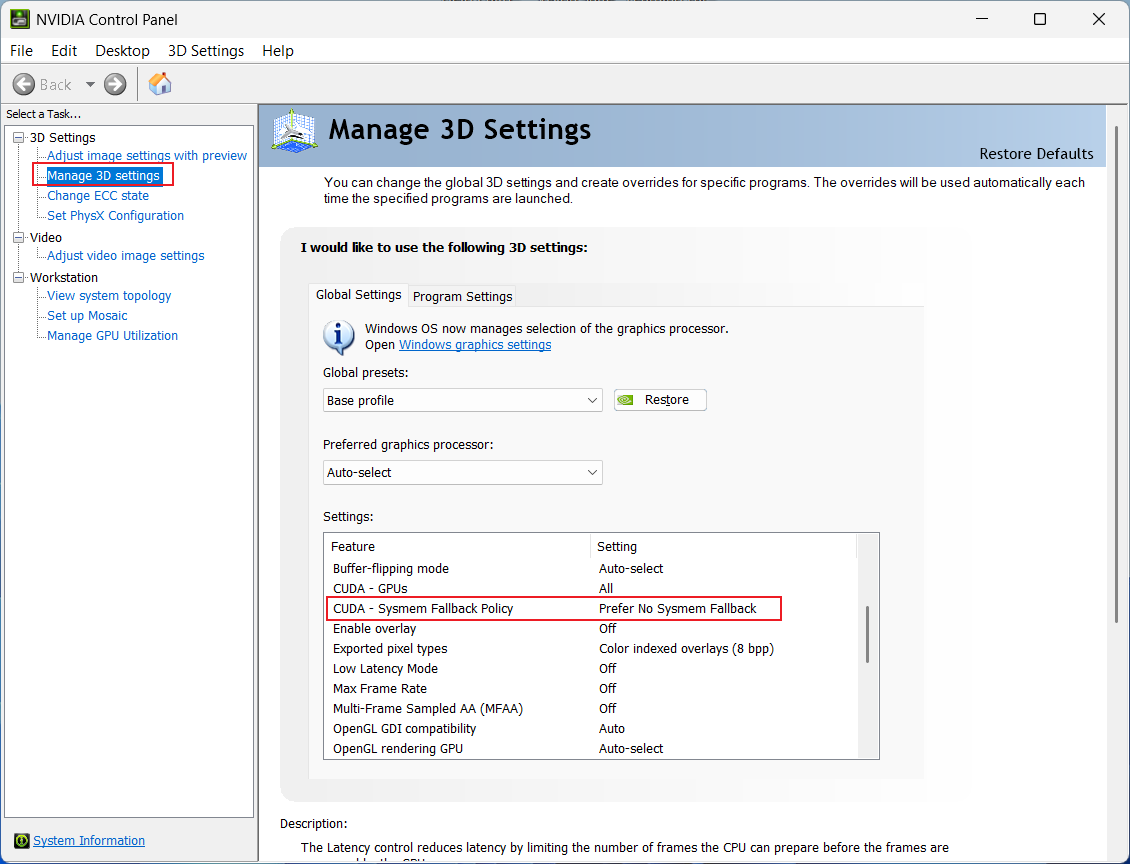
Refer to the help documentation to confirm the GPU and its driver version compatibility. If the driver version is higher than 546.01, you need to disable the Sysmem Fallback setting in the NVIDIA Control Center .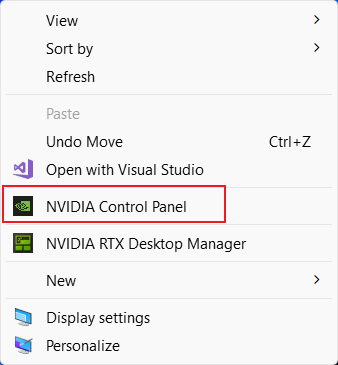
- Dongle License Bit and firmware
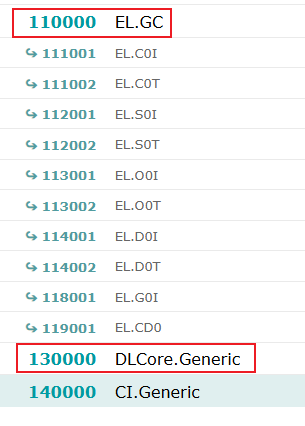
Confirm whether the dongle includes the license bits for the tools used. For VisionPro Deep Learning 3.0 and later versions, the bits in the red box of the following screenshot are required.
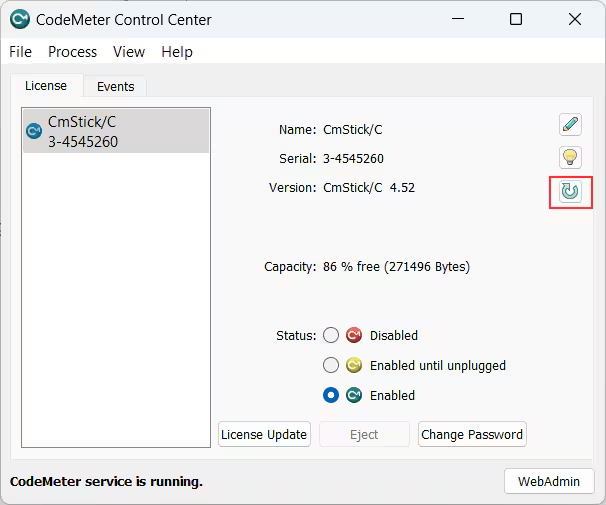
Update the firmware of dongle to latest
- Codemeter Version
If the computer's operating system version is Windows 11, 24H2, please uninstall the current Codemeter Runtime software and install version 8.20a or higher. Download link: CodeMeter Runtime - Wibu-Systems. PC RAM Size
Ensure that the current used computer's RAM size meets the minimum requirements:Training PC: 64G or larger
Deployment PC: 32G or larger
- Workspace File Corrupted
If the above issues have been checked and there are no problems, and the workspace crashes or exits unexpectedly when exporting, it is highly likely that the workspace file is already corrupted. This issue often occurs when importing the workspace by copying folders. If you need to back up or migrate the model, it is recommended to use the import/export function instead of directly copying folders.
