Details
Issue:
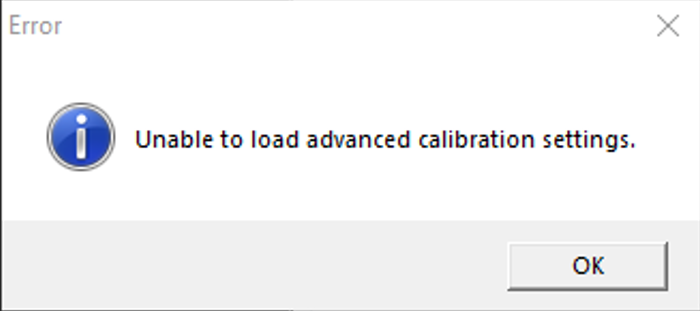
When you open TruCheck you may see the following message – “Error Unable to load advanced calibration settings.”
Cause:
The ‘Advanced Calibration’ (white balance) setting may be turned off if the settings are set to ‘default‘ values. This can be common when setting an assembly number after it has been lost.
Resolution:
To turn the Advanced Calibration back on, you must go into the “Advanced Settings” menu and enable the ‘Advanced Calibration’.
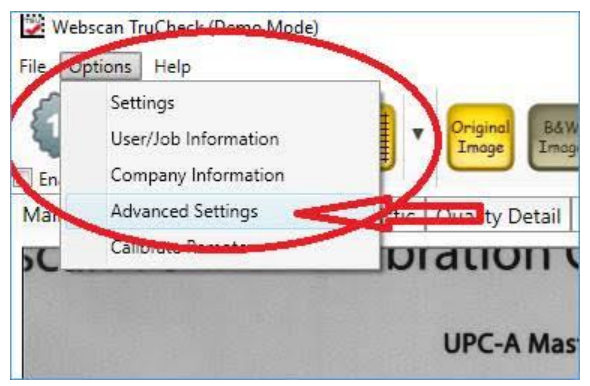
Go to the “Advanced Settings” menu under the “Options” tab.
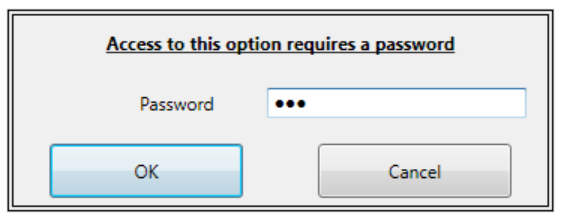
Enter the password “789”.
Find the check box for ‘Advanced Calibration’.
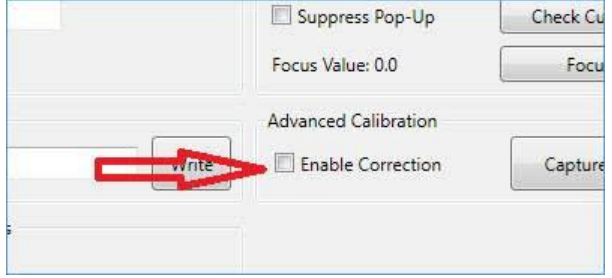
- Click the box to enable it.
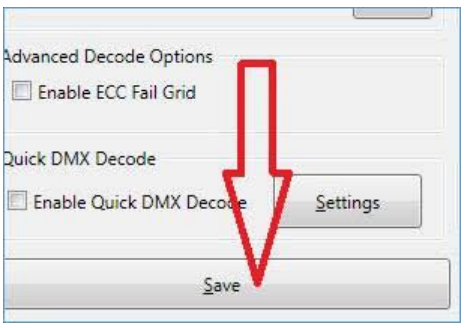
Click Save to exit the “Advanced Settings” Menu.
- Now, Exit the software.
- Restart the software. When the software restarts it will load the Advanced Calibration Settings and the image will look more “uniformly bright” across the whole image.
- Calibrate Again. It does not matter where the calibration barcode is, because the image is the same brightness in all areas.
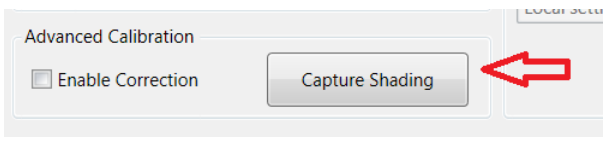
NOTE: The advanced calibration is done at the factory and whether enabled or not the file is stored on the verifier. If the image is not smooth when correction is enabled the file may have been corrupted but can be restored by placing a small stack (10-15 sheets) of bright white copy paper under the verifier, focusing, and selecting the “Capture Shading” button next to the “Enable Correction” button. This procedure will capture an exact image so your lens plate and paper must be clean of dust or other foreign material.