Centre d’assistance Cognex


In-Sight Vision Suite - Troubleshooting Emulator (Dongle) Not Detected
Troubleshooting and fix steps for In-Sight Vision Suite not detecting a dongle in its Emulator
15/09/2025
Troubleshooting and fix steps for In-Sight Vision Suite not detecting a dongle in its Emulator
Issue:
In-Sight Vision Suite - Emulator (dongle) under In-Sight Vision Suite is not starting
Cause:
In-Sight Vision Suite - Blocked ports/Firewall issues/License issues/Security packages
Resolution:
Blocked Ports
Some blocked ports can prevent the emulator from initializing correctly. Known blocked ports that can interfere with Emulator startup are :
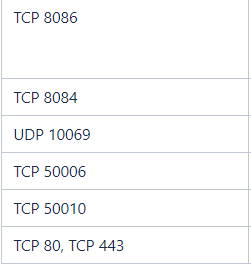
Restricted Access
In-Sight Vision Suite may need to start or make changes to Windows services to start up the Emulator correctly. Always make sure this software is started as “Administrator”.
Dongle and Security Software Troubleshooting

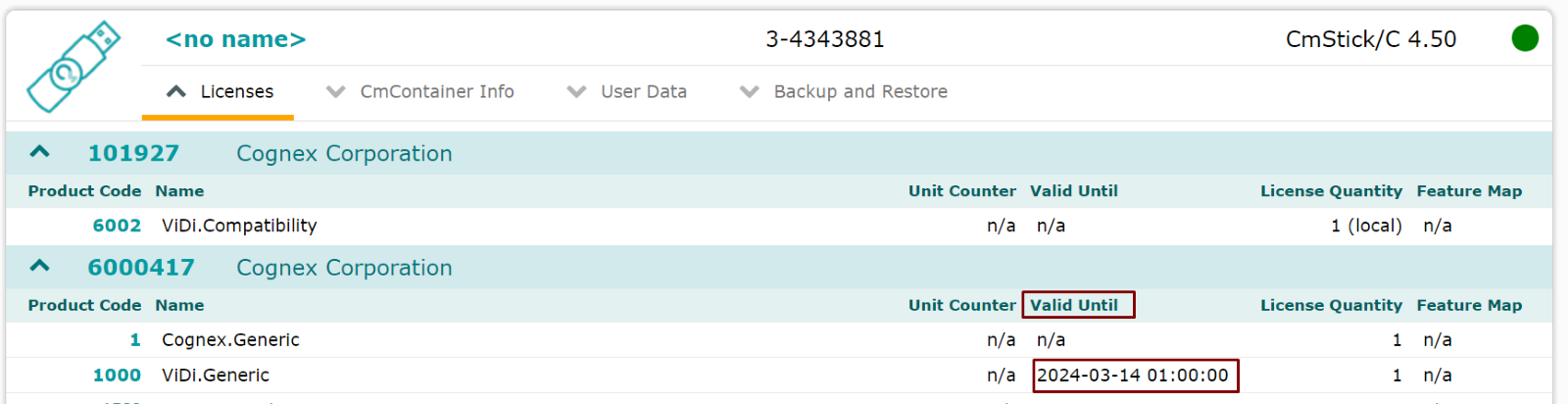
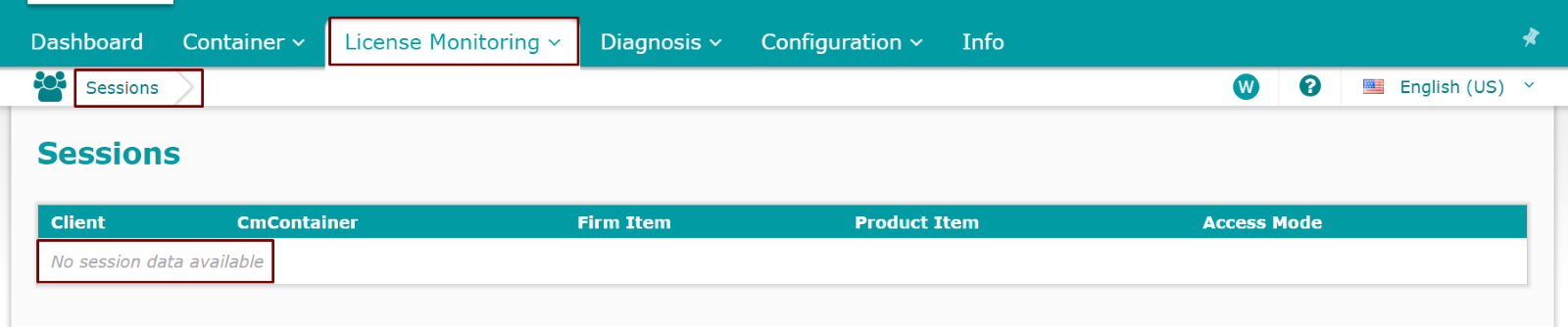
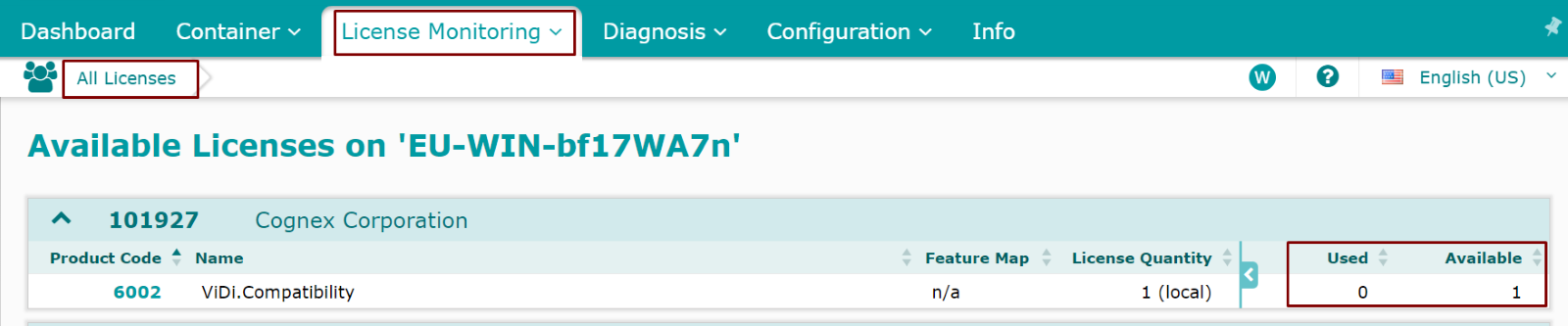
Sometimes Firmware and Time Certificates need to be updated on your dongle. To update them :
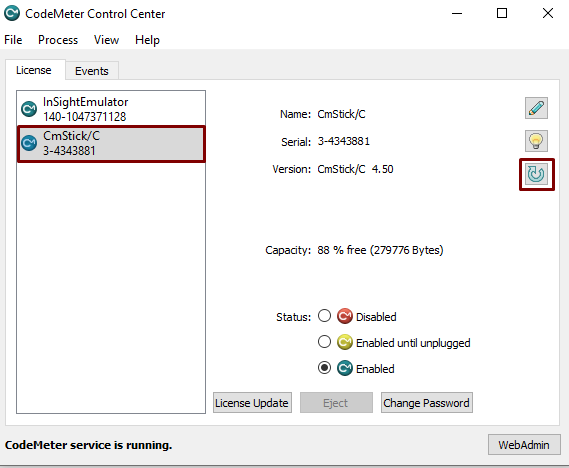
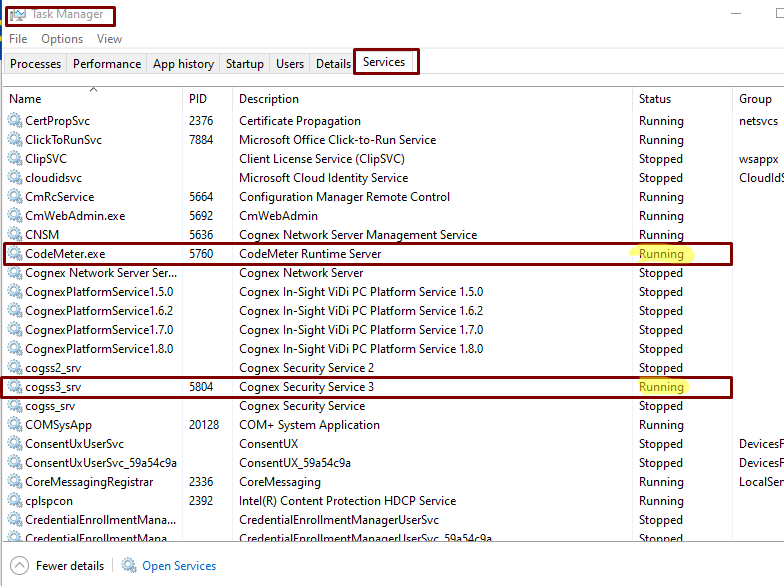
Add cogss3_srv to Anti-Virus whitelists. The service is installed into C:\Windows\SysWOW63 and the services files are:
Ensure no security packages are interfering with the emulator. The only solution is for your IT department to add exceptions for our emulator on your specific computer. Here is a list of currently known packages that interfere with the startup process:
If all else fails, please prepare the following for a Technical Support case (ts.global@cognex.com) :
Generate a .RaC file.
Include the supportinfo file from the emulator as well.
See Also:
In-Sight ViDi Documentation - In-Sight® ViDi Help - Open Network Ports and Enabled Ports and Services - Documentation | Cognex