

Question
This article is intended for handheld scanners (or scanner’s base) that are connected to a LAN.
Unlike fixed mounted DataMan readers the handheld scanners do not have the ability to transfer results over FTP. The following is a workaround to save the results from a handheld scanner to a log file.
Answer
This workaround uses a Freeware program called PuTTy. This application can be installed on any PC connected to the same network as the handheld scanner (or scanner’s base).
Download and install PuTTy from the link below. The following instructions are based on PuTTy version 0.76:
To configure PuTTy to save the results to a log file do the following:
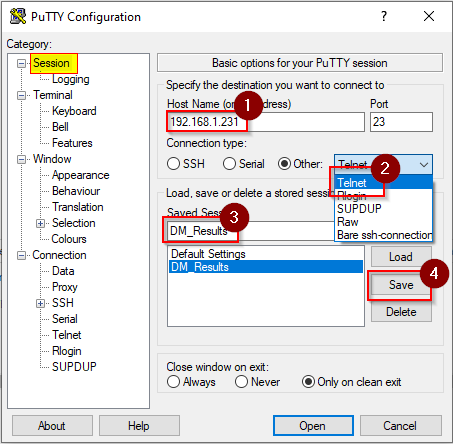
- Open PuTTy. You should be in the Session section (Category). Enter the IP address of the scanner as the Host Name.
- Choose Tenet from the pull-down menu for the Connection type.
Give this Saved Session a name and click Save.
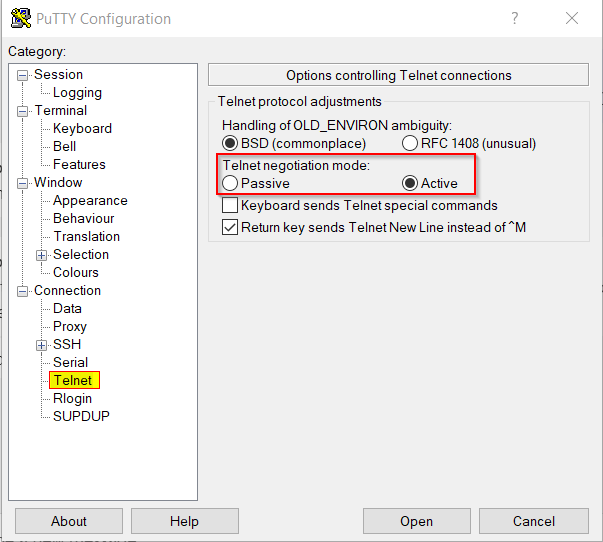
- Go to the Telnet Category section listed on the left hand side.
Change the Telnet negotiation mode to Active.
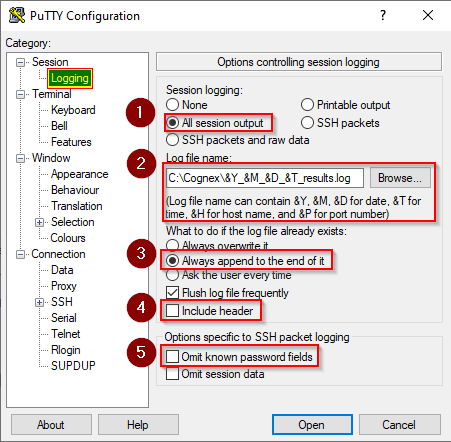
- Go to the Logging Category section on the left-hand side.
- Choose All session output for Session logging.
- Browse to the location you wish to store the log file. Format the name to the desired output.
- Choose your desired option for What to do if the log already exists.
- Uncheck both Include header and Omit known password fields.
- IMPORTANT LAST STEP – Go back to the Session category section and click SAVE.
- Now click the Open button to establish a TCP connection to the handheld reader. The terminal can be minimized but must remain open for PuTTy to send the results to the log file.
NOTE: Time codes can be configured in the log file name to dictate when a new file should be created. For example – the file name &M&Dresults.csv. The file name created was 0428results.csv. I continue to scan on April 28 the results will append in the same file. The following day a new file will be created for April 29.
NOTE: To save the file in a format that Excel is able to open, change the extension of the output file to CSV (i.e. results.csv). The output data can be configured from within the DataMan Setup Tool to include non-printable characters such as a carriage returns, tabs, etc… Opening the CSV log file with Excel will include formatting as configured.
