Question
How can I save images with FTP but only send them if a certain condition is met?
Answer
To show this process, we will use the EL Classify tool to represent a presence/absence and classify as either “Found” or “Missing.” When the classification is labeled “Missing,” we want to save the image for review.
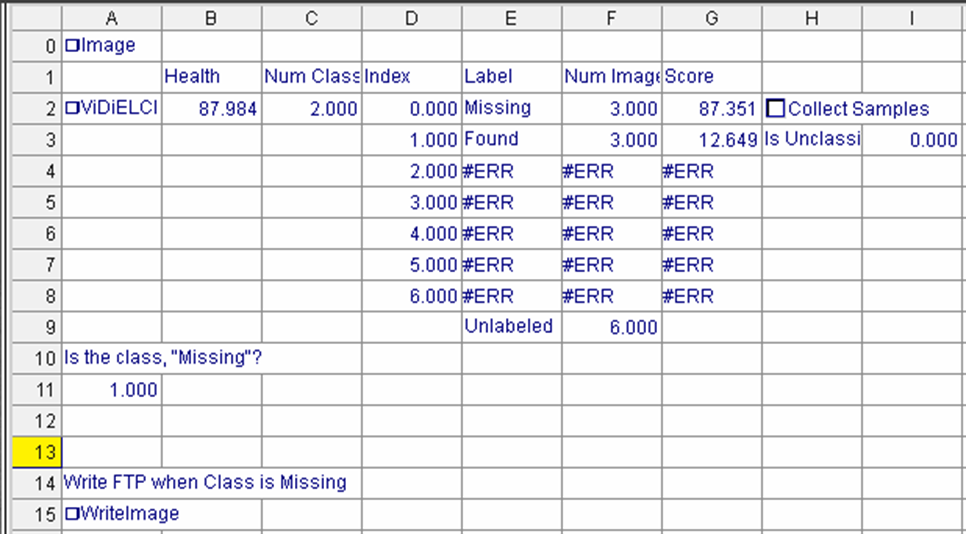
After setting up the EL Classify tool, our next step is to setup an “Exact” function inside an empty cell to output a 1 when the classified result is equal to “Missing.”
You can do this by typing “exact(“ and then the cell refenced (in our case E2) followed by a “,” and then the text to match against (in our case “Missing”). See below for the full formula.
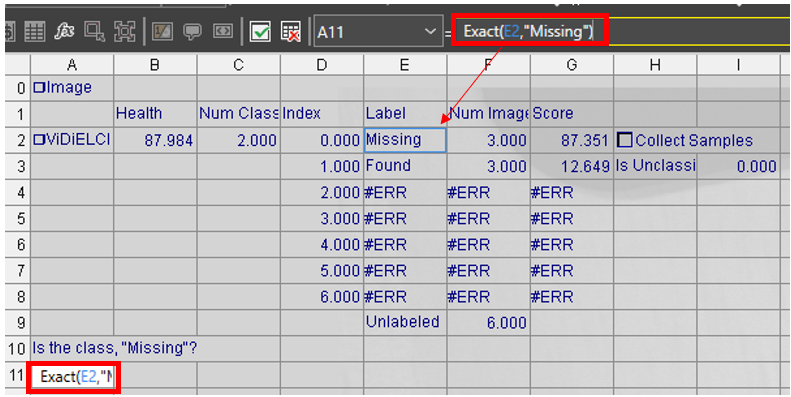
- This will output a 1 when the found class is “Missing” and a 0 for anything else.
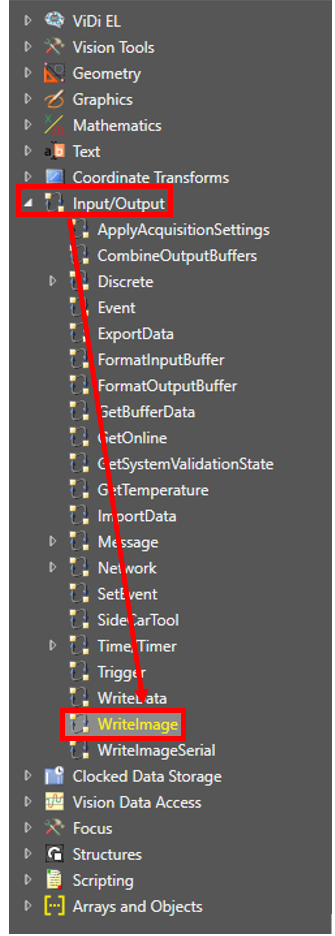
Next, we will want to drag over the WriteImage tool from the tool pallet into the spreadsheet.
This will open the following dialog.
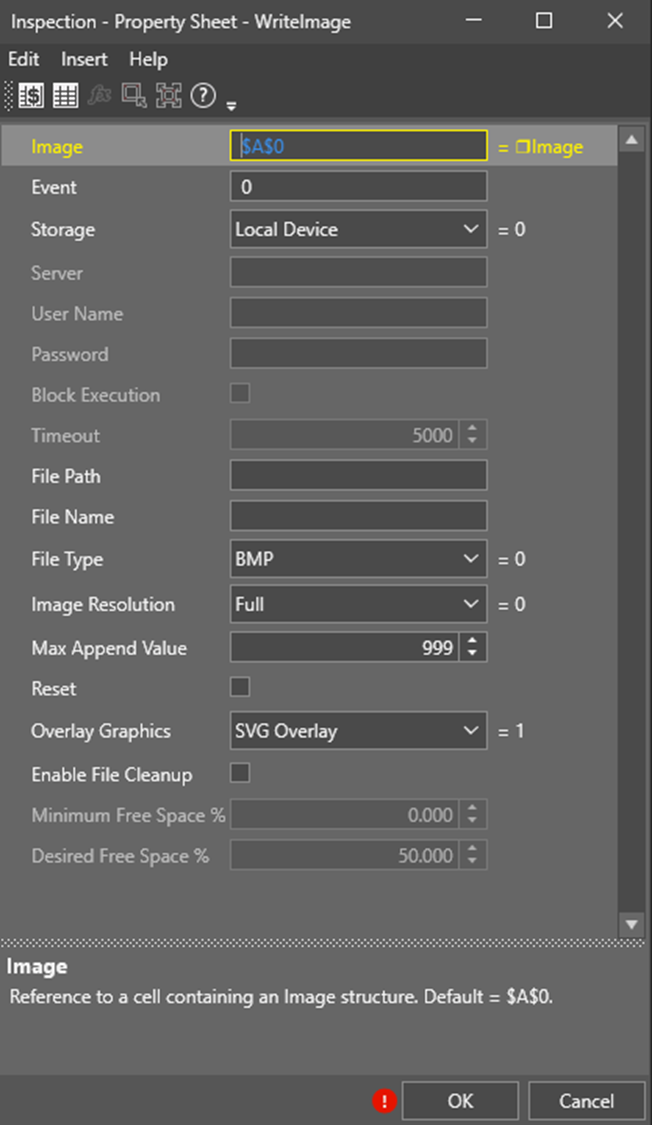
We want to change this to the following:
- Event – $A$0 – This is so it is triggered by the image acquisition.
- Storage – FTP Server – This will allow us to save over FTP.
- Server – IP address and port used for FTP server. In this example, the FTP server is setup on IP 192.168.1.252 and the port is setup as 3031 (typically port 21 in most applications). Note that there is a colon (:) in between the IP address and the port number (192.168.1.252:3031).
- User Name – Username of user registered with the FTP server (ftpguy in this example).
- Password – Password of the registered user with the FTP server.
- File Name – Set this up to reference the class from the tool (E2).
Press OK when done.
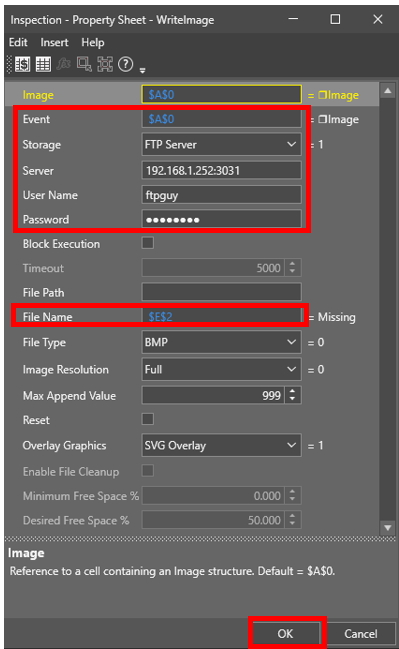
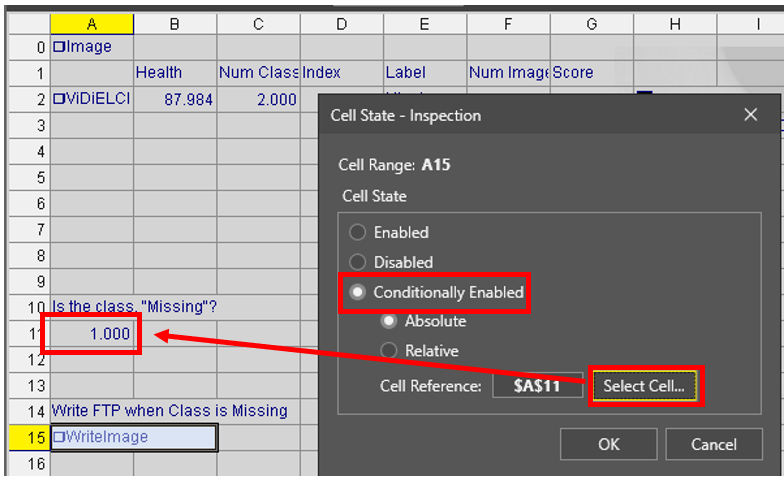
Next, we want to implement a Cell State for the WriteImage tool to only run if the found case is “Missing.” To do this, we will make use of the "Exact" function result we setup earlier.
Right-click on the WriteImage tool in the spreadsheet and select, “Cell State…”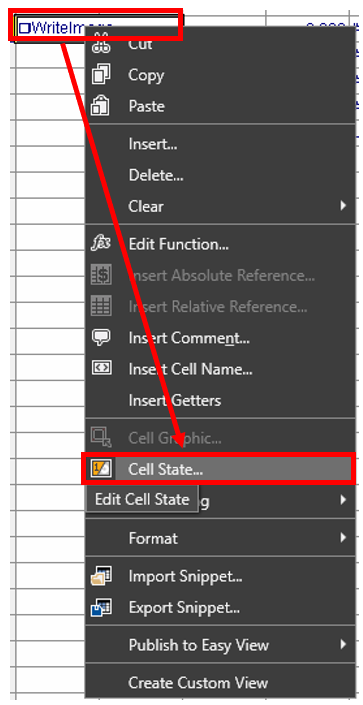
This will open the following dialog box. Select Conditionally Enabled and then select the cell reference as the "Exact" function cell (A11 in this example). This allows for the image to only be written over FTP if the class matches “Missing.”