

Details
- Open Cognex Software Licensing Center on desired PC which is in offline mode where you want to initialize license
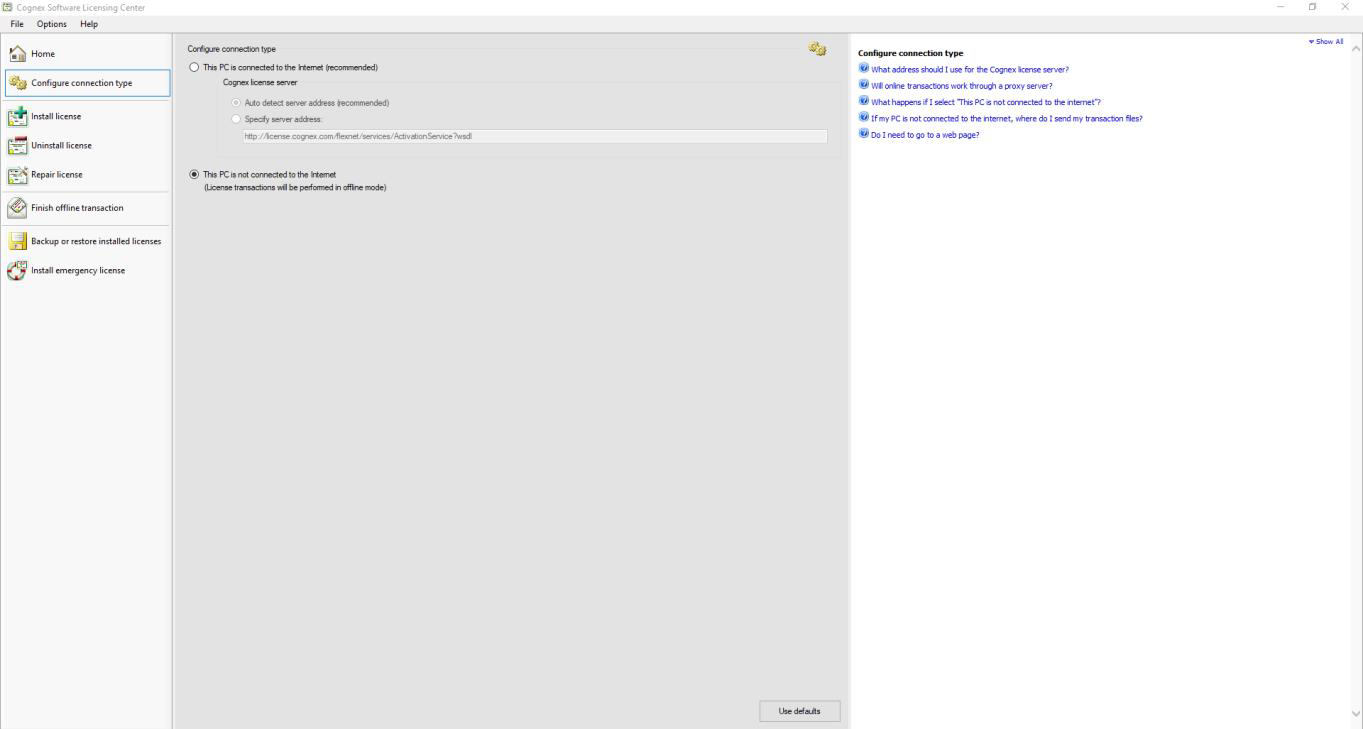
Click on Configure connection type and check This PC is not connected to the Internet
Click on Install licence. Type Activation ID and click Create Install request file
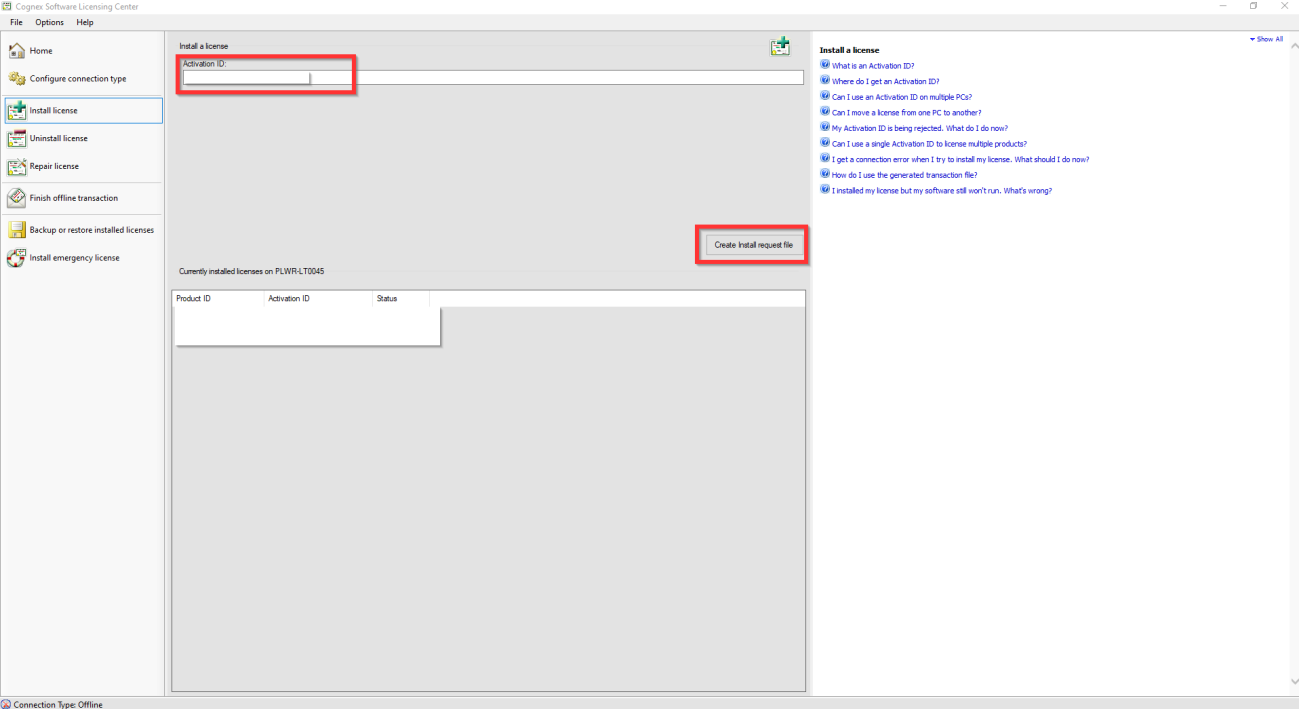
- Store XML file locally on PC
- Login into License server with your Activation ID.
- http://license.cognex.com/flexnet/operationsportal/logon.do
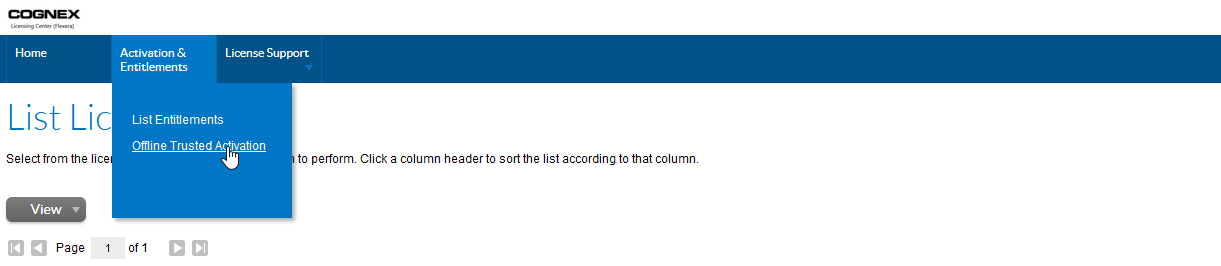
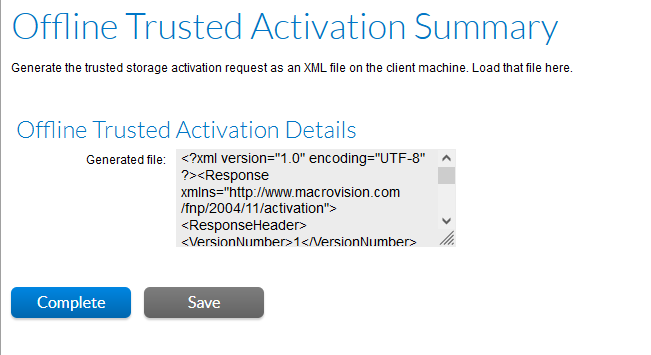
Go to Activation & Entitlements -> Offline trusted activation
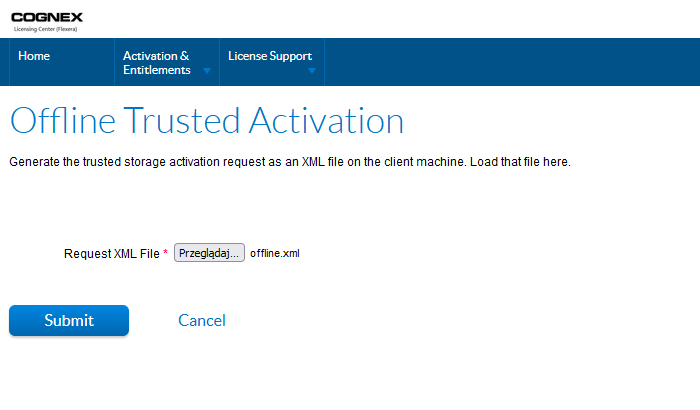
After that click on Save button to create responseXML.xml
- Open Cognex Software Licensing Center -> Finish offline transaction, mark license from list below, choose a proper generated file and press Process response file
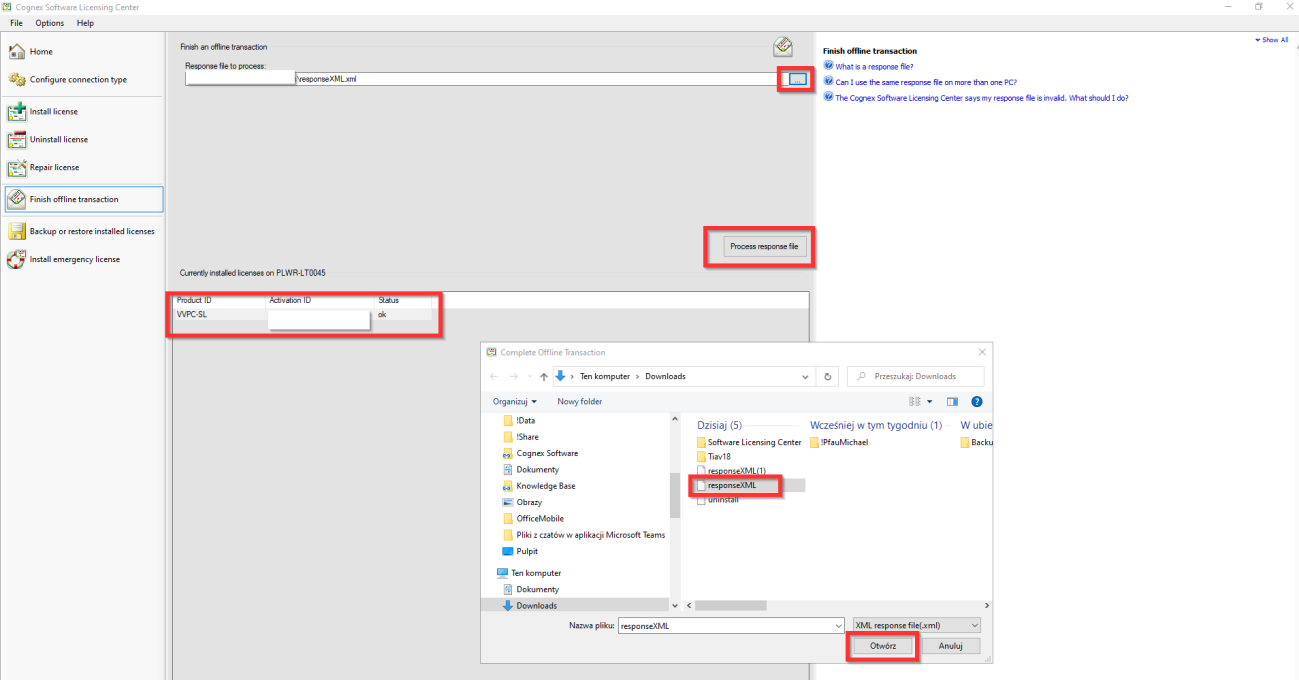
- License status should be changed to OK
