Skip to Main Content
Centro de soporte de Cognex
LogoLogo

How to Use Barcodes as a Location Tool in In-Sight Vision Suite EasyBuilder

How to use barcodes as a location tool in In-Sight Vision Suite EasyBuilder.

06/11/2025

Details

This article describes an easy way of setting up a barcode as a location tool (e.g., for OCR applications when there is no pattern available).

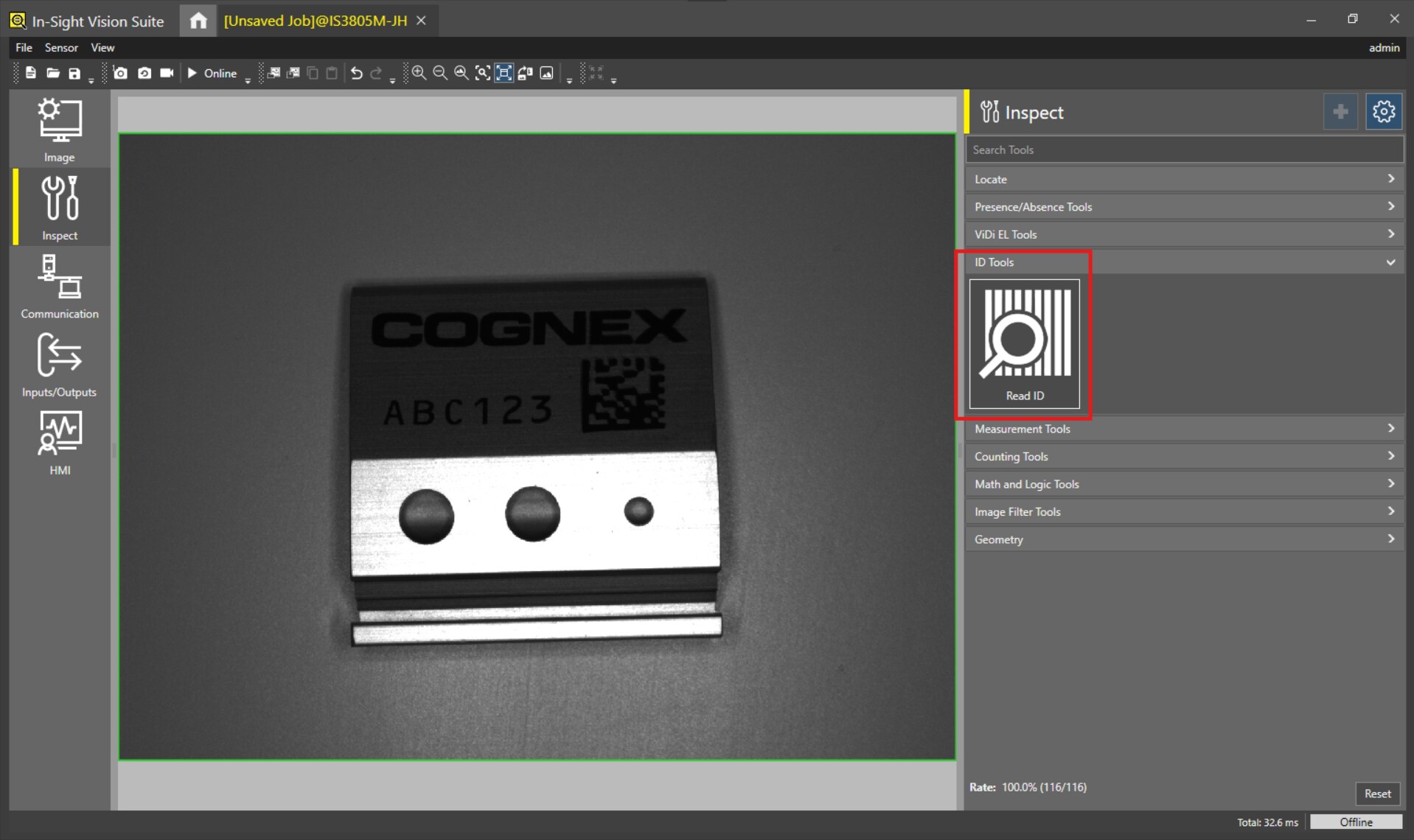
  1. Add the ID Tool to read the 1D or 2D barcode.
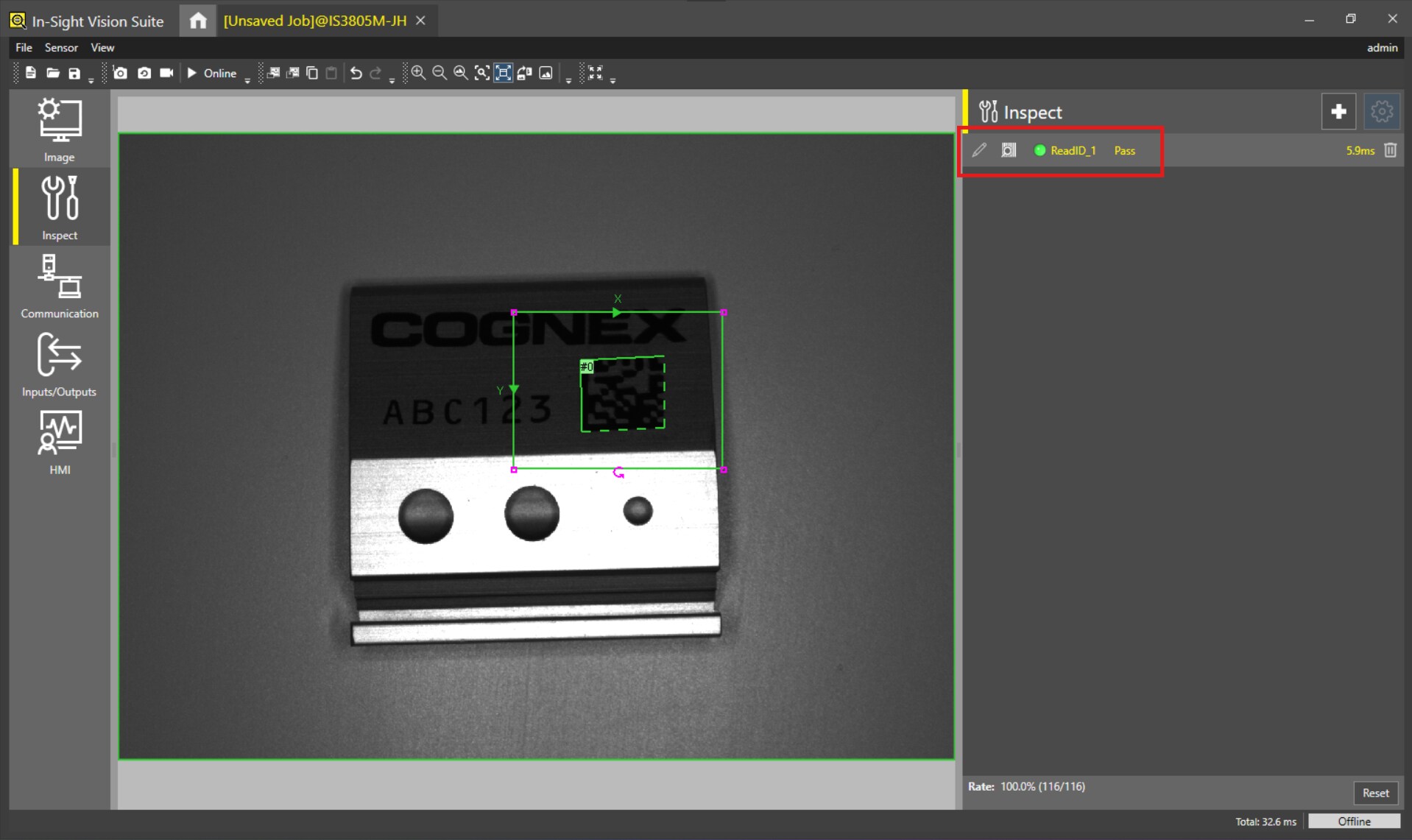
  2. Select the search region.
  3. Click OK.

    How to Use Barcodes as a Location Tool in In-Sight Vision Suite EasyBuilder-Image-1
    How to Use Barcodes as a Location Tool in In-Sight Vision Suite EasyBuilder-Image-2
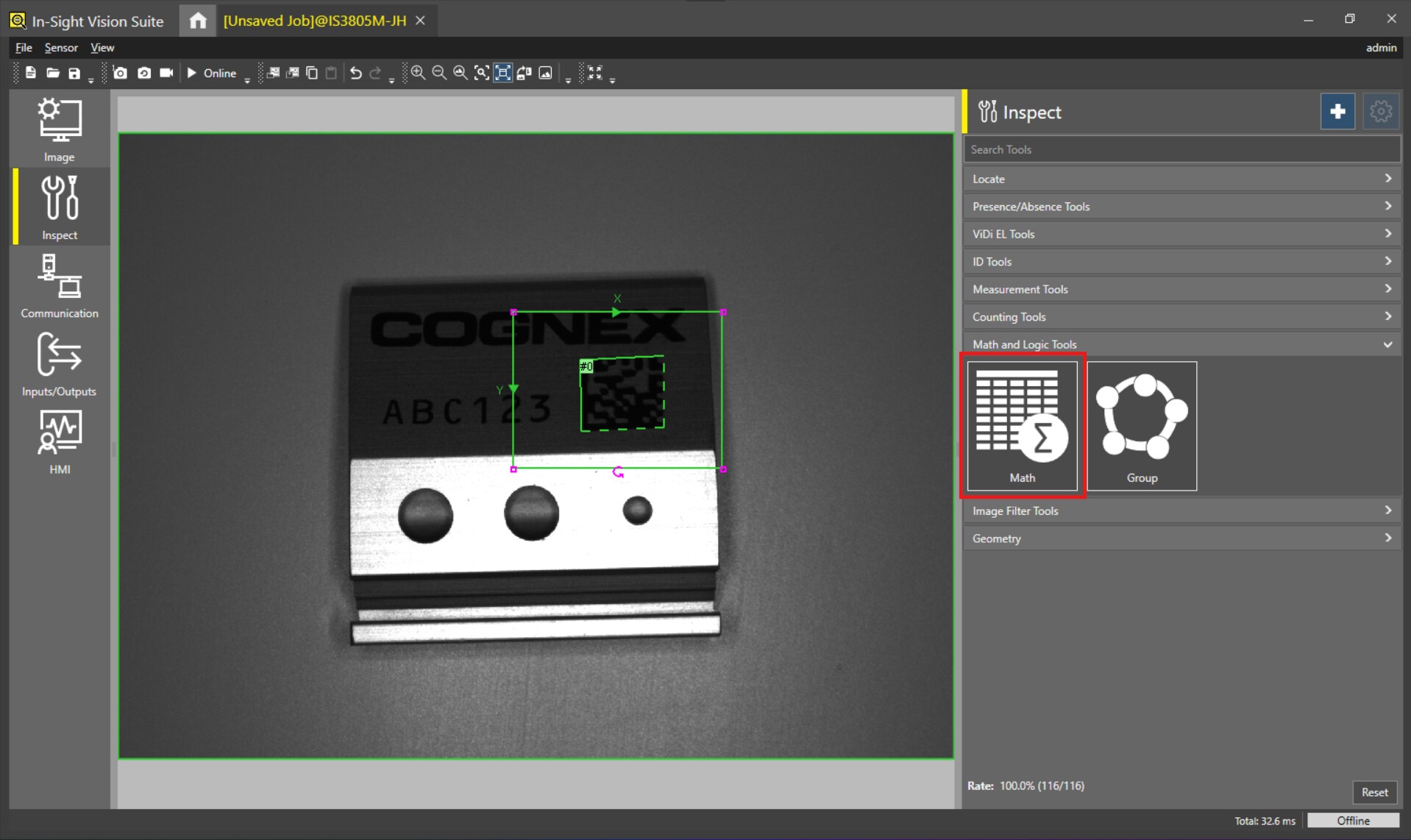
  4. Select and add the Math Tool.

    How to Use Barcodes as a Location Tool in In-Sight Vision Suite EasyBuilder-Image-3
  5. Type "'X", "'Y" and "'Angle" in the cells A0, A1 and A2.
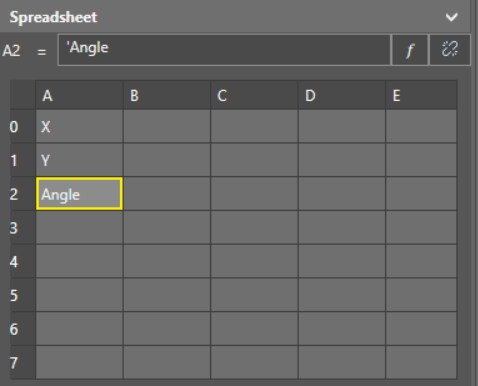
    How to Use Barcodes as a Location Tool in In-Sight Vision Suite EasyBuilder-Image-4
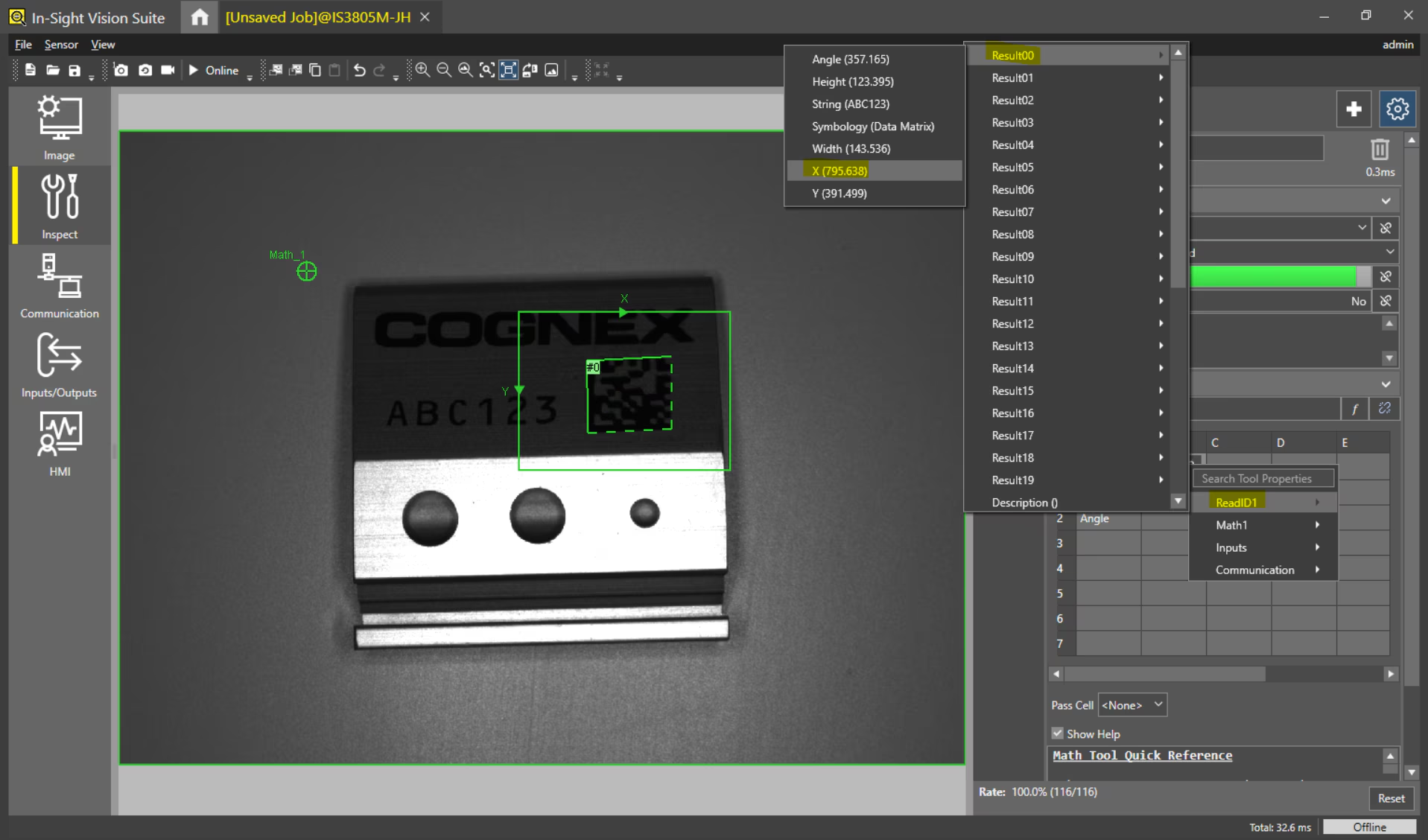
  6. Go to cell B0 click the link button and select ReadID1 => Result00 => X
    How to Use Barcodes as a Location Tool in In-Sight Vision Suite EasyBuilder-Image-5
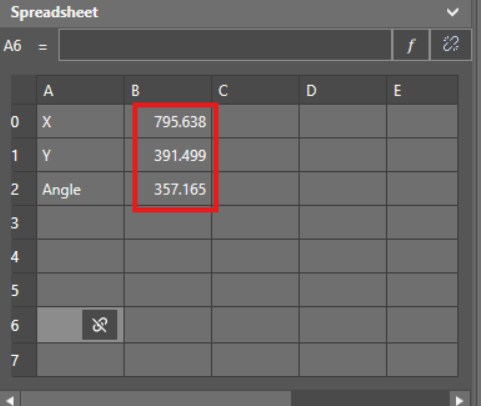
  7. Repeat these steps for the Y and Angle parameters to get a result as below.
    How to Use Barcodes as a Location Tool in In-Sight Vision Suite EasyBuilder-Image-6
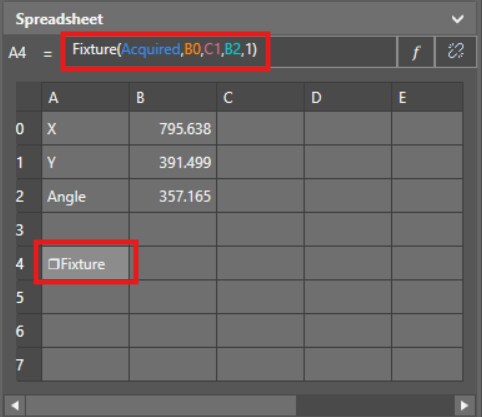
  8. Go to cell A4 and type "Fixture(Acquired,B0,C1,B2,1)" and press Enter.
    How to Use Barcodes as a Location Tool in In-Sight Vision Suite EasyBuilder-Image-7
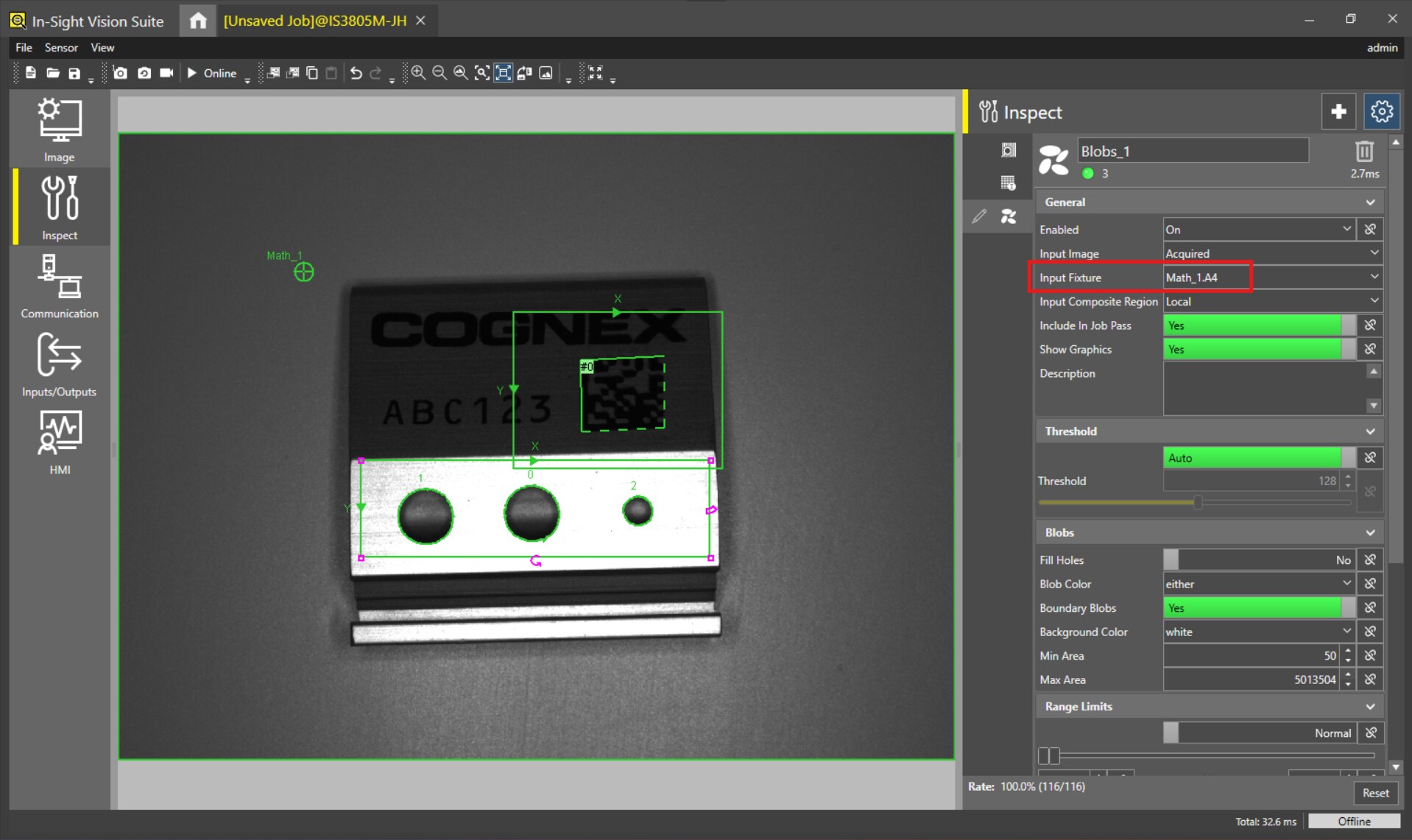
  9. You can close the tool and select a new one (e.g., Count Blobs that, after selecting the region, will be connected automatically with the barcode location coming from the Math Tool).
    How to Use Barcodes as a Location Tool in In-Sight Vision Suite EasyBuilder-Image-8

Loading component...

Loading component...