Centro de soporte de Cognex


Test TCP/IP Communication with In-Sight Vision Suite on Easy Builder
Step by step to make a TCP/IP connection using Easy Builder on In-Sight Vision Suite
16/04/2025
Step by step to make a TCP/IP connection using Easy Builder on In-Sight Vision Suite
How do I test if the In-Sight camera is sending messages using TCP/IP Communication in Easy Builder?
Material required:
With a new Easy Builder Job, go into Communication settings.
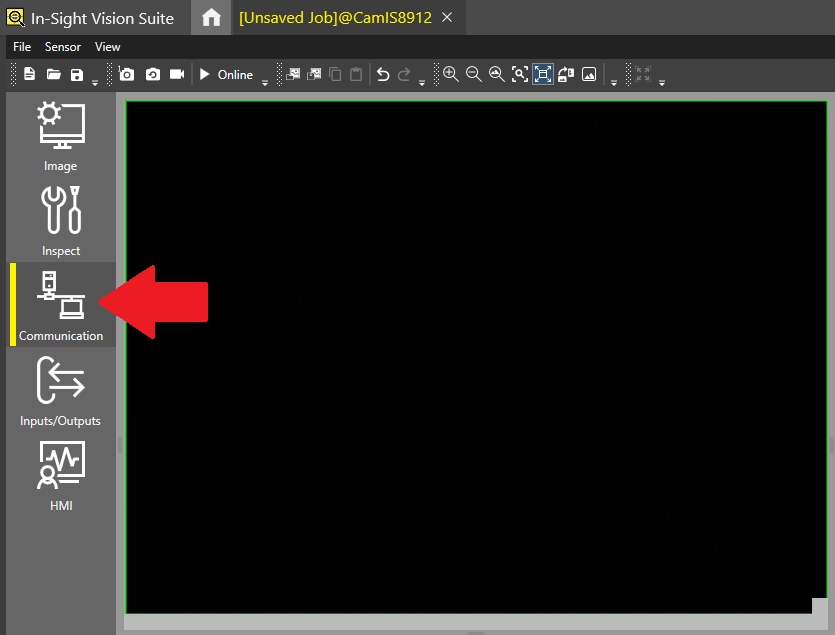
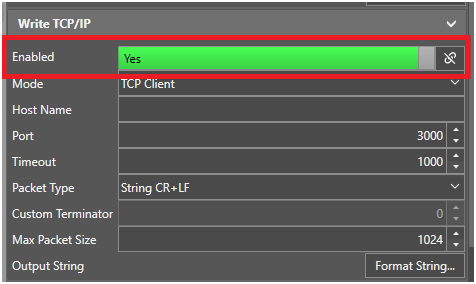
In the communication settings, find the Write TCP/IP section and select Yes on the Enabled option.
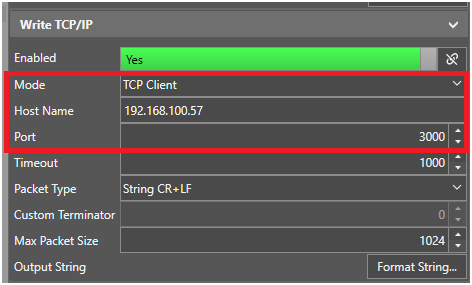
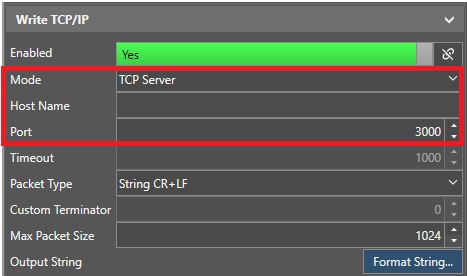
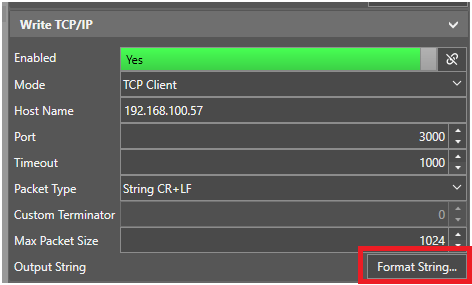
Work as client: Select the option TCP Client on Mode, then on Host name submit the IP address of the server and Port number where information needs to be sent.
Work as server: Select the option TCP Server on Mode, working on this mode Host name will be unbaled, define the Port number where information needs to be sent.
Once you define to work as Server or Client, click Format String.
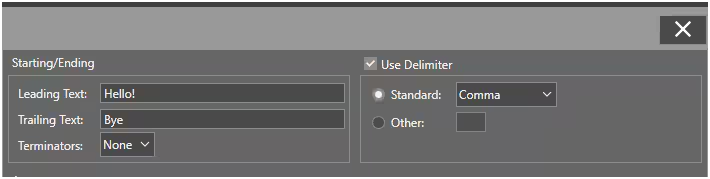
In the new window, you can define the Leading Text, Trailing Text, Terminators and Delimeters.
This is not a required information, but you need to double check if these are expected on the external device.
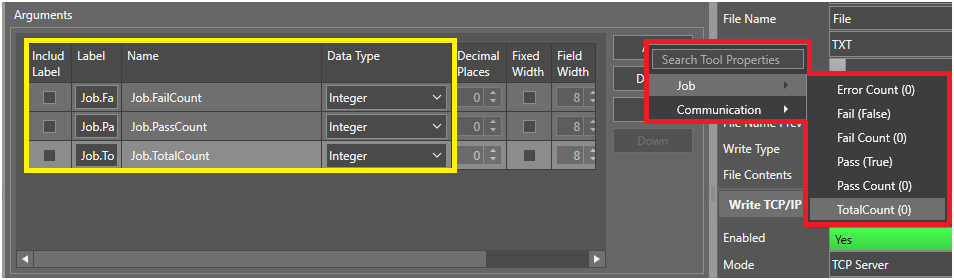
With Add, define all the Arguments that need to be sent. Easy Builder will help to show all the possible arguments that could be included.
You can also define the Data Type for each element.
Place the camera in Online mode
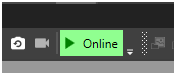
We have completed the steps for the camera programming.
Select TCP Client tab and fill the information for Module IP and Port.
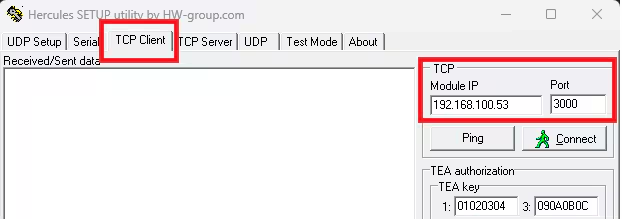
Click Ping to check if camera IP is OK.

Click Connect. The software will display that it is connected to the camera.
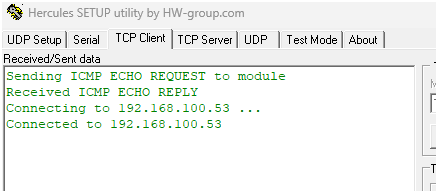
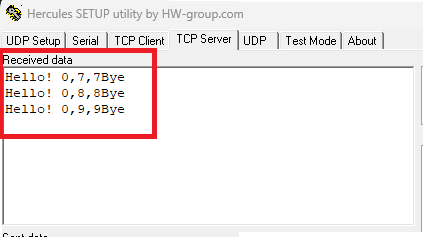
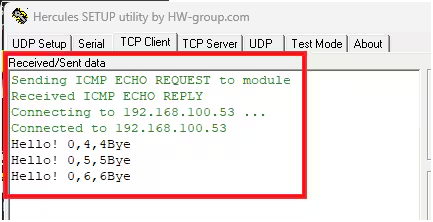
Send a trigger to the camera. For each trigger that camera receives, new information will be displayed on the Received/Sed Data window.
Select TCP Server tab and indicate the Port number. This number must be the same as the port declared on In-Sight Vision Suite software.
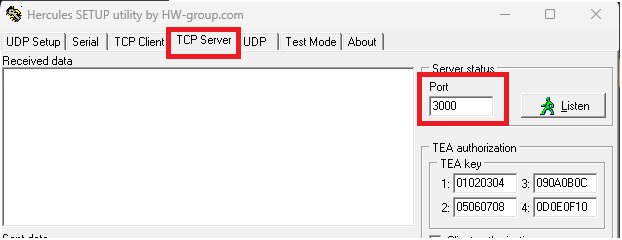
Click Listen.
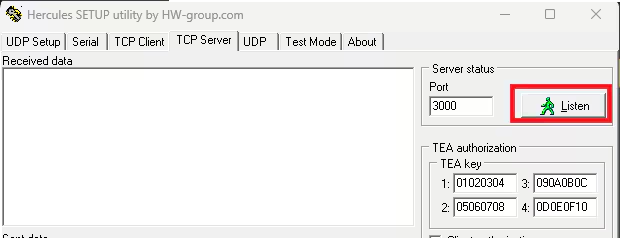
The software is ready to receive all the information from the camera.

Send a trigger to the camera. For each trigger that camera gets, new information will be displayed on the Received Data window.