Centro de soporte de Cognex


Guide to Read Setups and How they work for WebUI and Setup Tool
Guide to read Setups and how they work for WebUI and Setup Tool.
27/10/2025
Guide to read Setups and how they work for WebUI and Setup Tool.
This article explains how the DataMan Read Setups work on WebUI and Setup Tool.
As a reminder, a read setup refers to the specific configuration parameters and processing options that define how the device decodes and interprets barcodes. These setups allow for customization of reading performance based on the application environment. By fine-tuning parameters such as exposure time, decoding algorithms, and lighting conditions, read setups ensure optimal performance in various operational scenarios.
Read setups are particularly beneficial in environments where barcode quality, print variability, or environmental conditions challenge standard reading processes. Some of the benefits of read setups are increased reliability, enhanced adaptability, and ease of integration. Here are some scenarios and use cases where read setups provide distinct advantages:
Challenging Print Quality
In situations where barcodes are printed on substrates with low contrast or are partially damaged, customized read setups can adjust decoding algorithms to improve recognition rates.
Variable Lighting Conditions
Read setups can be programmed to compensate for these variations, ensuring consistent and reliable performance. This adaptability is especially valuable in facilities with open lighting systems or where ambient conditions change throughout the day.
High-Speed Operations
In fast-paced production lines, tailoring read setups can optimize exposure and processing times, enabling the reader to capture and decode data as quickly as possible.
Complex Application Integration
When integrating readers into broader automation systems, specific read setups can facilitate easier integration with existing workflows. By configuring the device to meet the specific needs of the system, companies can reduce setup times and minimize operational disruptions.
Here's an article that describes step by step how to create the Read Setup on DataMan Setup Tool:
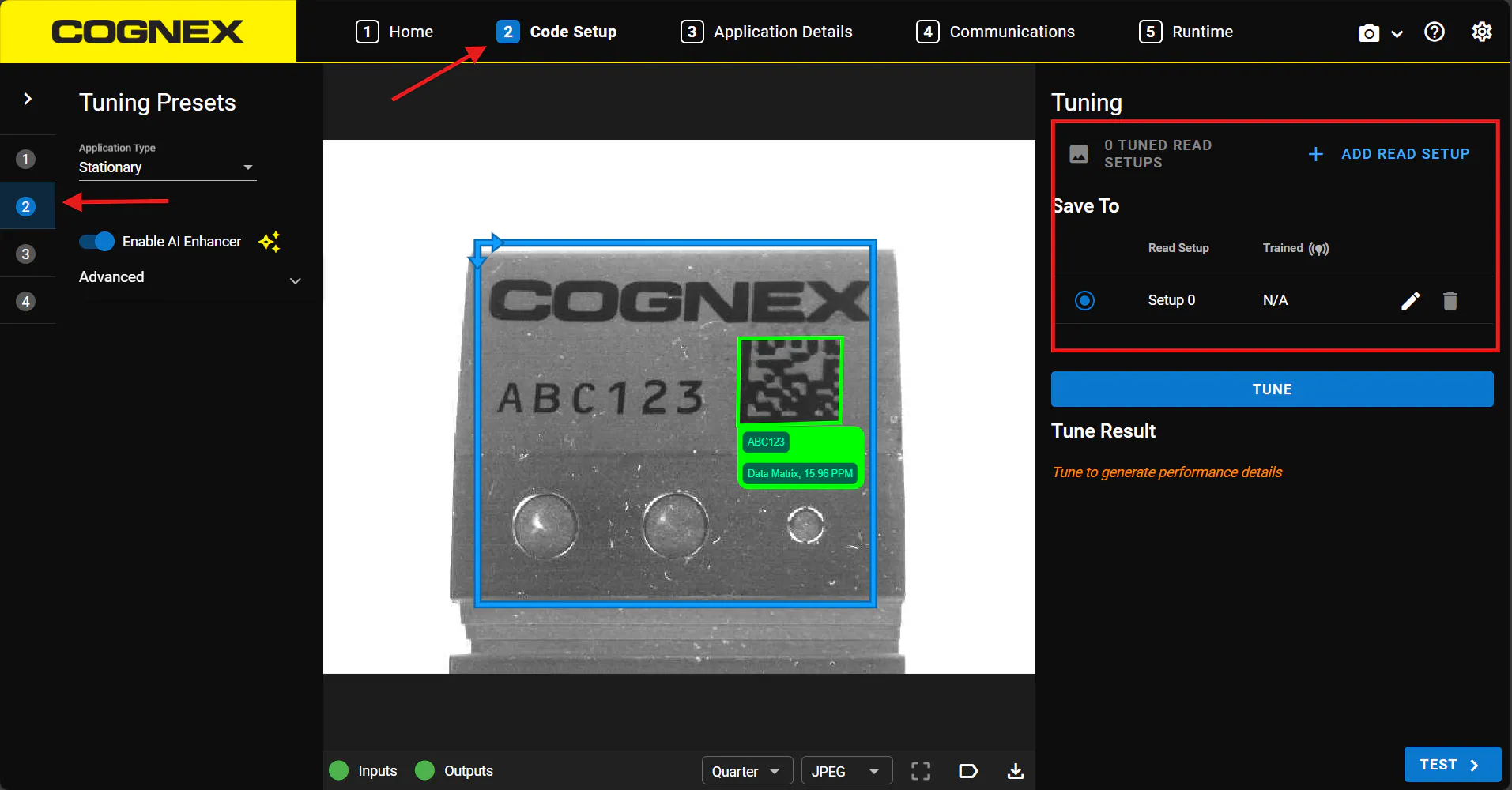
For the DataMan devices with WebUI, support for the Read Setups configuration is located on the Step 2 Code Setup => Tuning Presets as shown below. By default, it contains Setup 0 only and can be increased to the requested number of setups. As a reminder each Read Setup contains different reading parameters with or without a trained code.
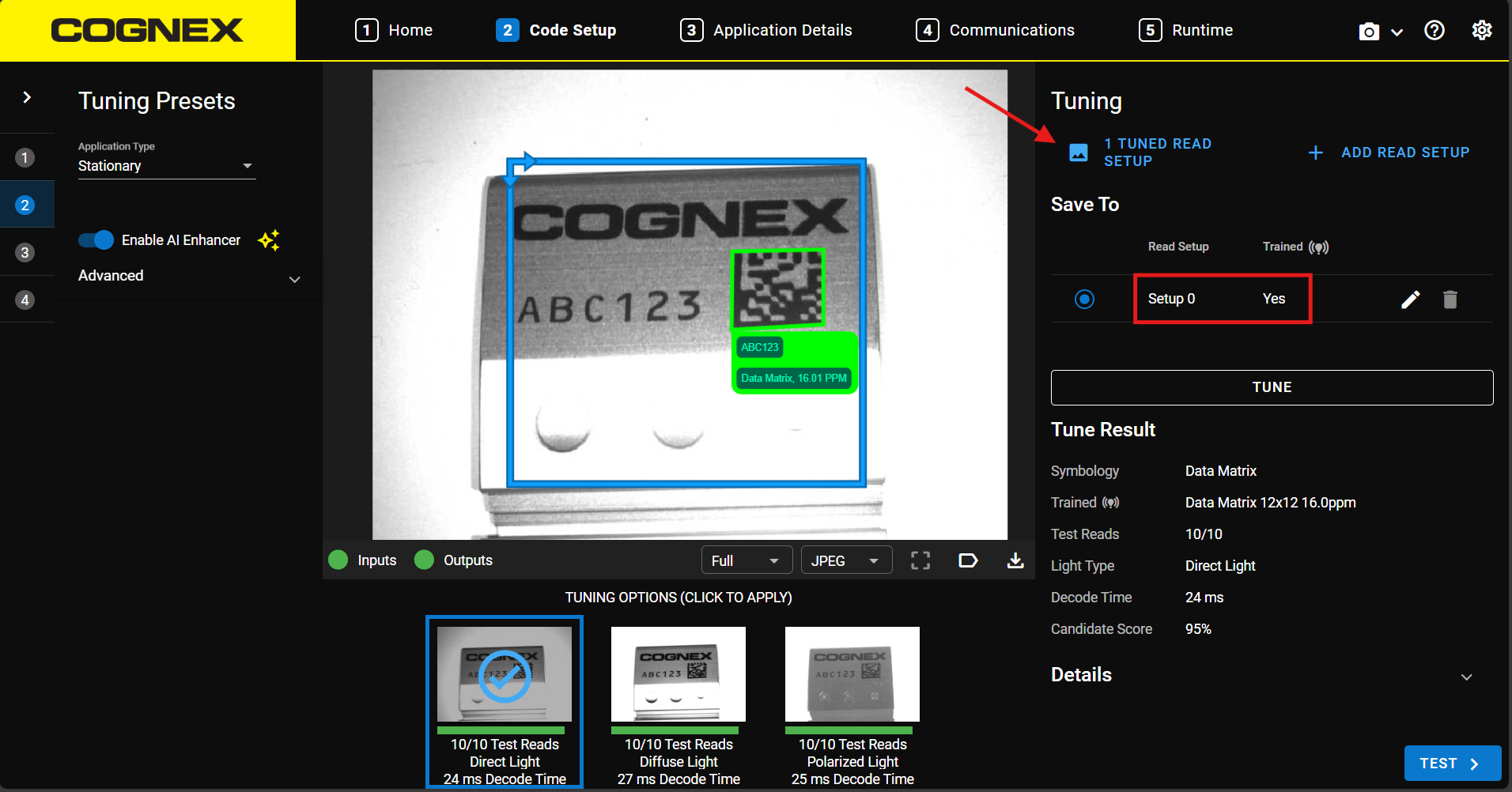
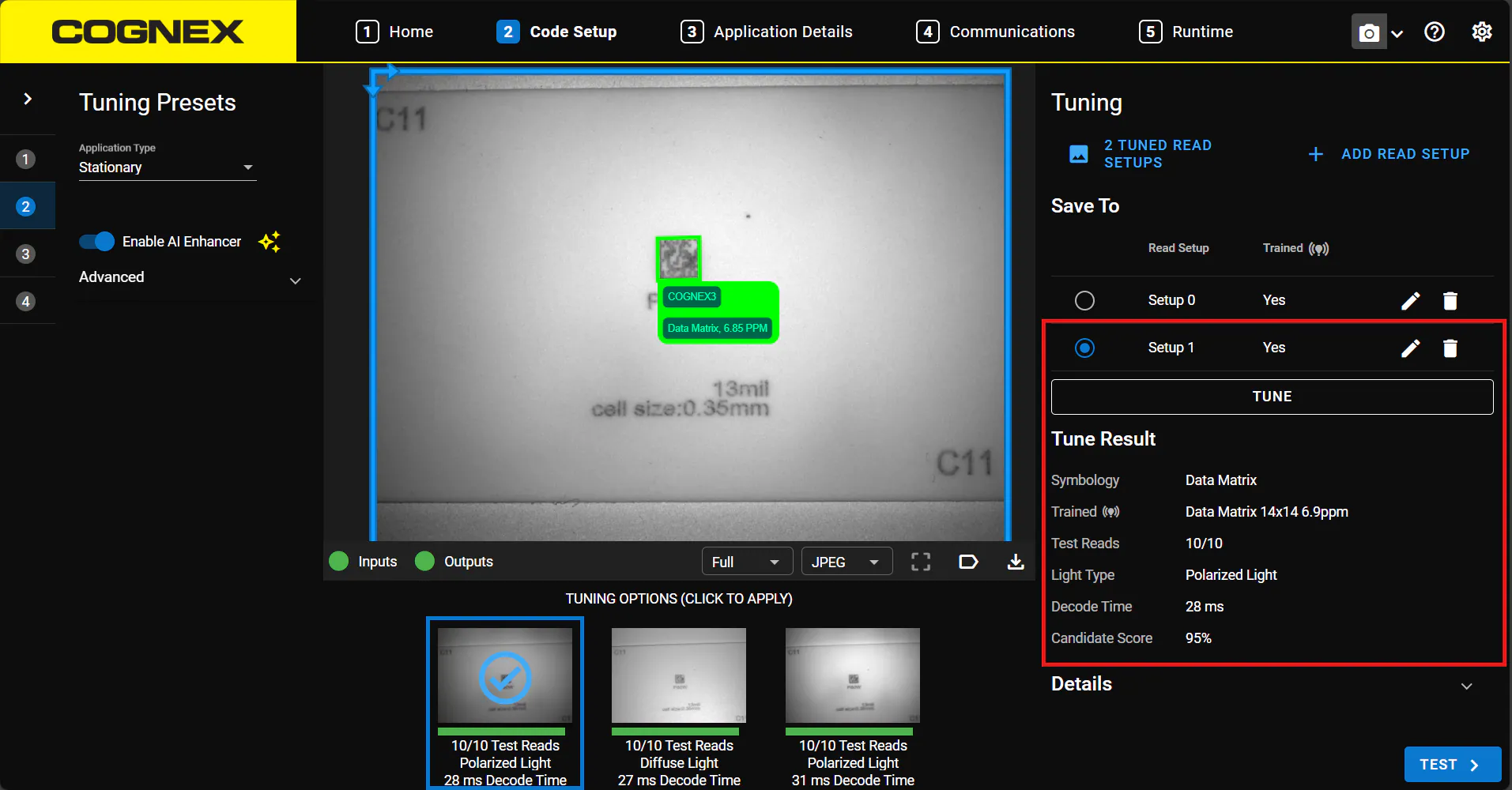
Once you click the TUNE button and the reader adjusts the parameters for the highest reading performance, the below marked parameters will change. From now on in this Read Setup, the reader will only read the trained code and nothing else.
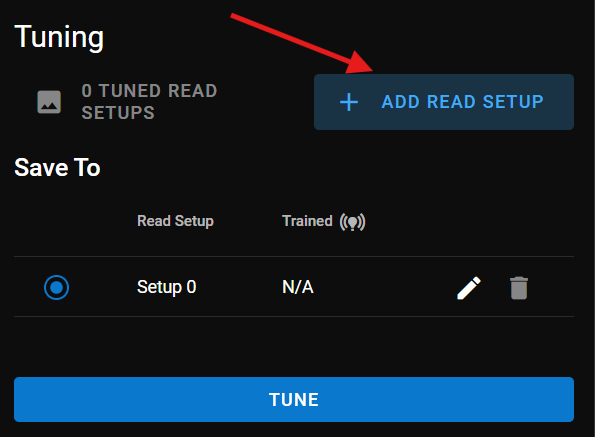
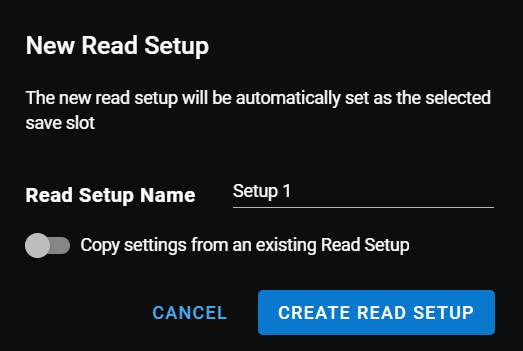
To add a new Read Setup, click + ADD READ SETUP.
A new window will pop up with the Read Setup Name and the possibility to copy the settings from an existing one (for example when the working conditions are the same, but the code type is different). Click CREATE READ SETUP when ready.
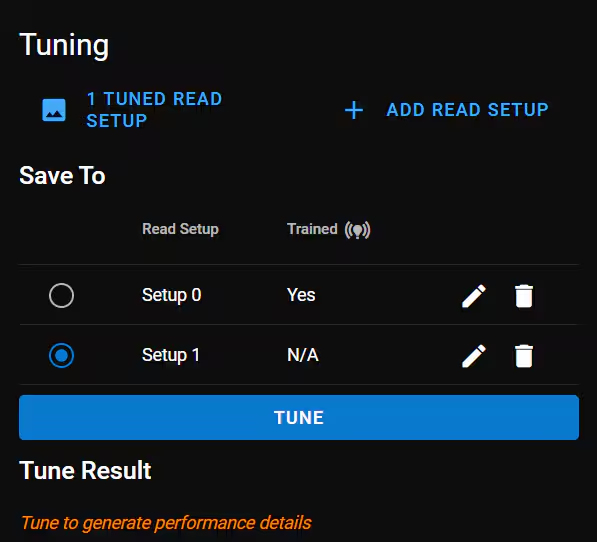
The new additional Read Setup 1 recently created can be found as below. As you can see, it does not have any trained code yet, so you can start the tuning process.
When a new code has been trained in the Read Setup 1, its parameters will be displayed as below.
If your application contains two different codes that we have just trained with separate Read Setups, you are done with the device setup. We can move to Step 5 Runtime in order to test its performance.
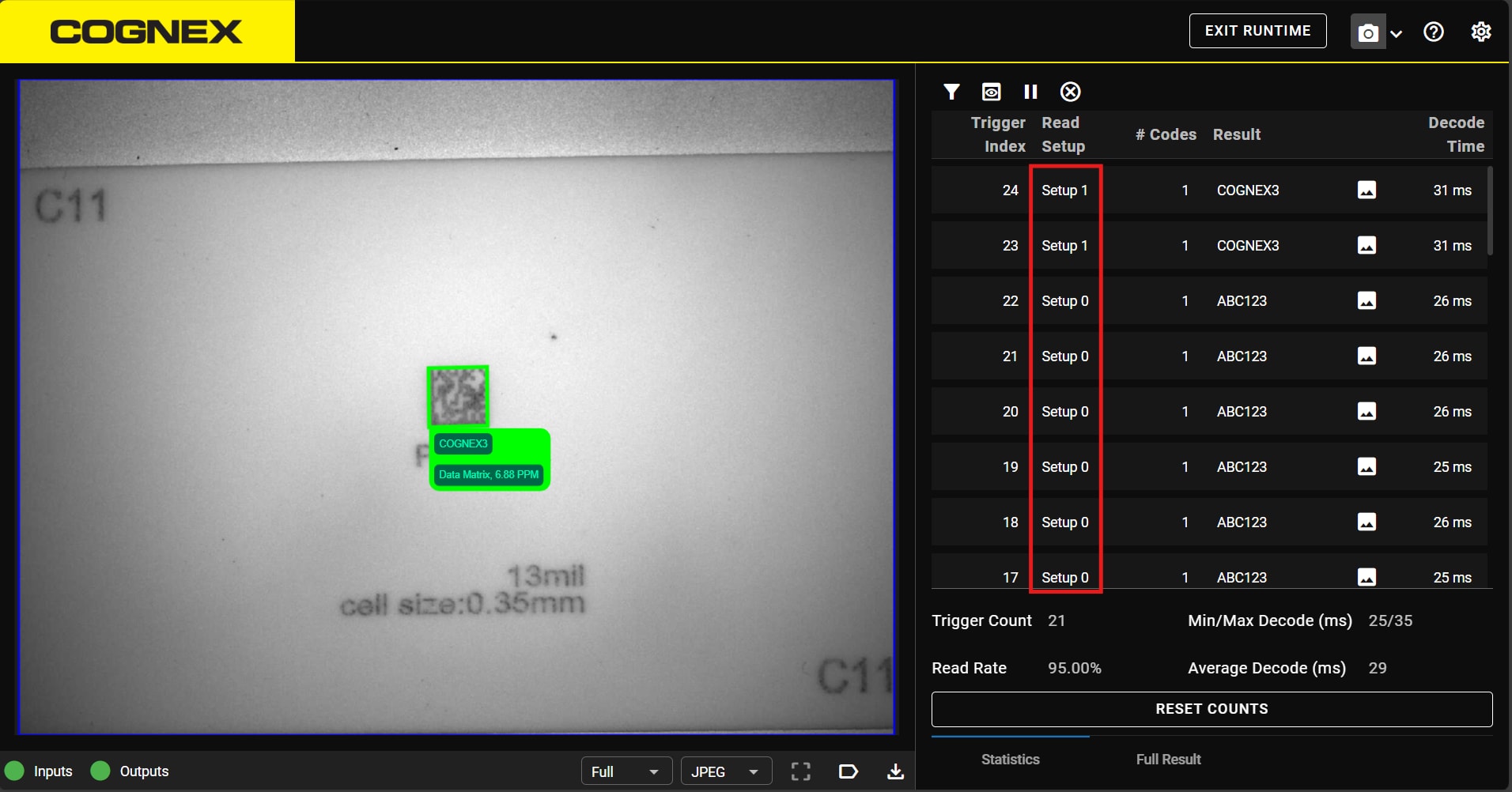
As you can see below, with just a single trigger, the reader will automatically toggle between the created Read Setups, allowing to read both trained codes with just a single click.