Details
Issue:
The TC-843 is not being detected by the computer. When TruCheck does not detect a device, it runs in Demo Mode.
Causes:
This is probably because the driver for the laser model does not work on Windows 10.
Resolution:
Follow the instructions to revert to an older version of the TC-843 device driver.
- Download the Legacy Driver from the TruCheck site and save it someplace you can navigate back to:
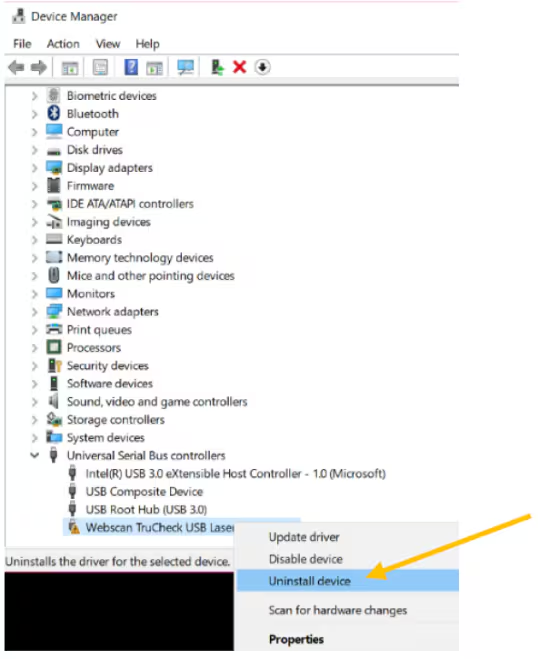
http://www.webscaninc.com/trucheckupdates/TruCheckUSB/LegacyDrivers/Legacy.zip Search Windows for the Device Manager. In Device Manager, scroll to the bottom and open Universal Serial Bus controllers. Right-click on Webscan TruCheck USB Laser. Select Uninstall device.
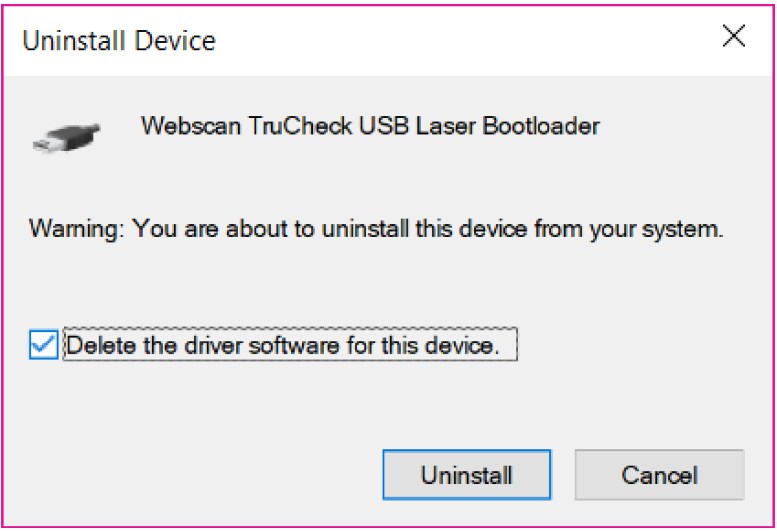
In the Uninstall Device pop-up menu, check the box for “Delete the driver software for this device.” and select Uninstall. Restart the computer, if prompted.
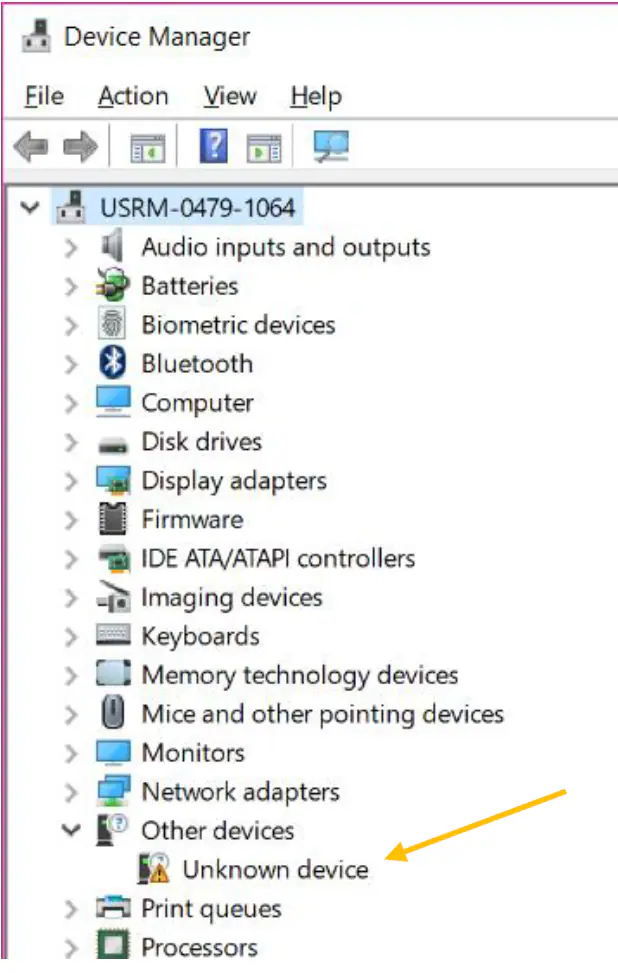
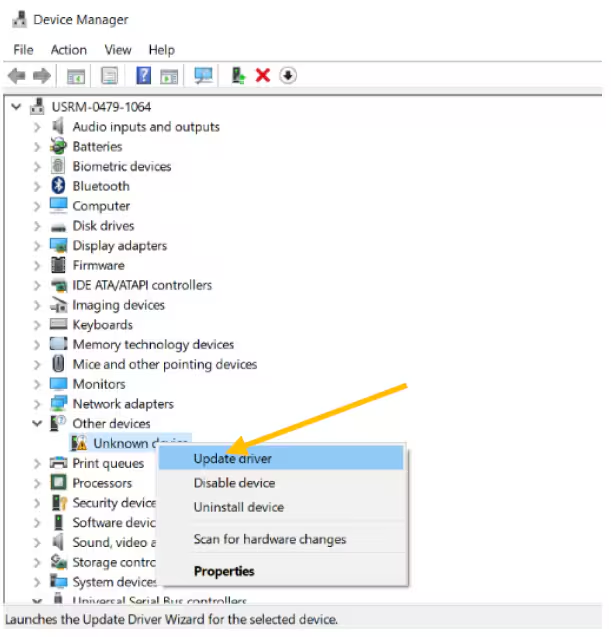
Return to Device Manager. Under Other devices, the Laser is now listed as Unknown device.
Right-click on Unknown device and select Update driver. When prompted, select “Browse my computer for driver software”.
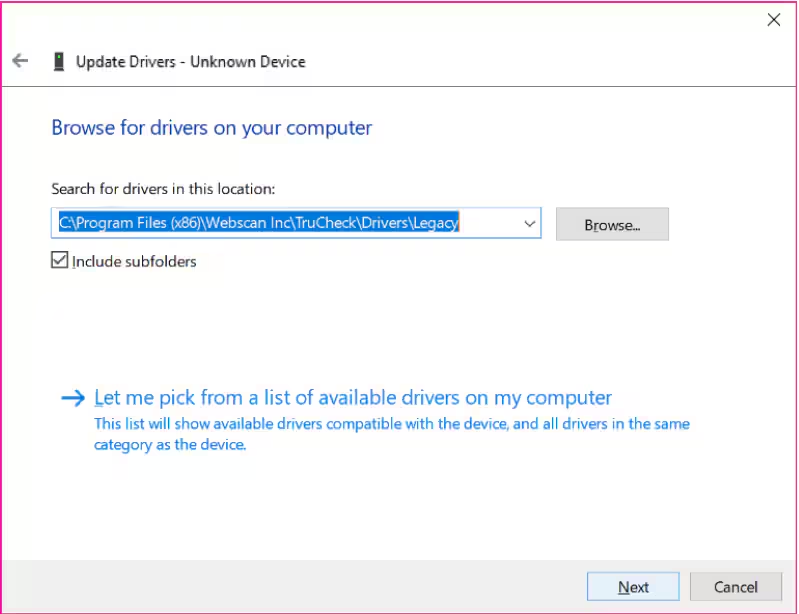
In the Update Drivers pop-up menu, Browse for the Legacy driver location. Check the box for Include subfolders. Select Next.
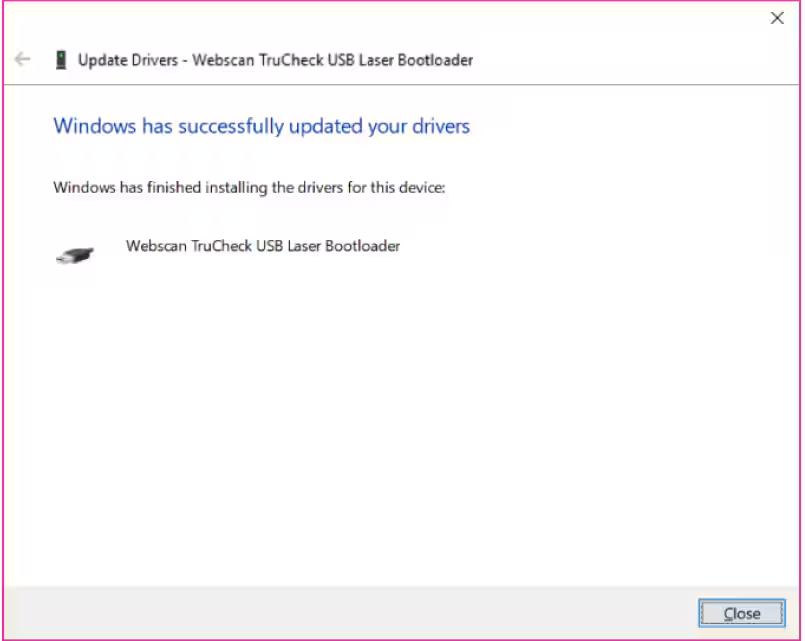
You should receive the following message and the Laser should now successfully communicate with the TruCheck software. Select Close.