

Details
Question
Common Causes:
- DataMan Reader was set to USB-HID mode
- For older DataMan series, if DataMan Setup Tool and Reader Firmware versions have relatively large gaps, they may not appear in the Device List.
Answer
- If the DataMan Reader is in USB-HID mode, use the DataMan Setup Tool to switch to USB-COM mode.
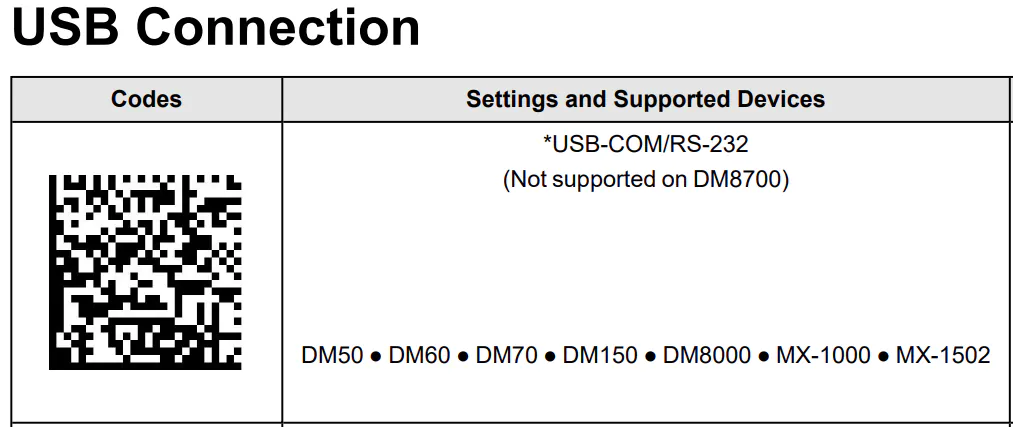
- Let the Reader decode the “*USB-COM/RS232" Reader Configuration Code. (old DataMan Setup Tool version may not have USB-COM mode button)
- If a USB Hub is used, remove USB Hub and connect the USB cable directly to PC.
- If the PC has more than two USB ports, try connecting to a different port.
- Try connecting with a different-version of DataMan Setup Tool.