Cognex Support Hub


How to write data from PLC over Profinet to compare a string from EL Read tool in EasyBuilder view
This document explains how to write a string from PLC and compare it with the EL Read result string.
11/30/2024
This document explains how to write a string from PLC and compare it with the EL Read result string.
How to write data from PLC over Profinet to compare a string from EL Read tool in EasyBuilder view?
Answer
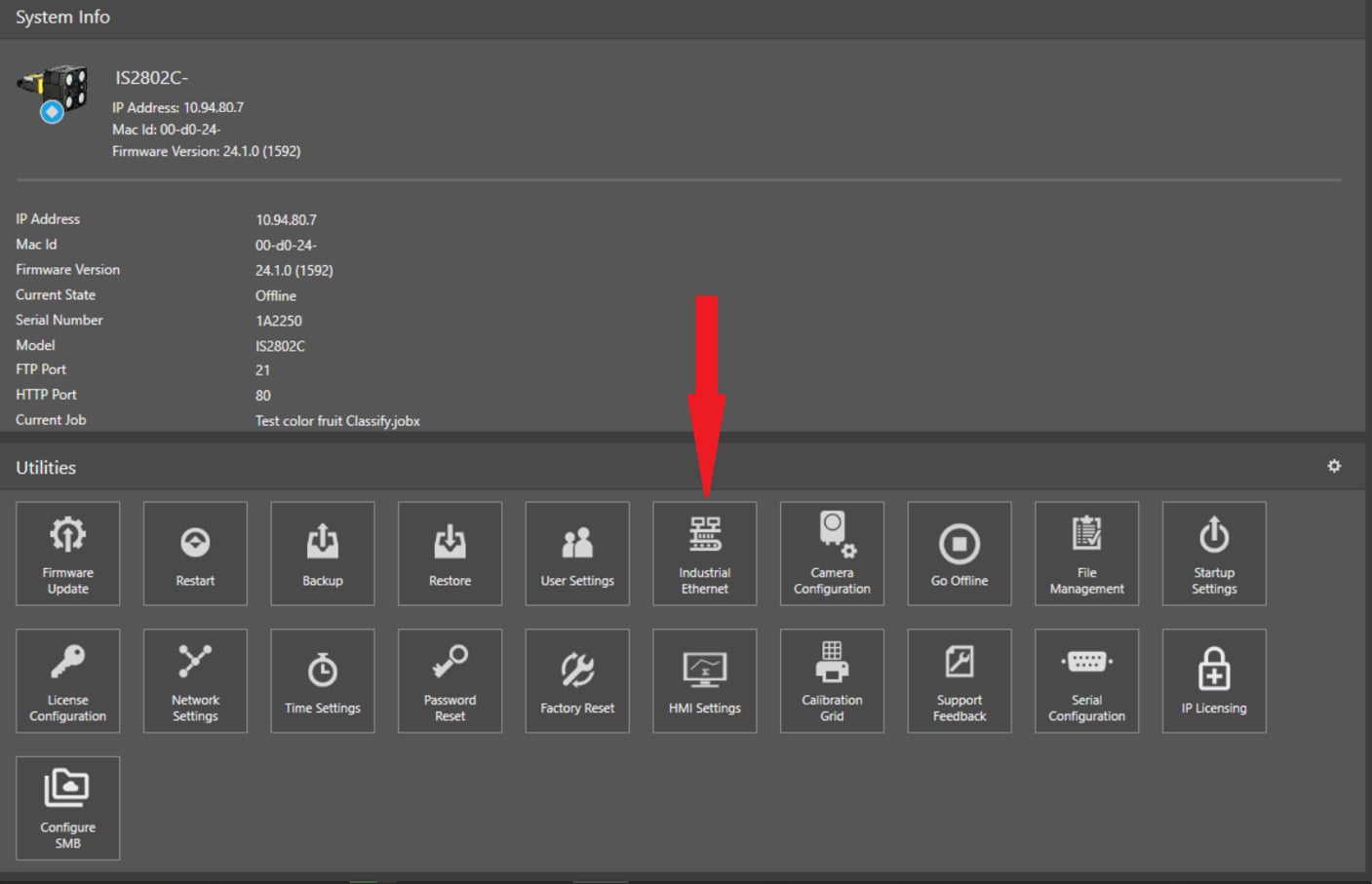
First of all, camera have to be set to communicate in Profinet, and you can do this from the In-Sight Vision Suite main page, clicking here:
And then select, in the next window, Profinet as the preferred communication method:
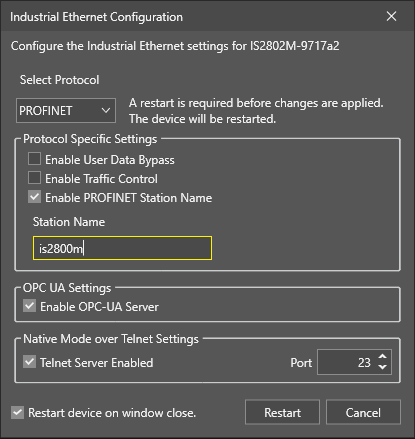
From the same page, you can enable and set a proper Profinet Station Name.
As you can see, a Restart is required once this parameter is set, so press Restart.
Once restarted, camera will have Communication set for Profinet
For this example, we will use a Read EL and a Math Tool. You can configure the Read EL tool as you wish, then we can set the Math tool.
Done? Ok, let’s go.
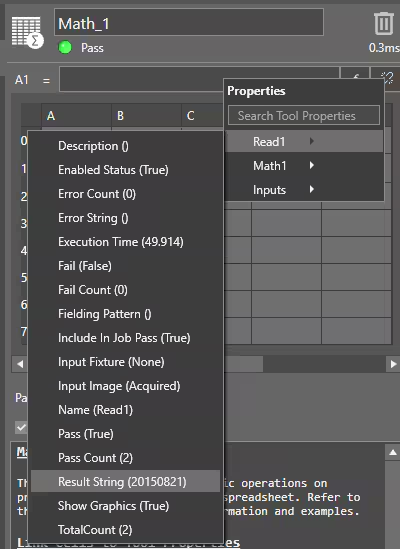
First you have to import the Result String from the EL Read into the Math tool, we’ll use cell A1:
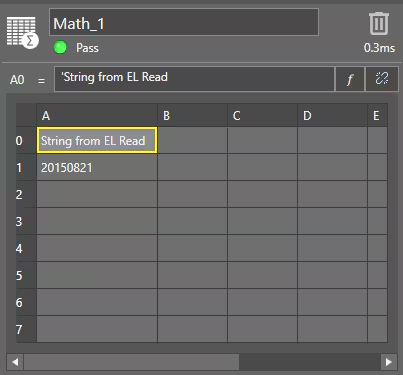
And this is what it will be, with a comment in A0:
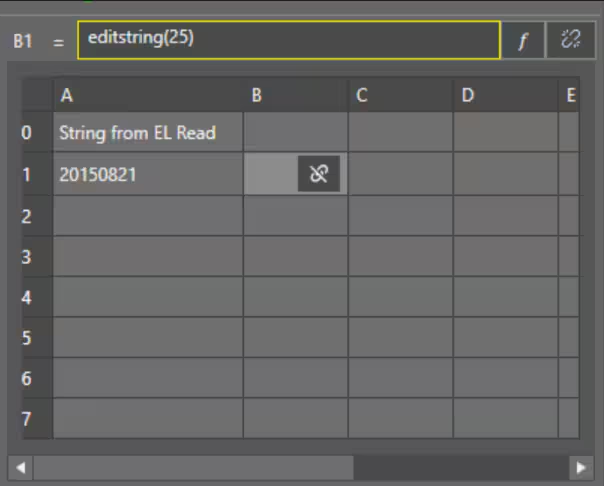
Now we can set an EditString in B1, like this:
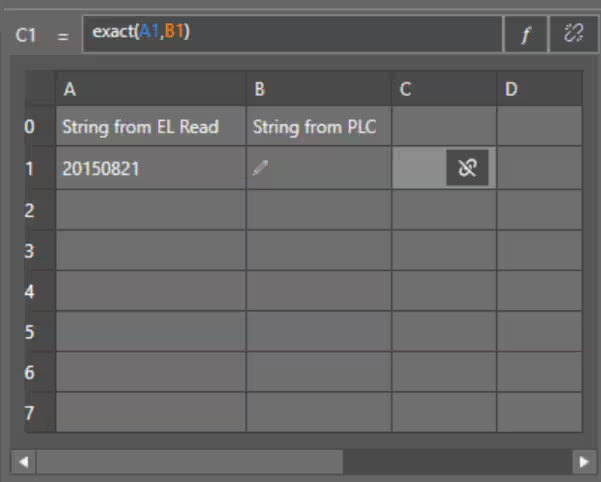
Then, in the end, we can set an Exact function in C1, like this:
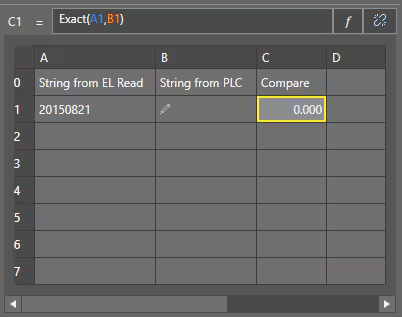
This is what will appear:
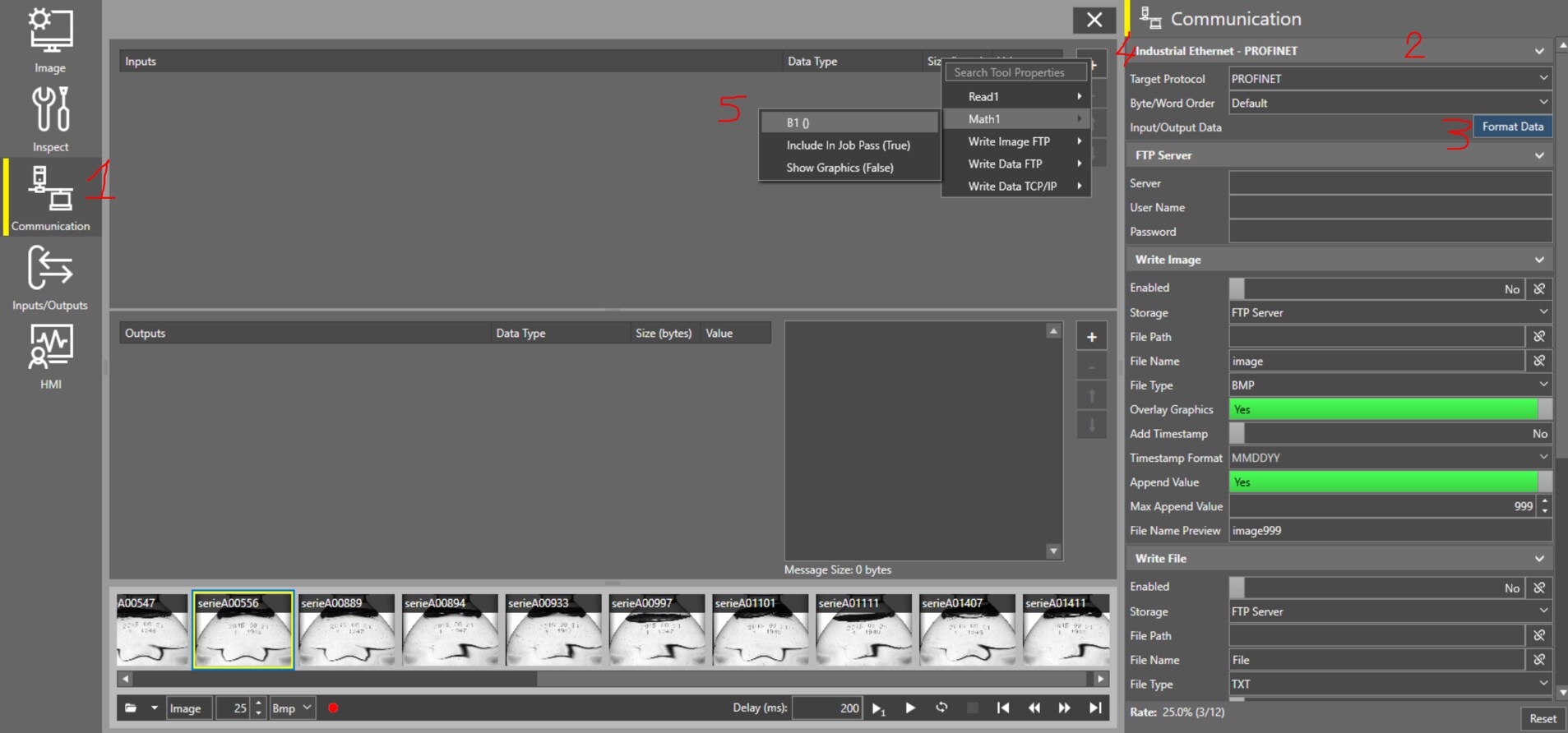
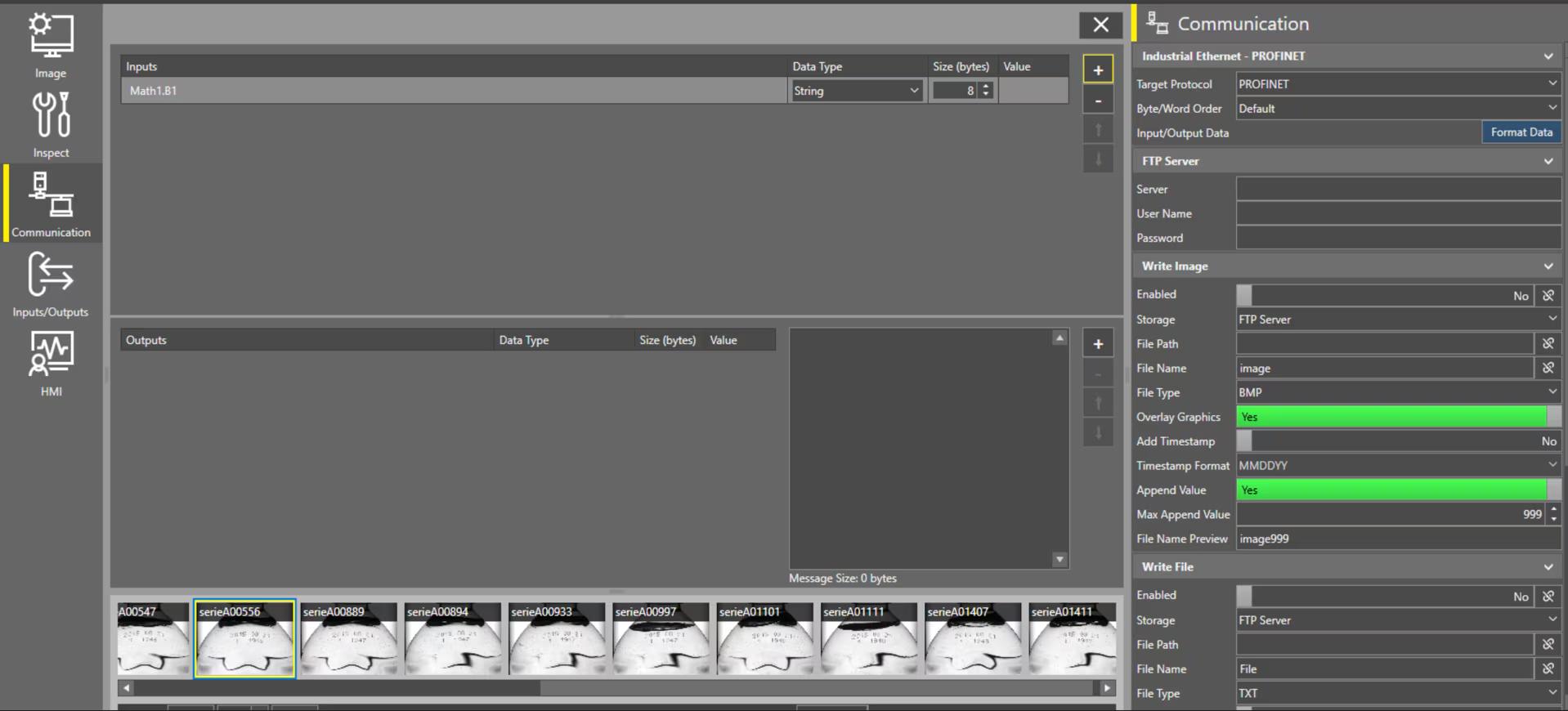
Now, let’s move to Communication (1), then Profinet (2), then Format Data (3), this will open a nearside window, then go to + (4) and select Math.B1 (5). This will add the Editstring to the Input Buffer from PLC, starting from UserData0 (we will see this in the next part)
This is how it will appear:
Now, if you go back to the Math tool, you’ll see that the InputString cell has been modified, like this:
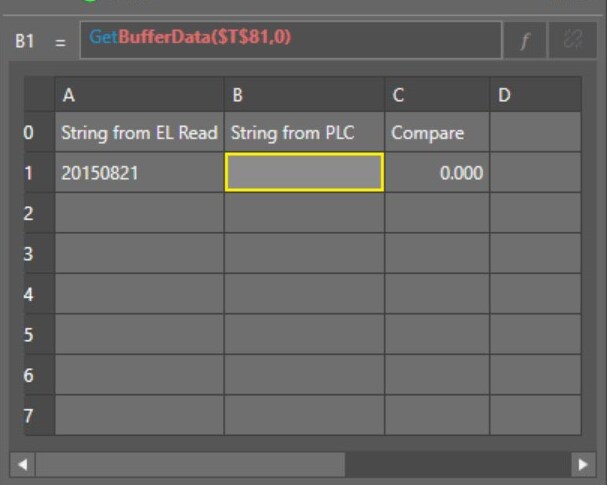
This happen because now the string from PLC will be written into this field.
On PLC side, what is needed is to set the correct string in the UserData section and then set the SetUserData, like in this image.
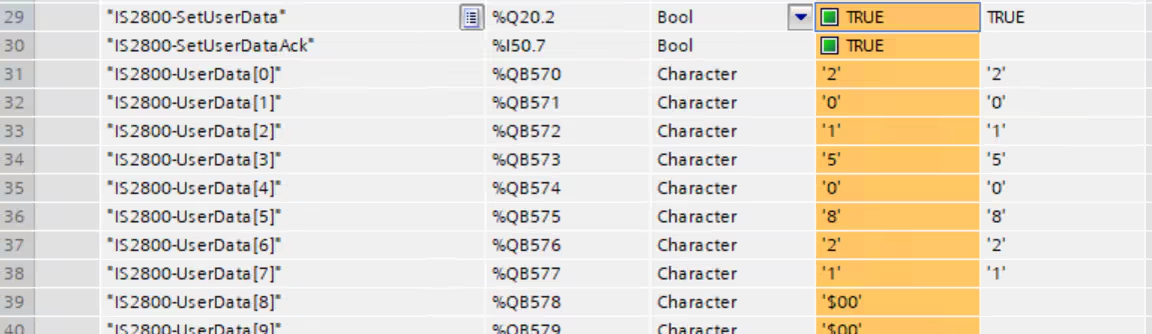
When the camera will answer with the SetUserAck bit, this means that the data is correctly written into the camera.
ATTENTION: the data will be not visible in the MathTool cell, it will still appear like this:
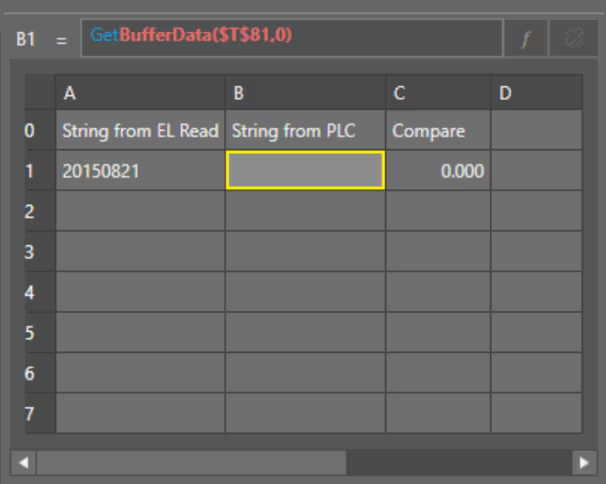
But the data is there and will be used from the Math Tool for the Exact tool, it will become visible after the first trigger:
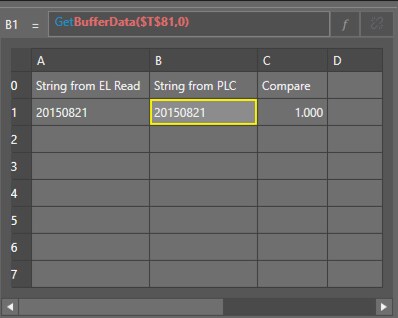
From now on, on every trigger, cell C1 will compare the data and provide a value, 1 if the data correspond, otherwise 0.
How to write data from PLC over Profinet to compare a string from EL Read tool in EasyBuilder view?
Answer
First of all, camera have to be set to communicate in Profinet, and you can do this from the In-Sight Vision Suite main page, clicking here:
And then select, in the next window, Profinet as the preferred communication method:
From the same page, you can enable and set a proper Profinet Station Name.
As you can see, a Restart is required once this parameter is set, so press Restart.
Once restarted, camera will have Communication set for Profinet
For this example, we will use a Read EL and a Math Tool. You can configure the Read EL tool as you wish, then we can set the Math tool.
Done? Ok, let’s go.
First you have to import the Result String from the EL Read into the Math tool, we’ll use cell A1:
And this is what it will be, with a comment in A0:
Now we can set an EditString in B1, like this:
Then, in the end, we can set an Exact function in C1, like this:
This is what will appear:
Now, let’s move to Communication (1), then Profinet (2), then Format Data (3), this will open a nearside window, then go to + (4) and select Math.B1 (5). This will add the Editstring to the Input Buffer from PLC, starting from UserData0 (we will see this in the next part)
This is how it will appear:
Now, if you go back to the Math tool, you’ll see that the InputString cell has been modified, like this:
This happen because now the string from PLC will be written into this field.
On PLC side, what is needed is to set the correct string in the UserData section and then set the SetUserData, like in this image.
When the camera will answer with the SetUserAck bit, this means that the data is correctly written into the camera.
ATTENTION: the data will be not visible in the MathTool cell, it will still appear like this:
But the data is there and will be used from the Math Tool for the Exact tool, it will become visible after the first trigger:
From now on, on every trigger, cell C1 will compare the data and provide a value, 1 if the data correspond, otherwise 0.
