Question
The In-Sight Web HMI automatically connects to the camera without asking for logging in. How can I set the Web HMI to ask for login credentials?
Answer
The default password for the "admin" user is blank. When a web browser client tries to connect to the camera's Web HMI while the "admin" user's password is blank, then the Web HMI won't ask for any username and password.
To show a login window on connection, a password needs to be set up for the "admin" user.
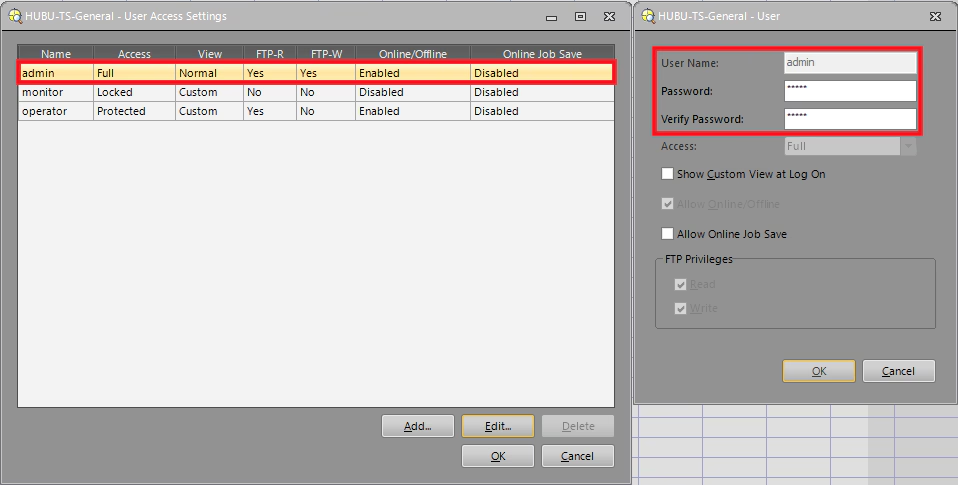
For In-Sight Explorer cameras, connect to the camera and then open "User Access Settings" dialog from the Sensor menu, and set up a password for the "admin" user:
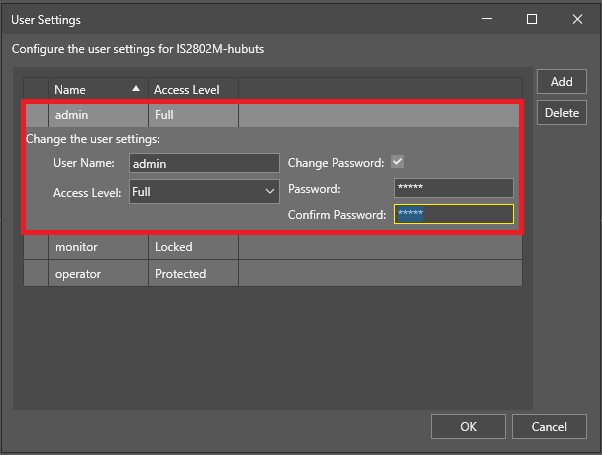
For In-Sight Vision Suite cameras, select the camera on the start page of the software, then click on "User Settings" button to open the dialog, and set up a password for the "admin" user:
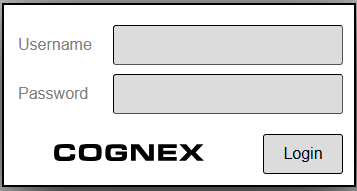
If the "admin" user has a different password than blank, then the Web HMI will ask for login credentials when the web browser client connects to it: