

Question
When updating a the firmware of a DataMan 8700 from either 6.2.1 or 6.2.0 to 6.2.5 or higher, the feature keys from the reader would disappear if the user did not update to 6.2.3 first.
Answer
When updating a DataMan 8700 firmware version from 6.2.1 or 6.2.0 to 6.2.5 or higher, please update to version to 6.2.3 first from the following URL. Then update the firmware to the higher version.
https://support.cognex.com/en/downloads/detail/dataman/4304/1033
If the reader is accidentally updated directly to version 6.2.5 or higher the Feature keys will disappear, and the reader will become inoperable. Follow these steps to recover the function keys.
Connect to the DataMan 8700 Reader using the DataMan Setup Tool (DMST) application.
If the DataMan 8700 is connected by Ethernet and unable to assign IP, try to change PC’s network adapter IP for the Reader. Or use the following conversion accessories to enable a USB connection.
- DM8700-USB-KIT
- DMC-HH-USBA-02
Go to the System tab and click the System Info button as shown below.
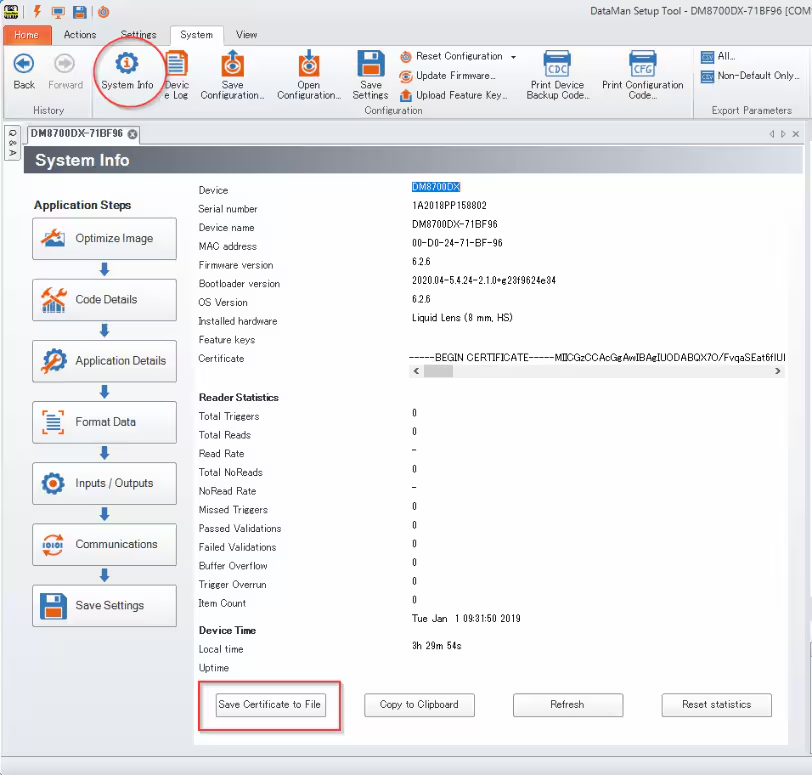
Click the Save Certificate to File button to save a [serial number]_cert.pem file to the desktop.
Contact TS.Global@cognex.com, attaching the saved pem file, and request a feature key recovery.
Cognex Technical Support team will send a .json file in return.
Please be noticed that it may take about two working days for Technical Support to process your request and generate the file.
When .json file is received, save it to the desktop.
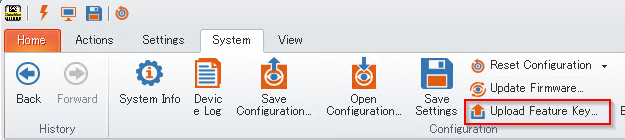
Open the DataMan Setup Tool and connect to the DataMan 8700. Go to the System tab and click Upload Feature Key as shown below and select the saved .json file on the desktop to apply it to the reader.
The reader’s Feature Keys should now be restored.
