

Details
Question
How can I set up a computer I have on my network to act as a NTP server for time synchronization?
Answer
- First, ask your local IT if they have an available NTP (Network Time Protocol) server and if they do, what is the server's IP address. If one is available you may wish to consider simply using it instead.
- If no NTP server is available, a PC can be configured as an NTP server on the network for the local network. Choose a PC that is never turned off or falls asleep (restarts due to updates are fine).
- Open up regedit (search from start menu).
- Navigate the tree to the following location: HKEY_LOCAL_MACHINE\SYSTEM\CurrentControlSet\services\W32Time\Config
- Right click on "AnnounceFlags" (on the right) and choose "Modify".
- Enter the number 5 in the box, and click "OK". Decimal/hexademical doesn't matter for this.
- Right click on "LocalClockDispersion", and choose "Modify". Set it to 0.
- Next, go to HKEY_LOCAL_MACHINE\SYSTEM\CurrentControlSet\services\W32Time\TimeProviders\NtpServer
- Right click on "Enabled", and again choose "Modify". Set it to 1, and again decimal/hexadecimal doesn't matter here.
- Open up command prompt as administrator. An easy way to do this is to do the start menu search, type in "cmd", and then right-click, choose "Run as Administrator".
- Enter in "net stop w32time && net start w32time" and press enter.
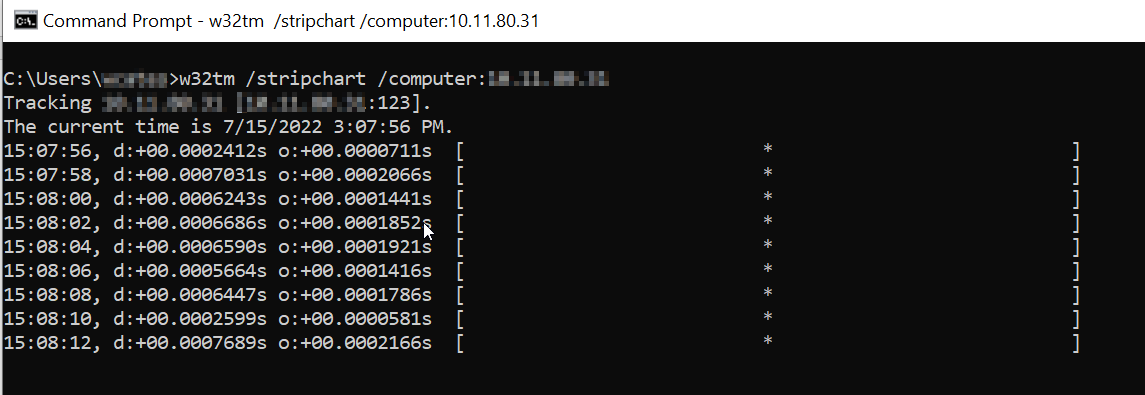
Confirm above is working by doing "w32tm /stripchart /computer:[your-ip-address]" in in a command prompt (CMD). Below is an example of an NTP server that is online:
NOTES: NTP servers require port 123 for UDP to be unblocked. If the server appears to be up but date does not update, try unchecking Enable NTP and re-enabling it (Step 6 above).
If you are configuring a DataMan reader to use this NTP Server:
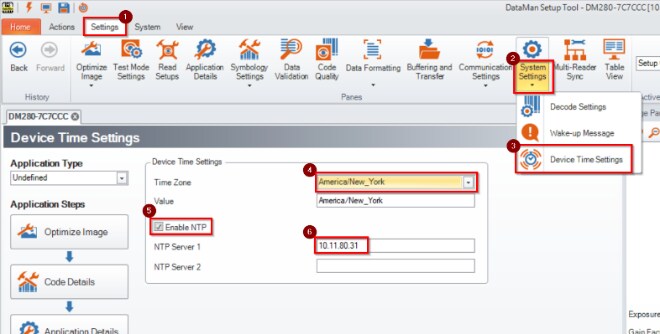
- Connect to the camera using the DataMan Setup tool application and go to the system tab.
- Expand the System Settings menu and select Device Time Settings.
- Choose the desired Time Zone.
- Check the box for Enable NTP.
- Enter the IP Address of the NTP server.
NOTE: It may be necessary to power cycle the camera before it will start accurately report time.
