Details
When a Red Analyze Tool is the preceding tool, the options for configuring the downstream tool are :
Manually configure the ROI by adjusting the ROI in the image. The image shows the default ROI toolbar. By not selecting any of the options in the toolbar, you can manually configure the size and location of the ROI to create the view.

Create individual ROIs for each defect that the preceding tool found.
Use the tool to not create an ROI if the preceding tool found a defect.
- Apply a mask to the defects in the ROI.
Reuse the mask from the preceding tool.
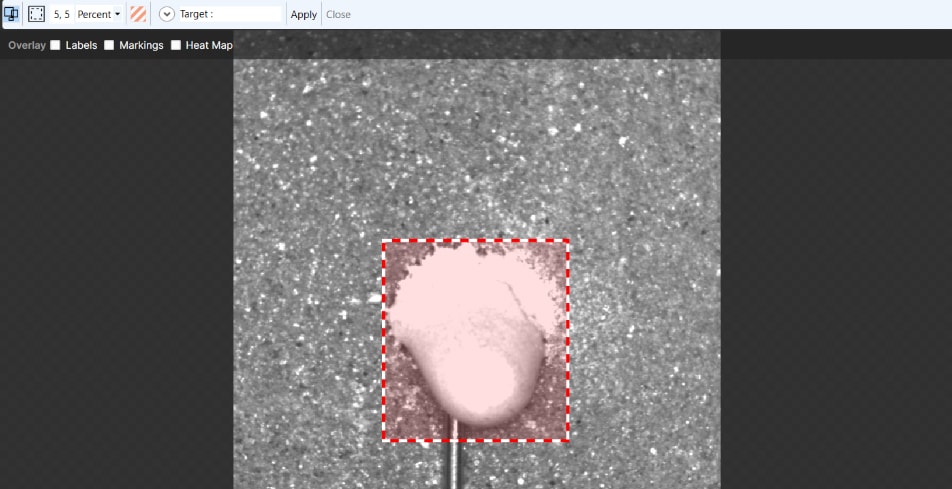
In the example below, the Extract regions as individual ROIs option is selected. The option extracts found defects from the image as individual regions, which are converted into views.
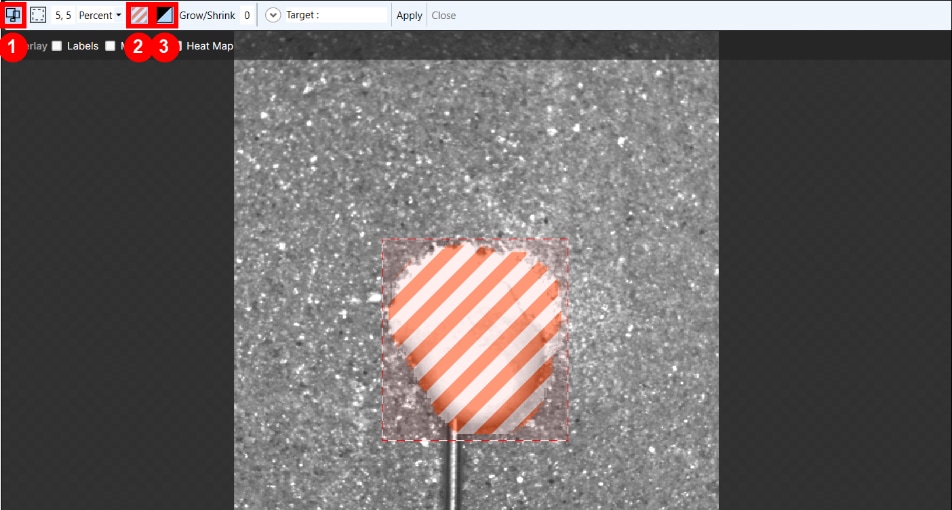
You can also combine options (1) and add a mask (2) inside the ROIs to exclude the background and only expose the defect.
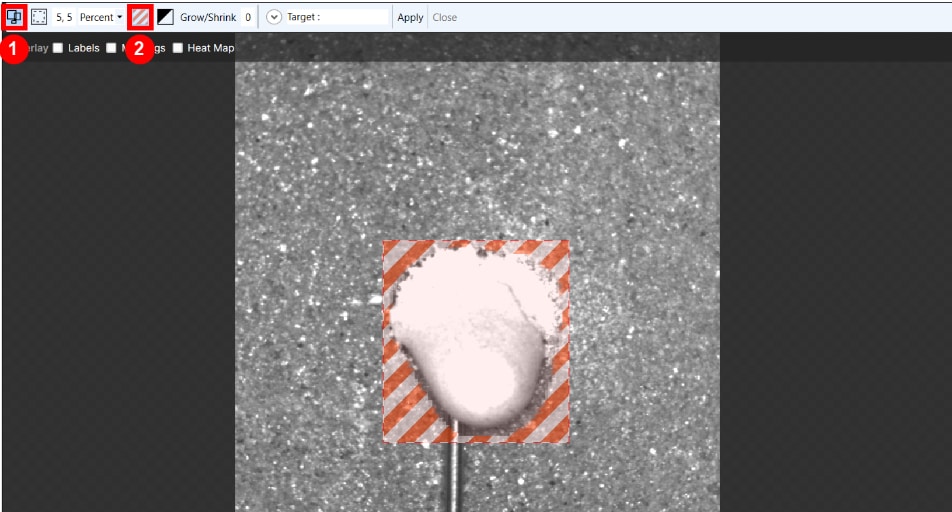
To select the area outside of the defect, you can invert the mask (3) to focus on the background instead of the defect.