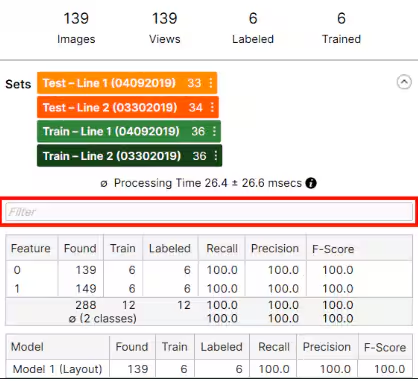
ViDi Suite and VisionPro Deep Learning provide a filter grammar that allows you to construct expressions that filter the data in your ViDi stream in extremely flexible ways. These filter expressions are available in many different locations within the UI, as well as at run time.
The Deep Learning filter grammar allows you to write expressions that will evaluate to a Boolean, integer, or floating point value for each view in the current stream database.
View-Level and Axis-Level Variables
The filter grammar includes variables that are defined for views. You use these simply by including them in an expression that evaluates to a Boolean result :
width > 1500 // Filter to views with width greater than 1500
In addition to view-level variables, the grammar also supports tool-specific axis-level variables that you can to filter views based on the presence, absence, or values of individual markings, labels, and other view elements. Blue tool views, for example, include a feature axis for filtering based on individual features in the view. Axis-level filters are entered within square brackets following the axis name :
feature[score > 0.95] // Filter to views containing a feature with score greater than 0.95
Where Filter Expressions can be Used in ViDi Suite/ VisionPro Deep Learning
The following table summarizes the contexts in which filter expressions are available. Some of them can also be used during runtime to filter results :
Notes
Runtime setting
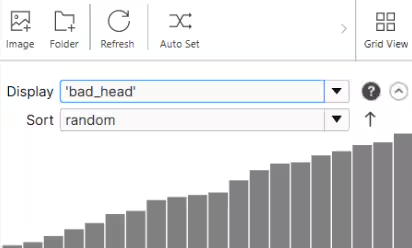
View Browser - Display Filter and Sort Filter
Display Filter:
Expressions entered here must evaluate to a Bool.
The view browser window will only display the views for which the returned value is True.
Clicking the Process button for the tool only processes the views for which the returned value is True.
Sort Filter:
Expressions entered must evaluate to an Integer or a Floating point value.
Views are ordered (ascending or descending) based on the value returned by the expression.
No
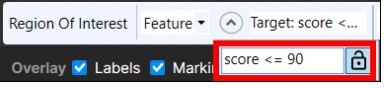
ROI definition (Upstream Blue Tool and Green Tool)
Following a Blue Locate tool :
Feature axis filter expression to determine which feature types are used to generate ROIs.
Match axis filter expression to determine which model matches are used to generate ROIs
Following a Green Classify tool :
View-level filter to determine which views are processed
Yes
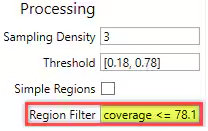
Region Filter (Red Tool)
Red Analyze tool :
Region axis filter to determine which regions are returned by the tool (and in turn used for downstream ROIs).
You can reference view level properties using a view. prefix. Note that only a handful of view properties (e.g. width and height) are available at runtime.
Yes
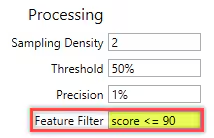
Feature Filter (Blue Tool)
Blue Locate tool :
Feature axis filter that determines which features are returned by the tool (and in turn used for downstream ROIs).
You can reference view level properties using a view. prefix. Note that only a handful of view properties (e.g. width and height) are available at runtime.
Yes
Database Overview Filter (Expert Mode only)
You can use this filter on the result of the processing.
This filter does not affect the result of processing ; it only filters out the given processing results.
It can affect the results shown in the Database Overview statistics, such as: