Question
How can I direct connect to a DataMan 8050 using WiFi on Windows 10?
Answer
Warning:
With some of the drivers available for Windows 10, Ad-Hoc mode is not supported. To test if they are supported or not, open the command prompt and execute the following command:
netsh wlan show wirelesscapabilities
Look for ”IBSS” and if you see ”Not supported” then it means that Ad-Hoc mode is not supported on your Wireless Device in the computer:
IBSS : Not Supported
Instructions:
When you set the reader to the factory defaults, it will be set to Ad-Hoc mode and if the computer doesn’t support Ad-Hoc mode then it will be not possible to connect to it. In this case you can switch on Mobile hotspot on the computer and change the reader to Infrastructure mode. For changing the reader to Infrastructure mode, you can use for example a DMA-CBASE station, or by reading the following configuration codes.
NOTE: Please make sure that you read the codes one by one from 1 to 4. It’s recommended to cover those codes which you would like to avoid being read.
Hard Reset, scan this code first

Configuration code, scan this code next

Configuration code, scan this code next

Reboot the reader, scan this code last

Reading the above codes will set up the reader to the below Wi-Fi settings:
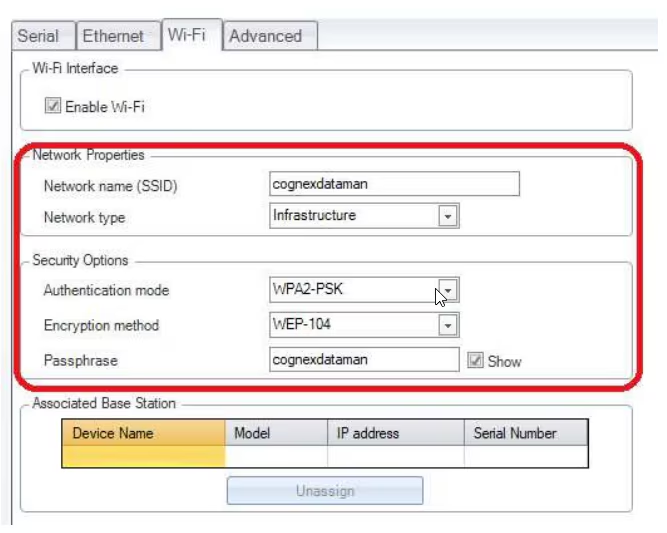
NOTE: This was tested only on DataMan 8050 with firmware version 5.4.5.
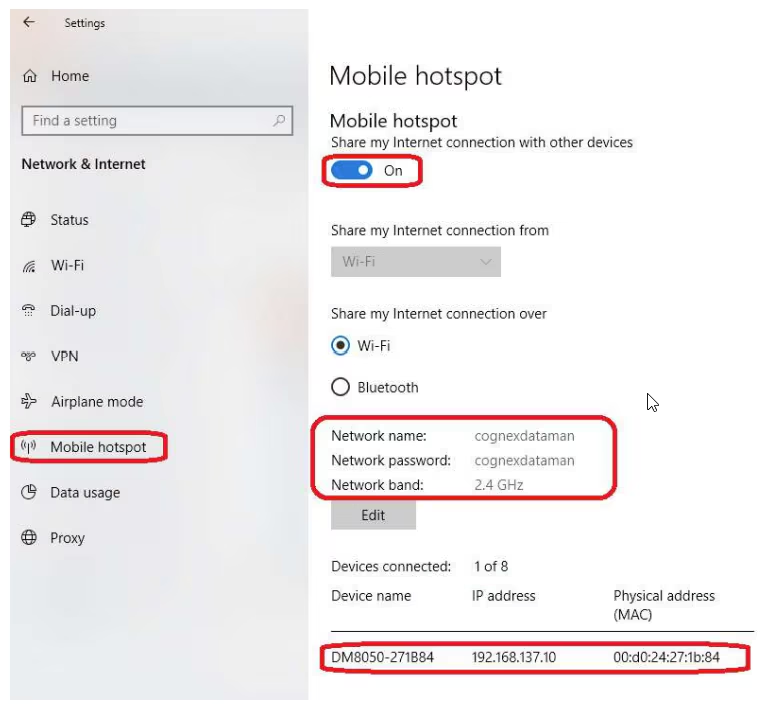
The Mobile hotspot can be switched on in Windows 10 in the Network & Internet Settings according to the image below.
The reader should connect to this network automatically. When it connects, the readers name, IP address, and MAC address should show up on the bottom.