

Details
This article provides a step-by-step guide on how to effectively calibrate your Cognex SBG system using non-certified calibration codes while maintaining consistency and traceability within your process.
This scenario is talking about the SBG system that has a very small FOV (3*2mm) for grading the Data Matrix code with the module size ~0.5- 0.6 mil.
- You must find a code that fits in your field of view and also has an X dimension that can work on a regular verifier, especially the DM475V-DPM-HD, which can work on very small X dimensions (>1mil).
- Verify the code using the real verifier with ISO 15415 setting (not DPM 29158) and write down the Rmax and Rmin values.
For example, from the report, you can use the RI/Rd value of 89/4, where Rmax = 89 and Rmin = 4.
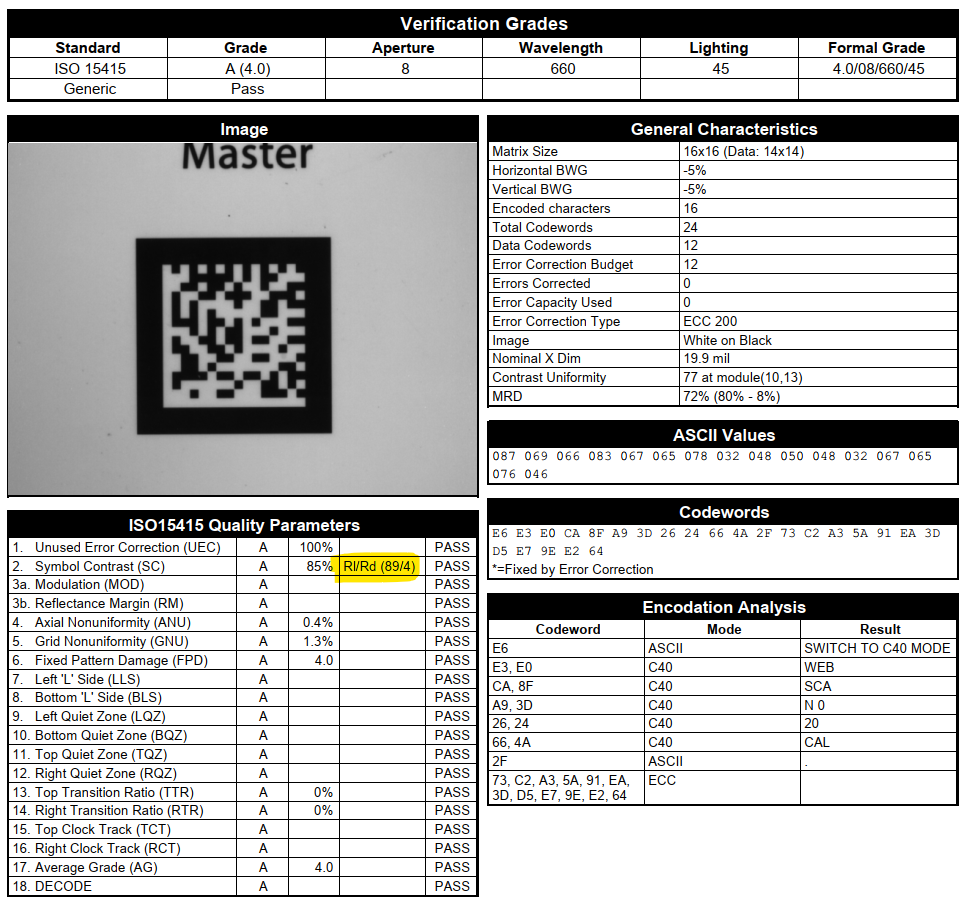
- Then enter these values (Rmax, Rmin, and Custom X Dimension) when calibration your SBG system – follow the rest steps from the verifier's manual:
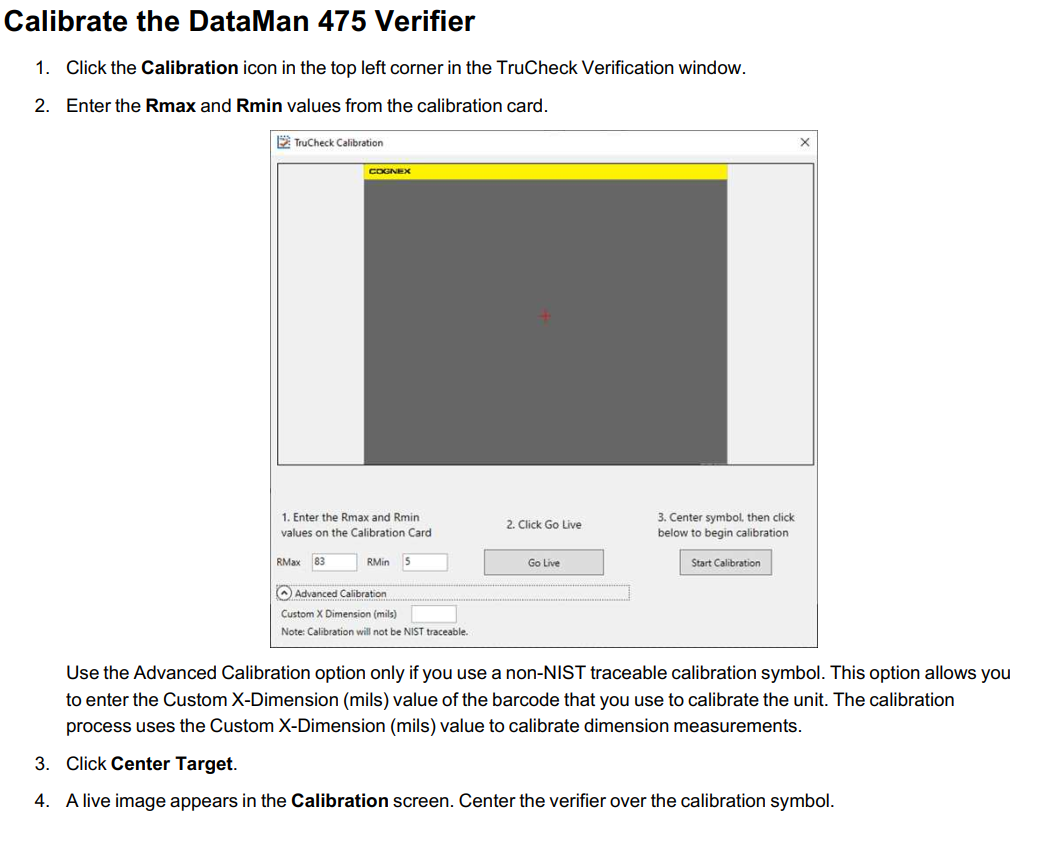
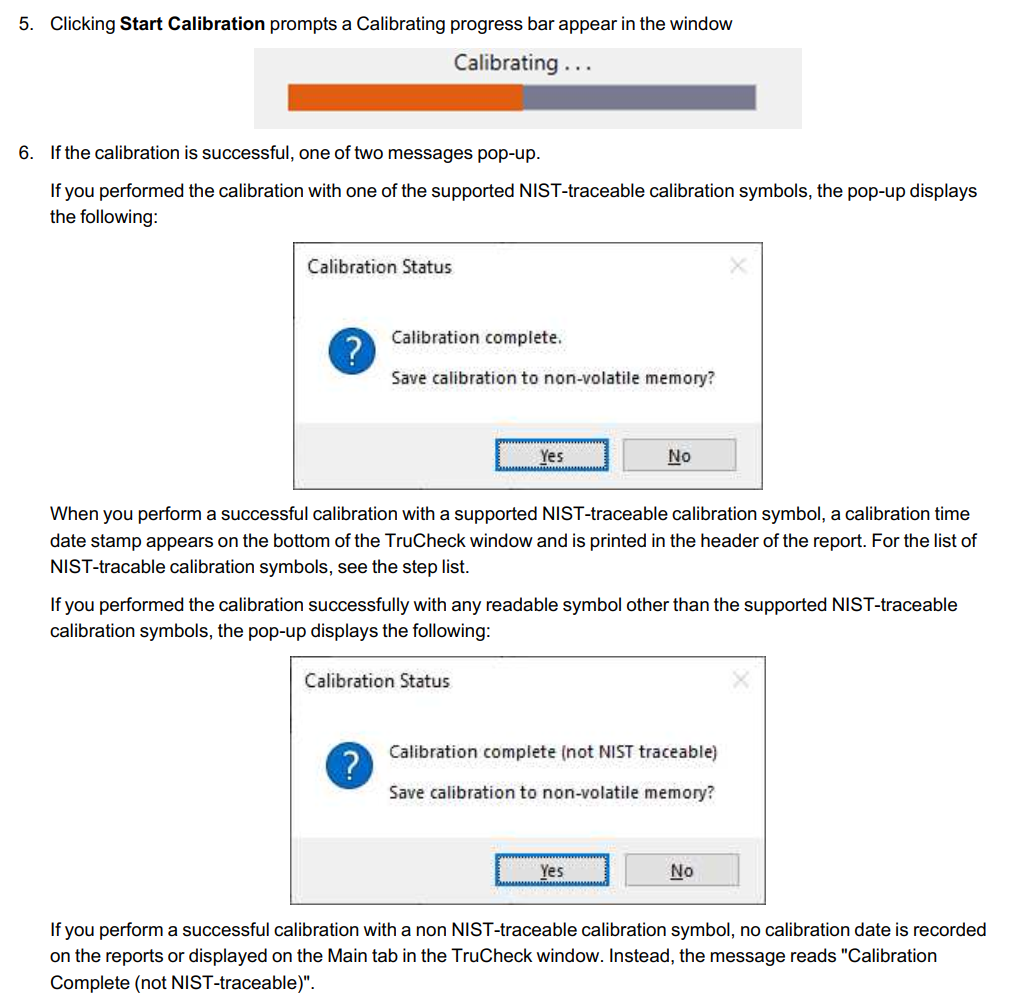
- For this case, the pop-up message will be: "Calibration complete (not NIST traceable). Save calibration to non-volatile memory?"
- If you select Yes, the unit saves the calibration for subsequent verifications and the values to non-volatile memory. If you power down the unit, the calibration persists.
If you select No, the unit saves the calibration for subsequent verifications but does not save the values to non-volatile memory. If you power down the unit, the calibration values are lost.
If the calibration failed, see step below. Otherwise, this is DONE here, congratulations!
- If the calibration failed, the pop-up displays the following message:
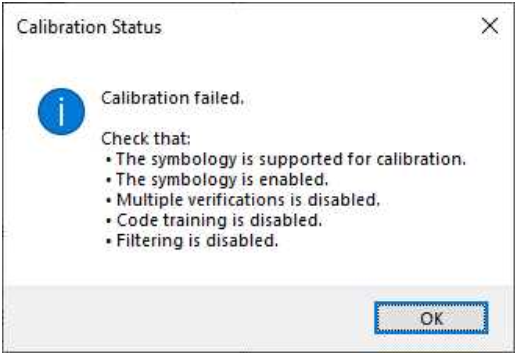
A failed calibration means that the calibration target was not detected. Ensure that:
- A valid, readable barcode is visible within the field of view and in focus.
- You have selected the region of interest that includes the barcode that you use for calibration.
- The calibration barcode symbology type is supported.
- The calibration barcode symbology type is enabled in Code Details tab in the Setup
- Tool window.
- The unit is not set for multiple verifications.
- No filtering is enabled.