

Details
Usually having a 'broken' license alongside an 'ok' license of the same Activation ID is not a problem but sometimes it does cause issues. If you are unable to remove the broken license via the Uninstall license feature in the Software Licensing Center due to an error, this guide will outline how to manually remove them.

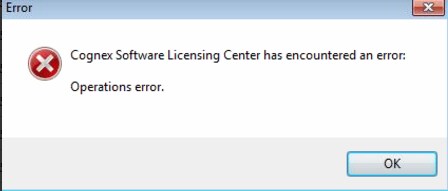
Step 1: *IMPORTANT* Make sure to uninstall all 'ok' licenses using the Uninstall license feature BEFORE beginning the following steps. This will ensure your licenses are returned to you in order to be able to re-install them after we are finished the process.
Step 2: Close the Software Licensing Center and stop all related services. Disable FLEXnet Licensing Service and the Cognex Software Licensing Service.
Step 3: Browse to C:\ProgramData\FLEXnet and delete any .data files in that folder. There should be a main .data file and possibly a backup (recommended to make a copy of these and move them elsewhere just in case).
Step 4: Restart FLEXNet Licensing Service and Cognex Software Licensing Service and open the Software Licensing Center. All broken licenses should be gone.
Step 5: Reinstall your licenses.
