

Details
Issue:
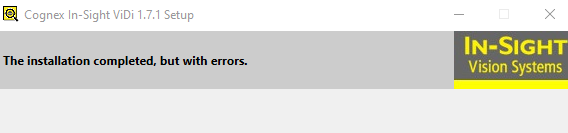
The installation ends with the message "The installation completed, but with errors".
Troubleshooting:
- Uninstall all previous versions of In-Sight ViDi?
- Delete all the folders listed below after uninstalling?
- C:\ProgramData\Cognex\In-Sight\In-Sight ViDi PC
- C:\Program Files\Cognex\In-Sight\In-Sight ViDi PC Runtime
- %AppData%\Cognex\In-Sight Vision Suite
- Documents\In-Sight Vision Suite\Logs
- Restart your PC
- then run the IS ViDi installer as Admin
If issue persists try to run the installer with verbose logging active:
Start by running the Installer for In-Sight ViDi normally
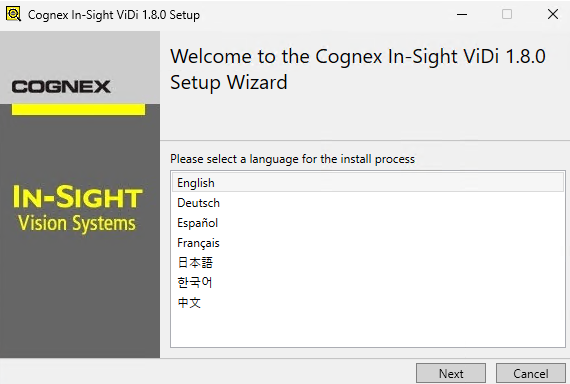
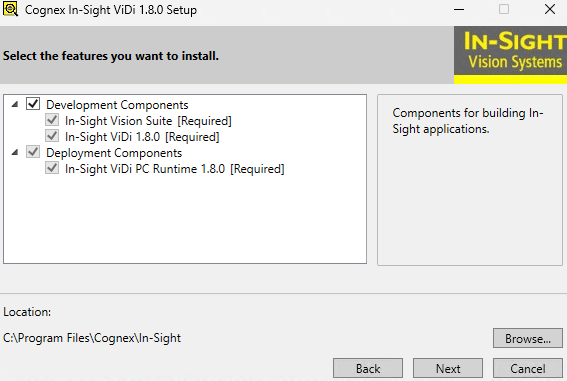
Proceed through the install process normally until you are asked to select the install locations and pause
Open Windows Explorer and open the %temp% directory
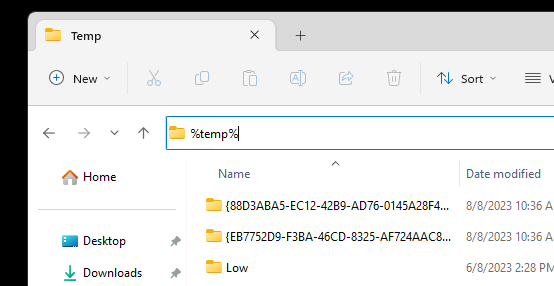
You should notice several .msi installers have appeared as well as some .cab files
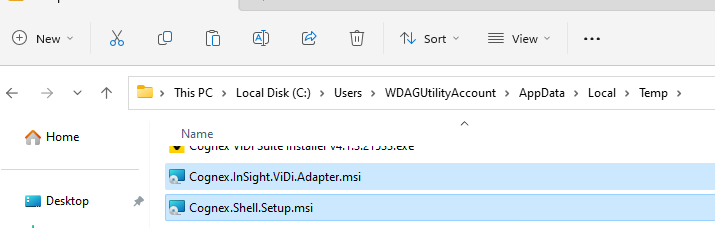
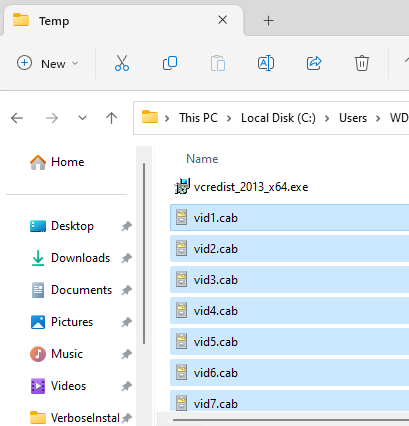
Copy these installers AND the .cab files to a different directory (where you have write access)
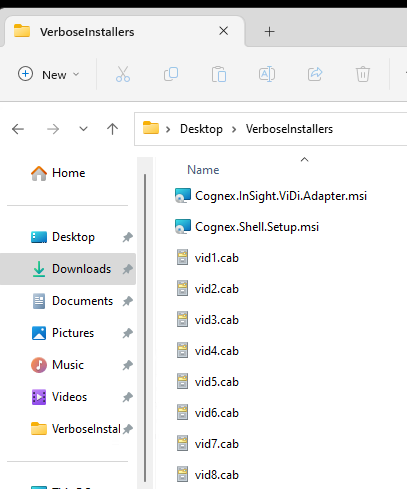
- Create a folder inside this location "logs"
- Open a command prompt and navigate to the directory
- cd <PATH TO DIRECTORY>
- First we will install the Shell with the following command:
- msiexec /i "Cognex.Shell.Setup.msi" /L*vx logs\ShellInstallLog.txt
- Next we will install the Adapter with the following comand:
- msiexec /i "Cognex.InSight.ViDi.Adapter.msi" /L*vx logs\VidiAdapter.txt
- If issue persists please send the two output txt files inside the logs folder to Cognex Tech Support.
