

Details
Occasionally, when we run into problems with our systems, the technical support team may request additional information to help them investigate the issue more thoroughly. In such cases, they often rely on a special type of diagnostic report known as a Support Feedback report. This report provides detailed data that helps the support team analyze and resolve the issue more effectively.
To begin the process, you’ll first need to launch the In-Sight Vision Suite software. Once the application is open, select the camera for which you'd like to generate the report. This step is important, as the report needs to be tied to the specific device experiencing the issue. After selecting the camera, look for the Support Feedback option within the interface and click it to proceed.
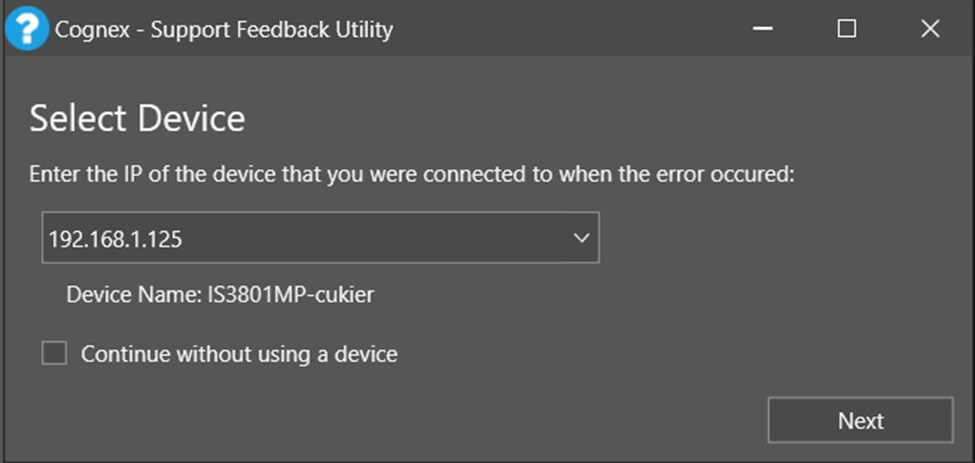
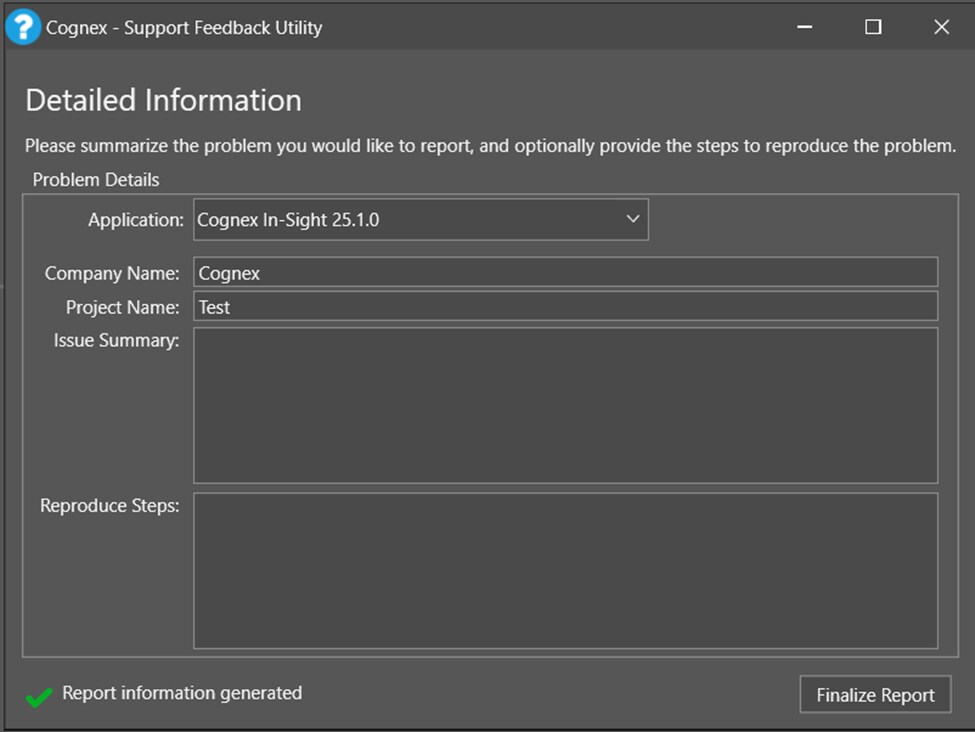
At this stage, the system will display a list of available cameras. It's essential to make sure your intended camera appears in this list. If it does, click Next to move forward. You will then be prompted to enter additional information related to the issue. It’s highly recommended to provide as much detail as possible here, including any observed symptoms, error messages, or unusual behavior, as this information can greatly assist the support team in their analysis.
Once you’ve completed the form, click Finalize Report. The system will generate the report, which may take a few minutes depending on the amount of data involved.
When the process is complete, you have the option to save the report. Use Save Report As to store the file in a convenient location on your computer.
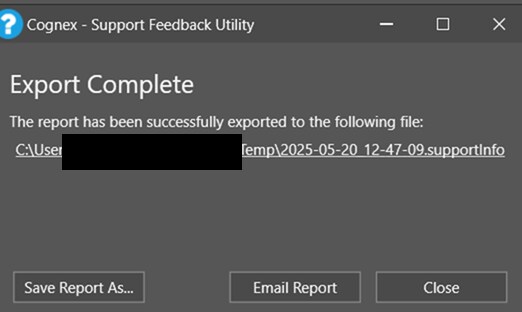
- After that, send the report file to Cognex Support, so they can begin their review and assist you further.

