

Question
How can I check what firmware version my CC24 communication card has and how can I upgrade it?
Answer
Different vision software releases might require different firmware versions on the CC24 communication card. To ensure maximum compatibility, it is recommended to upgrade the firmware of the CC24 card to the version that was released with the installed Cognex VisionPro version.
Checking the CC24 firmware version that was released in Cognex VisionPro
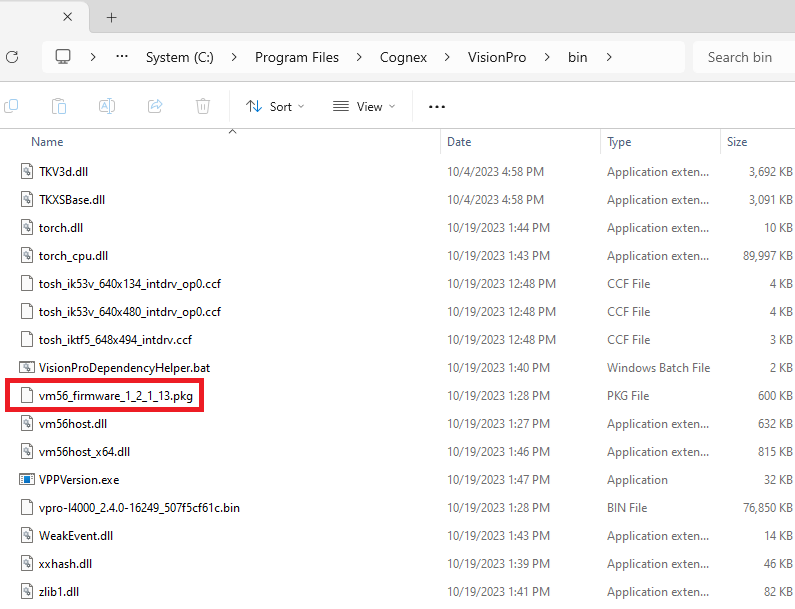
Open File Explorer and navigate to the below folder:
%VPRO_ROOT%\binYou can search for the file that starts with vm56_firmware, and the file name will have the firmware version. In the below example, this is 1.2.1.13:
Checking the firmware version that is currently installed on the CC24 communication card
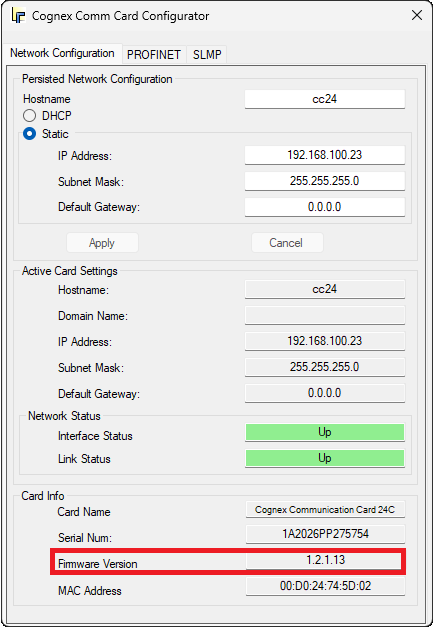
There are two ways of doing that.
Launch Cognex Comm Card Configurator and the firmware version will be displayed:
Open Command Prompt, type the below, and press Enter:
"%VPRO_ROOT%"\bin\fwuphost.exe --info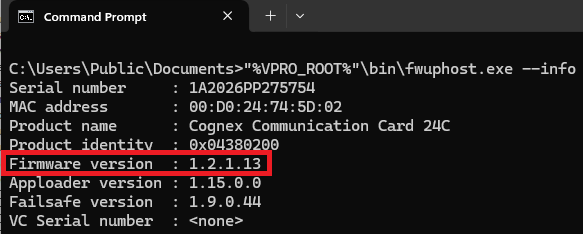
Upgrading the firmware on the CC24 communication card
If the current firmware of the CC24 card does not match the firmware that is included in the current VisionPro installation, then upgrading the CC24 card's firmware is recommended to ensure maximum compatibility.
Open Command Prompt, type the below where vm56_firmware_X_X_X_X is replaced by the filename that can be found in the %VPRO_ROOT%\bin folder, then press Enter:
"%VPRO_ROOT%"\bin\fwuphost.exe --pkg "%VPRO_ROOT%"\bin\vm56_firmware_X_X_X_X.pkgThe "Firmware update completed successfully" should appear in a few seconds:

