Cognex Support Hub


How to Create an Audit Logging Server for In-Sight Vision Systems Cameras
This guide is an example on how to create an Audit Logging Server for In-Sight Vision Systems cameras.
27.05.2025
This guide is an example on how to create an Audit Logging Server for In-Sight Vision Systems cameras.
Is possible to use an external Audit server to save logging from In-Sight Vision Systems cameras?
Yes, it is possible to use an external Audit server to save logging from In-Sight Vision Systems cameras.
For this example, we'll use Fluentd package to build our Log server. You can download the latest version according to your operating system.
At the release of this article, the latest package is 5.2.0-x64.
Also, use the latest In-Sight Vision Systems version.
At the release of this article, the latest one is In-Sight Vision Systems 24.4.2.
The PC with Fluentd and the camera must be on the same Subnet:
Once Fluentd is installed, create a new Files folder in C:\opt\fluent\ and paste the three files attached to this article (Config, Certification, and Key files).
Select Audit Logging from the Home page under Utilities.
A new window will appear.
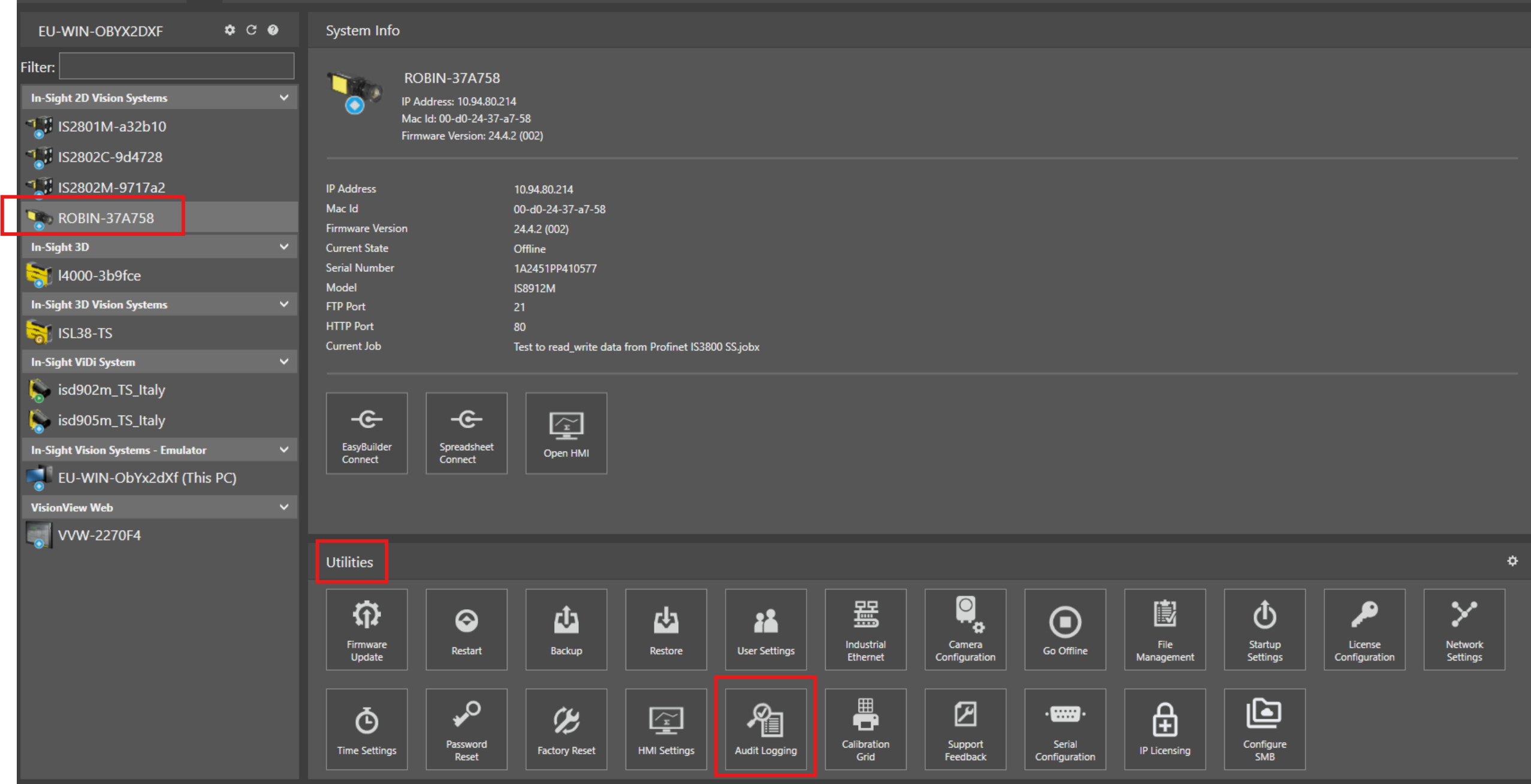
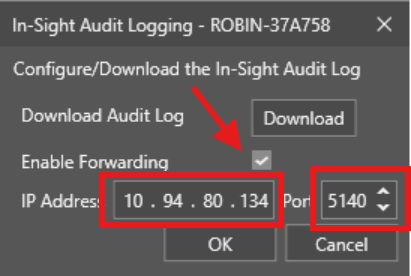
Enter the IP address of your PC where Fluentd is installed and set the port to 5140.
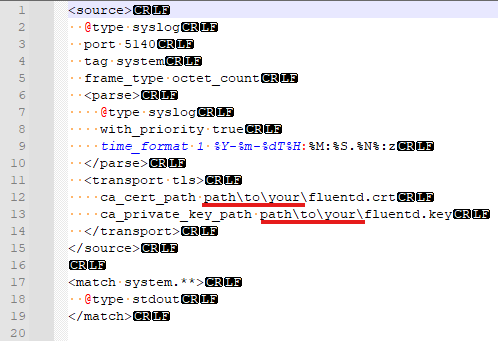
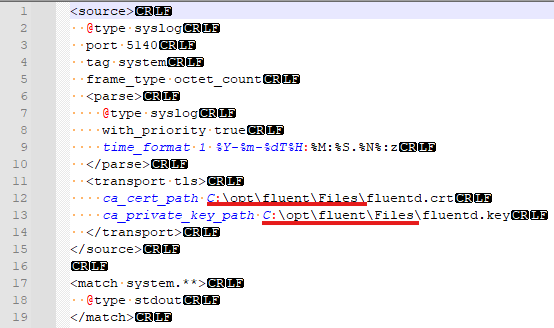
After installing Fluentd and copying the files, open fluentd.conf with a text editor and change the path to the location of the other two files.
In this example, original configuration was:
The new configuration should look like:
Once saved, open the fluentd folder and run the fluent-package-prompt file.
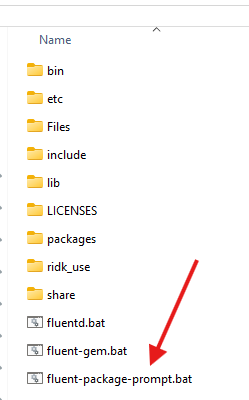
Open a terminal in this folder (right click and select Open in Terminal) and write this command:
.\fluentd -c "C:\opt\fluent\Files\fluentd.conf"
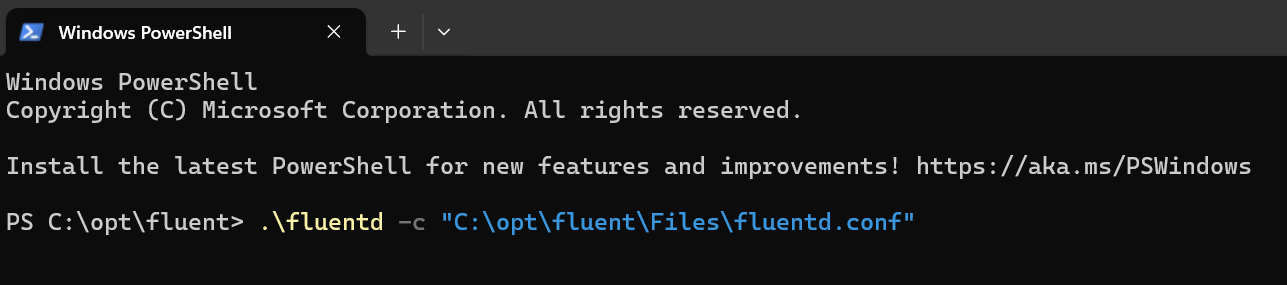
The server will start and be ready,
Note: After starting, every modification for camera will be reflected in the logging server.

